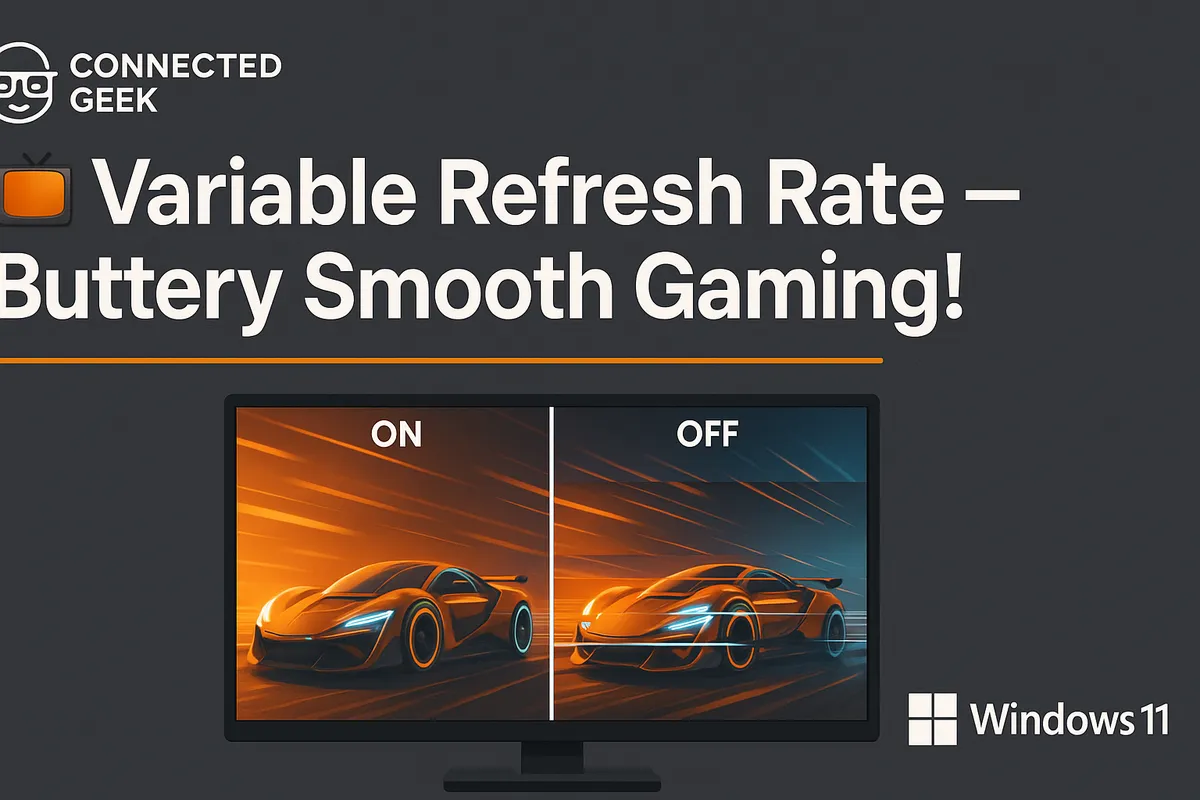
Windows 11 Variable Refresh Rate: Stop Screen Tearing for Good
Windows 11, Gaming, Variable Refresh Rate
Variable Refresh Rate in Windows 11: Smoother Frames, Less Tearing
Variable Refresh Rate (VRR) in Windows 11 is designed to tackle one of the most distracting visual problems in gaming and fast-paced applications: screen tearing. By intelligently syncing your monitor’s refresh behavior with what your graphics hardware is actually outputting, VRR helps your gameplay feel smoother, more responsive, and far less jittery, without needing deep technical knowledge or complex software setups.
What Is Screen Tearing and Why Does It Happen?
Screen tearing is that jarring effect where you see a horizontal “split” across the screen, with the top and bottom portions showing different parts of the scene or different frames. It is most noticeable when you quickly pan the camera in a game, rotate your view, or move through detailed environments at high speed. Straight lines, such as door frames or horizon lines, appear broken or misaligned for a moment, pulling you out of the experience.
This happens because your monitor and your GPU are not in sync. A typical monitor refreshes at a fixed rate, such as 60 Hz, 120 Hz, or 144 Hz. That means it redraws the screen that many times per second, on a strict schedule. Your GPU, on the other hand, renders frames whenever it can, depending on how demanding the scene is and how powerful your hardware is. When the GPU finishes a new frame while the monitor is still in the middle of drawing the previous one, the display can end up showing part of one frame and part of the next at the same time. The result is a visible tear line where those two frames meet.
How Variable Refresh Rate Fixes Tearing in Windows 11
Variable Refresh Rate changes the relationship between your GPU and your monitor. Instead of the display refreshing at a rigid, fixed interval, VRR allows the refresh timing to adapt to the GPU’s output. In simple terms, the monitor waits for the GPU to finish a frame, then refreshes to show that entire frame in one go, rather than blindly redrawing at its own fixed schedule. This synchronization dramatically reduces, and often eliminates, visible tearing because you are not mixing portions of two different frames in a single refresh.
In Windows 11, VRR works as a system-level feature that compatible games and apps can tap into. When enabled, it allows the operating system and graphics stack to coordinate frame delivery with the monitor’s refresh window. This is especially useful in scenarios where your frame rate fluctuates, such as demanding titles that might swing between 50 and 120 frames per second depending on what is happening on screen. Instead of those fluctuations translating into tearing or stutter, VRR smooths out the experience by continuously aligning refreshes with completed frames.
How to Enable Variable Refresh Rate in Windows 11
Turning on VRR in Windows 11 is straightforward, as long as your hardware supports it. You do not need third-party utilities or hidden registry tweaks; everything is handled through the standard Settings app. Here is the exact path:
- Open Settings in Windows 11.
- Go to System → Display.
- Scroll down and select Graphics.
- Click Change default graphics settings.
- Find the Variable refresh rate option and toggle it ON.
Once enabled, Windows 11 will attempt to use VRR with supported games and apps, particularly those running in full-screen or borderless windowed modes. If a title is not coded to take advantage of VRR, you will not see a difference, but many modern games are built with variable refresh technologies in mind, so you can usually expect a tangible reduction in tearing and judder when the feature is active.
Hardware Requirements: You Need a VRR‑Capable Monitor
VRR in Windows 11 is not purely a software trick; it relies on your display hardware supporting variable refresh behavior. To benefit from it, you need a VRR-capable monitor or TV connected to your PC. Many modern gaming monitors advertise features like “Adaptive Sync,” “FreeSync,” or “G-Sync Compatible,” which typically indicate some level of VRR support. Check your monitor’s specifications for terms such as variable refresh rate, adaptive sync, or a stated refresh range (for example, 48–144 Hz VRR).
Your connection type also matters. VRR is usually available over DisplayPort and, on many newer displays, over HDMI as well. Using older cables or adapters can limit or disable VRR support, even if both your GPU and monitor are technically capable. It is a good idea to ensure your graphics drivers are up to date and that your monitor is running at its advertised high refresh rate in the Windows display settings before you test VRR in games.
How Windows 11 VRR Differs from G‑Sync and FreeSync
If you are familiar with NVIDIA G‑Sync or AMD FreeSync, you might wonder how Windows 11’s VRR setting fits in. G‑Sync and FreeSync are vendor-specific implementations of variable refresh technology. They are typically configured through your GPU’s control panel and may rely on dedicated hardware (in the case of some G‑Sync monitors) or standards like VESA Adaptive-Sync (used by many FreeSync and G‑Sync Compatible displays). These technologies handle the timing handshake directly between the GPU driver and the monitor.
Windows 11’s VRR toggle, by contrast, is an operating-system-level feature that works alongside those technologies rather than replacing them. It provides a unified way for supported games and apps to request variable refresh behavior through the Windows graphics stack. On a system with a FreeSync or G‑Sync Compatible display, you might have VRR enabled in both the GPU control panel and Windows. In many cases, they complement each other, with the driver handling the low-level signaling and Windows coordinating when frames are presented. The key difference is that G‑Sync and FreeSync are branded, hardware-validated ecosystems, while Windows VRR is a more generic, platform-wide mechanism for enabling the same underlying concept: synchronizing the monitor’s refresh rate to the GPU’s frame output to reduce tearing and stutter.
Bringing It All Together
Screen tearing is a byproduct of a simple mismatch: a fixed-refresh display and a variable-rate GPU. Variable Refresh Rate in Windows 11 tackles that mismatch by letting your monitor refresh when a new frame is actually ready, not just when the clock says it is time. With a VRR-capable monitor, a proper cable, and the feature switched on under Settings → System → Display → Graphics → Change default graphics settings → Variable refresh rate, you can enjoy smoother, more consistent visuals in many modern games. Whether or not you also rely on G‑Sync or FreeSync, Windows 11’s VRR support is a valuable tool in your arsenal for cleaner motion and a more immersive gaming experience.
