Windows 11 Accessibility Shortcuts Cheat Sheet
Windows 11, Accessibility, Keyboard Shortcuts
Windows 11 Accessibility Keyboard Shortcuts: A Handy Cheat Sheet
Windows 11 comes with powerful accessibility tools built right in, and the fastest way to use them is with keyboard shortcuts. Whether you have a visual, hearing, or mobility difference, or you just like making your PC easier and more comfortable to use, these shortcuts can save time and reduce strain. Keep this friendly cheat sheet nearby, and feel free to share it with anyone who might benefit.
Magnifier: Zoom In, Zoom Out, and Close
The Magnifier makes everything on your screen bigger, which is especially helpful for small text or detailed images. Instead of squinting or leaning closer to your monitor, let Windows do the zooming for you.
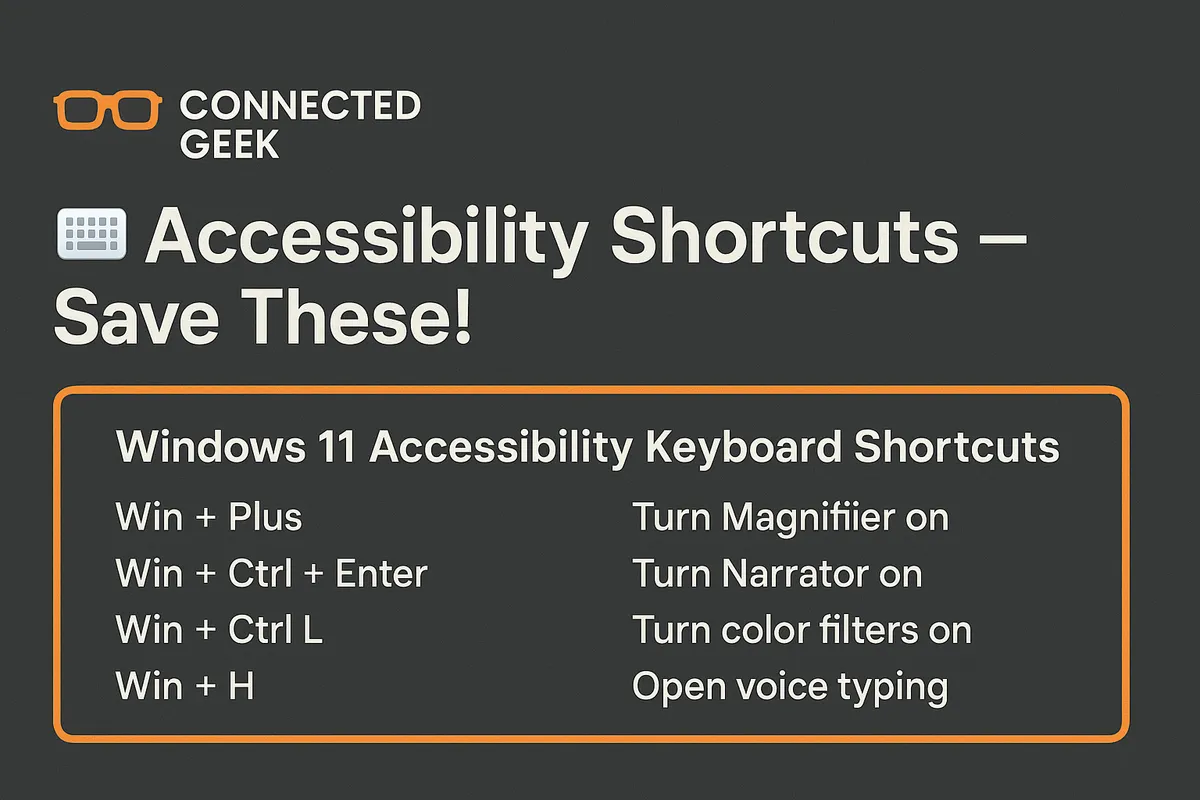
- Win + Plus (+) – Magnifier zoom in Press the Windows logo key and the Plus key together to turn on Magnifier and zoom in. Each press increases the zoom level, so you can stop when everything looks comfortable to read.
- Win + Minus (-) – Magnifier zoom out Use the Windows logo key and the Minus key to zoom back out. This is perfect when you only need a quick close‑up and want to return to your normal view without digging through settings.
- Win + Esc – Close Magnifier When you are done, press the Windows logo key and Esc to close Magnifier completely. This instantly returns your display to its standard view and stops the tool from running in the background.
Narrator: Screen Reading Made Simple
Narrator is Windows 11’s built‑in screen reader. It reads text aloud, announces buttons and links, and helps you move around your PC without relying on sight alone. It is useful for blind or low‑vision users, and also for anyone who prefers to listen rather than stare at a screen.
Win + Ctrl + Enter – Toggle Narrator on or off Press the Windows logo key, Ctrl, and Enter together to start Narrator. Use the same shortcut again to turn it off. Because it is a simple toggle, you can quickly switch between listening and reading whenever you like.
Live Captions: On‑Screen Text for Any Audio
Live Captions automatically turn spoken audio on your PC into text on the screen. They are great if you are deaf or hard of hearing, watching videos without sound, or working in a noisy or quiet environment where audio is not ideal.
Win + Ctrl + L – Live Captions toggle Use this shortcut to open or close Live Captions. The first time, Windows may download a small speech‑to‑text package. After that, you can quickly switch captions on whenever you need a clearer understanding of what is being said.
Voice Typing: Let Your Voice Do the Work
Tired of typing long emails or notes? Voice Typing lets you dictate text instead. It is handy if you type slowly, experience pain when using the keyboard, or simply think faster than you can type.
Win + H – Start Voice Typing Press the Windows logo key and H to open the Voice Typing toolbar. Click the microphone button or start speaking if it is set to auto‑listen. Your words will appear in the text field you have selected, making hands‑free writing much easier.
Colour Filters: Make the Screen Easier to See
Colour Filters change how colours appear on your screen. They can help if you have colour blindness or if certain colour combinations cause eye strain. Windows offers presets for common colour vision types, such as red‑green or blue‑yellow deficiencies, as well as a greyscale option.
Win + Ctrl + C – Colour Filters toggle After you choose your preferred filter in Settings once, use this shortcut to turn it on or off instantly. It is a quick way to switch between a tailored view and the standard colour scheme, depending on what you are doing.
Save, Share, and Make Accessibility Your Default
These Windows 11 accessibility shortcuts can make everyday tasks more comfortable, less tiring, and far more inclusive. Consider bookmarking this cheat sheet, printing it out, or saving it as a note on your desktop. And please share it with friends, family, colleagues, or students who might appreciate a little extra help from their PC. Accessibility features are not just for a few people—they are useful for everyone, and knowing these shortcuts is a simple way to get more from Windows 11.
Meta Title: Windows 11 Accessibility Keyboard Shortcuts Cheat Sheet Meta Description: Learn essential Windows 11 accessibility keyboard shortcuts for Magnifier, Narrator, Live Captions, Voice Typing, and Colour Filters. Save and share this friendly cheat sheet. Meta Keywords: Windows 11 accessibility shortcuts, Magnifier shortcut, Narrator shortcut, Live Captions Windows 11, Voice Typing shortcut, Colour Filters toggle, Win key shortcuts
