Master Snap Layouts in Windows 11 for Productivity
Windows 11, Productivity, Snap Layouts
A Friendly Guide to Snap Layouts in Windows 11
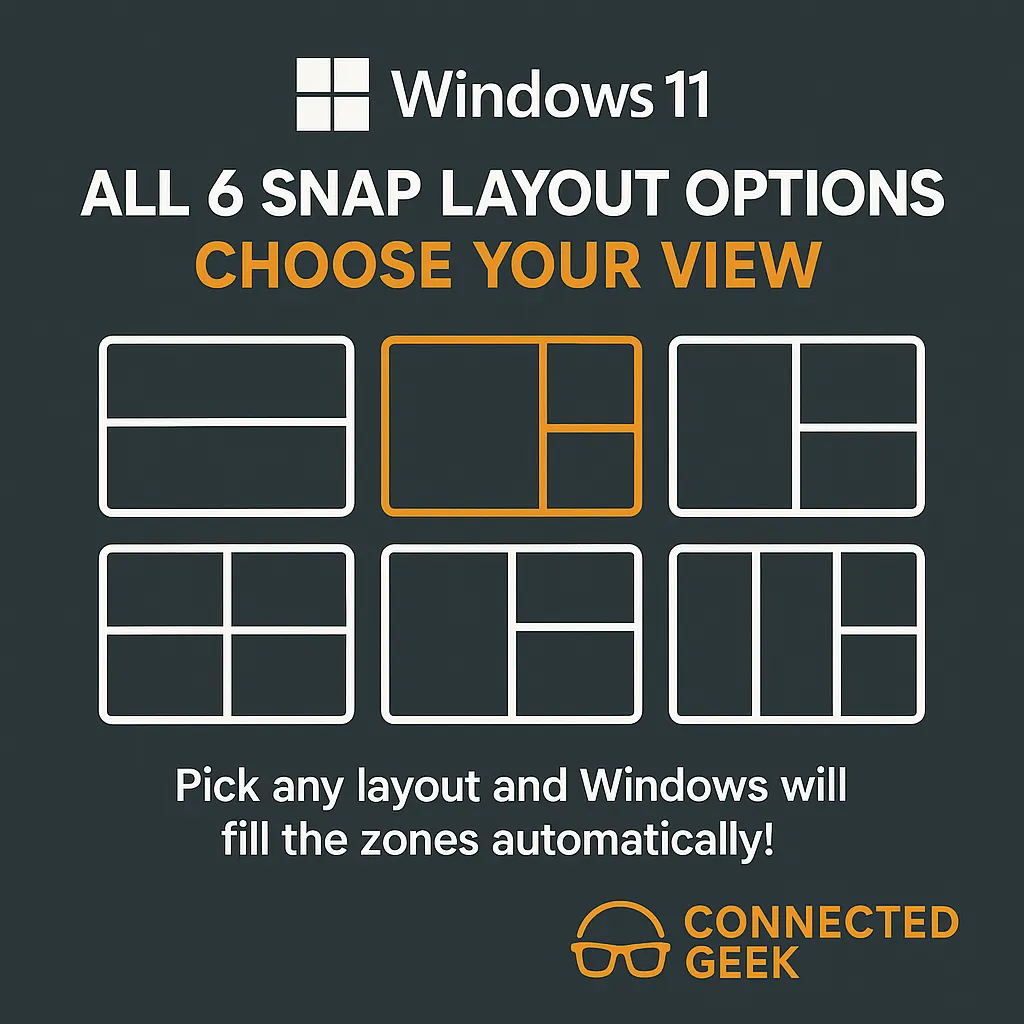
Windows 11’s Snap Layouts make arranging your apps on screen surprisingly easy. Instead of dragging windows around and hoping they line up neatly, you can choose from ready‑made layouts that fit different ways of working. Let’s walk through each option and figure out which layout best matches your daily workflow.
How Snap Layouts Work (Quick Refresher)
To see Snap Layouts, hover your mouse over the maximize button of any window (the square in the top‑right corner). A small menu pops up showing different grid patterns. Click the zone where you want the current app to go, then choose what fills the remaining spaces. You can also use Win + Z to open the same menu with the keyboard.
1. Side by Side (2 Windows)
The classic side‑by‑side layout splits your screen into two equal halves. It’s simple, clean, and perfect when you only need two apps visible at once. Many people use this to keep a browser open on one side and a document or email on the other. It’s also great for comparing two versions of a file or referencing notes while you type. If your monitor isn’t very wide, this layout keeps each window large enough to stay comfortable to read.
2. Wide Plus Narrow (2 Windows)
Wide plus narrow is like side by side, but one window gets more space. Use this when one app is your main focus and the other is just there for quick reference. For example, you might give a spreadsheet or design tool the wide area while keeping chat, notes, or a playlist in the narrow strip. It’s especially helpful on ultra‑wide monitors where equal halves can make everything feel stretched. Choose this layout if you often think, “I really just need one big window and a helper on the side.”
3. Three Equal Columns (3 Windows)
Three equal columns divide the screen into thirds, giving each app the same amount of space. This layout shines on large or ultra‑wide displays. It’s ideal for people who juggle multiple streams of information at once, such as keeping email, a browser, and a task manager all visible. If you like to see your calendar, project board, and communication tools together, this layout keeps everything in view without constant Alt‑Tabbing. Just keep in mind that text can feel cramped on smaller screens with this setup.
4. Quarter Grid (4 Windows)
The quarter grid splits your display into four equal rectangles, one in each corner. Think of it as a mini command center. It works well if you monitor dashboards, chats, and reference material all at the same time. For example, you might keep a browser, file explorer, music app, and messaging app all open together. This layout is most comfortable on higher‑resolution screens; on smaller laptops, four windows can feel a bit tight and may require more zooming or scrolling than you’d like.
5. Wide Plus Two Stacked (3 Windows)
In the wide plus two stacked layout, one large window sits on the left (or right), and two smaller windows stack on top of each other on the other side. This is perfect when you have one “primary” workspace and two supporting apps. Picture a big editing window next to stacked chat and notes, or a main browser beside stacked music and calendar. It’s a fantastic choice for creators, students, or anyone who likes a main canvas with quick‑glance tools nearby.
Choosing the Right Layout for Your Workflow
Not sure where to start? Here’s a friendly rule of thumb:
- Use side by side for simple two‑app tasks like reading and writing.
- Choose wide plus narrow when one app clearly deserves center stage.
- Try three equal columns or quarter grid if you’re monitoring several things at once on a big screen.
- Pick wide plus two stacked when you have one main project and two constant companions.
The nice thing is that you don’t have to commit forever. Experiment with different Snap Layouts during your day and notice when your screen feels calm versus cluttered. With a bit of practice, you’ll quickly find the layout that makes Windows 11 feel tailored to the way you like to work.
SEO Title: Windows 11 Snap Layouts Explained: Pick the Best Layout for Your Workflow
Meta Description: Learn how to use all five Snap Layout options in Windows 11 — side by side, wide plus narrow, three columns, quarter grid, and wide plus two stacked — and discover which layout fits your workflow best.
