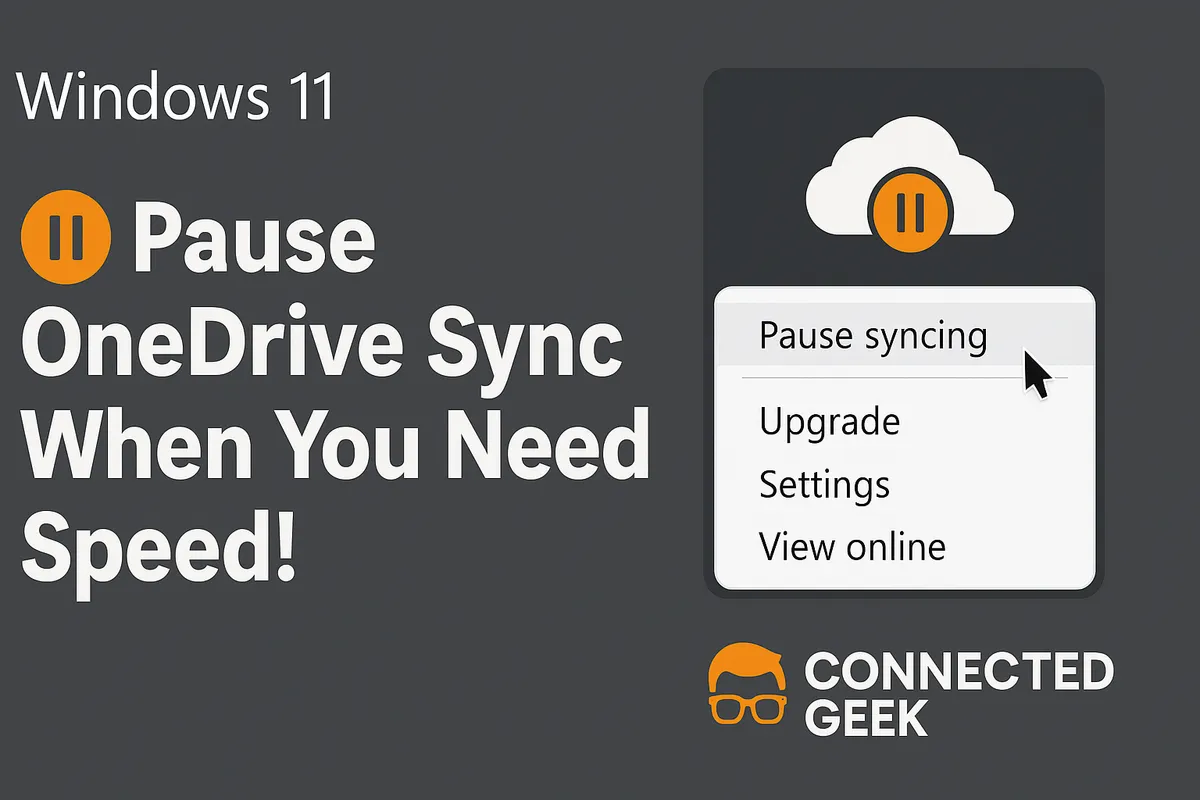
How to Pause or Throttle OneDrive Sync for Better Bandwidth
Windows 11, OneDrive, Remote Work, Gaming, Bandwidth
How to Pause or Throttle OneDrive Sync Bandwidth in Windows 11 (Without Killing Your Connection)
If your video calls freeze, your game pings spike, or your shared Wi‑Fi suddenly feels like dial‑up, OneDrive might be quietly hogging your connection in the background. The good news: Windows 11 gives you simple ways to pause or slow OneDrive syncing so you can protect your bandwidth when it matters most—without turning OneDrive off completely.
Why OneDrive Can Wreck a Good Connection (Especially for Remote Work and Gaming)
OneDrive is great for keeping your files backed up and available on every device. But it does this by constantly syncing changes—uploading new files and downloading updates in the background. On a fast, uncongested connection, you may never notice. On shared or slower Wi‑Fi, though, that background syncing can be the difference between a smooth Teams call and robotic audio that cuts in and out.
This is especially painful for:
- Remote workers on Teams, Zoom, or Google Meet who need stable video and audio for meetings and presentations.
- Gamers who care about latency and ping and can feel every hiccup in their connection during online matches.
- Anyone on shared Wi‑Fi (family, roommates, office) where multiple people are streaming, downloading, or working at once.
One key detail many people miss: your upload speed is usually much lower than your download speed, especially on home broadband. OneDrive’s background uploads can easily saturate that smaller upload pipe. When that happens, your outgoing video, audio, and game data all have to fight for scraps—causing lag, stutter, and disconnects even if your download speed looks perfectly fine on a speed test.
Option 1: Quickly Pause OneDrive Syncing for 2, 8, or 24 Hours
If you just need a temporary break from syncing—say you’re about to jump into a client presentation or a competitive match—the fastest solution is to pause OneDrive entirely. This stops both uploads and downloads until the pause ends, then everything resumes automatically. No need to remember to turn it back on later.
How to pause OneDrive syncing from the taskbar
- On your Windows 11 taskbar, look at the right side of the screen (the system tray area). Find the OneDrive cloud icon. It may be a white or blue cloud, depending on your account type. If you don’t see it, click the small up arrow to show hidden icons.
- Click the OneDrive cloud icon once to open the OneDrive status window.
- In the window that appears, click “Pause syncing”.
- Choose how long to pause: 2 hours, 8 hours, or 24 hours.
Once you pick a duration, OneDrive stops syncing immediately. You’ll usually see a “Syncing paused” message when you click the icon again, along with how much time is left on the pause. When the timer expires, syncing resumes automatically. You don’t have to remember to unpause it, which is perfect if you’re the kind of person who pauses things and forgets they exist for three days.
When to use the quick pause option
- During important video calls (Teams, Zoom, Meet): Pausing ensures OneDrive won’t suddenly start uploading a batch of large files in the middle of your presentation and trash your audio quality. It’s a simple way to protect the call without digging into settings.
- Before online gaming sessions: If you’re about to join a raid, ranked match, or tournament, pausing sync helps keep your ping stable. You can set it to 8 hours if you know you’ll be playing most of the day or evening.
- During live presentations or screen shares: Whether you’re presenting to a client or leading a workshop, pausing sync minimizes the chance of lag while you’re sharing your screen or streaming video.
The pause option is ideal when you want a clean, distraction‑free connection for a limited window of time. However, if you want OneDrive to keep working in the background—just less aggressively—then bandwidth throttling is the better tool.
Option 2: Throttle OneDrive Bandwidth for More Precise Control
Pausing is all‑or‑nothing. Bandwidth throttling gives you fine‑grained control over how much of your connection OneDrive can use at any given time. You can set separate limits for upload and download speeds, measured in KB/s (kilobytes per second). This way, OneDrive can keep syncing your files, but it won’t be allowed to overwhelm your network.
How to set upload and download limits in OneDrive on Windows 11
- Click the OneDrive cloud icon in the Windows 11 taskbar (system tray) to open the OneDrive panel.
- In the panel, click the gear icon (Settings) in the top‑right corner.
- From the menu that appears, select “Settings” to open the full OneDrive settings window.
- In the settings window, go to the “Network” tab. This is where you control bandwidth usage.
- Under the Network tab, you’ll see options to set:
- Upload rate limit (in KB/s)
- Download rate limit (in KB/s)
- Choose “Limit to” for uploads and/or downloads, then enter a number in KB/s that represents how much bandwidth you want OneDrive to use. For example, 200 KB/s, 500 KB/s, or 1000 KB/s.
- Click OK or Apply to save your changes. OneDrive will immediately start using the new limits.
Why upload throttling matters more than you think
The most important setting in this Network tab for remote workers and gamers is the upload rate limit. Here’s why:
- Your ISP often gives you much less upload capacity than download. It’s common to see 200 Mbps down but only 10–20 Mbps up at home. That smaller upload pipe fills up quickly when OneDrive is pushing large files to the cloud.
- Video calls and online games rely heavily on upload traffic. Your camera feed, microphone audio, and game actions are all being sent out constantly. If OneDrive is allowed to use the full upload bandwidth, everything else has to squeeze through whatever is left over.
- When upload is saturated, you’ll see lag, delays, and packet loss even if your download speed seems perfectly fine. This is why your speed test might show 200 Mbps down, but your Zoom call still sounds like a robot underwater.
By setting a reasonable upload limit for OneDrive—say 10–30% of your total upload speed—you make sure there’s always bandwidth available for your calls and games. OneDrive still syncs your files, just at a controlled, predictable pace that doesn’t wreck your real‑time tasks.
What about download throttling?
The download rate limit is also useful, especially on slower or shared connections. If OneDrive is pulling down a lot of large files, it can compete with streaming, game downloads, or other people’s browsing. Limiting downloads keeps your connection more balanced for everyone using the network.
That said, for most remote workers and gamers, upload throttling is the hero setting. It’s the one that directly protects your outgoing video, audio, and game traffic from being drowned out by background syncs.
When Should You Pause vs. Throttle OneDrive?
Both tools—quick pause and bandwidth throttling—are valuable, but they shine in different situations. Here’s how to decide which to use based on common remote work and gaming scenarios.
During video calls (Teams, Zoom, Meet, etc.)
- If you’re about to join a high‑stakes call—job interview, client pitch, all‑hands presentation—use the quick pause option. Choose 2 or 8 hours depending on how long your meeting block is. This guarantees OneDrive won’t interfere at all while you’re on camera.
- If you’re on back‑to‑back calls all day, set a permanent upload limit in the Network tab. That way, OneDrive can keep syncing in the background, but your calls always have reserved bandwidth. You don’t have to remember to pause and unpause between meetings.
While online gaming for lower latency
- For serious gaming sessions (ranked matches, tournaments, raids), pausing sync for 2–8 hours is the safest move. It removes a whole category of potential lag from the equation so you can focus on gameplay, not your connection graph.
- If you game casually but regularly, consider setting a modest upload limit (for example, 100–300 KB/s) so OneDrive never spikes your ping, even when you forget it’s running. This is especially helpful if your PC is constantly saving clips or screenshots into a OneDrive‑backed folder.
On slow or shared Wi‑Fi connections
If you’re working from a café, a hotel, or a crowded home network where multiple people are streaming and gaming, OneDrive can easily become the uninvited bandwidth hog. In these cases:
- Set a conservative upload limit in the Network tab so OneDrive only uses a small slice of the available bandwidth at all times. This keeps the connection usable for everyone, not just your sync queue.
- During busy periods—like evening streaming hours—use the pause option when you need a temporary boost for a call or game.
When uploading or downloading large files elsewhere
Maybe you’re sending a huge video to a client via WeTransfer, downloading a new AAA game, or pulling down a massive dataset. These tasks already put heavy pressure on your network. Adding OneDrive’s own sync traffic on top can slow everything to a crawl.
- For time‑sensitive transfers, pause OneDrive syncing for a couple of hours so your upload or download can finish as quickly as possible.
- If you frequently deal with large files, set permanent upload and download limits so OneDrive is always “polite” and never takes more than its fair share of your bandwidth.
During live presentations and screen sharing
Presenting live—especially while sharing your screen, playing embedded videos, or demoing software—demands a steady connection. Any sudden spike in background traffic can cause delays or blurry slides for your audience.
- Use the quick pause feature 5–10 minutes before your presentation starts. Choose 2 hours to cover prep time, the session itself, and a little buffer for Q&A.
- If you present regularly, combine this with a reasonable upload limit so even if you forget to pause, OneDrive never saturates your upstream bandwidth.
Practical Tips for Choosing Good Bandwidth Limits
Not sure what numbers to type into those KB/s boxes? Here’s a simple, practical way to choose limits that work well for most remote workers and gamers, without needing to be a network engineer.
- Run a quick speed test (for example, using Speedtest.net) when you’re not doing anything heavy online. Note your upload speed in Mbps.
- Convert that upload speed to KB/s. Roughly, 1 Mbps ≈ 125 KB/s. So 10 Mbps upload is about 1250 KB/s.
- Give OneDrive 10–30% of that as a limit. On a 10 Mbps upload, that’s around 125–375 KB/s. Start in the middle—say 250 KB/s—and see how it feels.
If your calls and games feel smooth and OneDrive still syncs at a reasonable pace, you’ve found a good balance. If sync feels too slow and you rarely notice lag, you can gradually increase the limit. If you still see call issues, lower the limit a bit more or pause during your heaviest sessions.
Make OneDrive Work for You, Not Against You
OneDrive is a powerful ally for remote workers and gamers who move between devices and need their files everywhere. But left unchecked, its background syncing can quietly derail your most important moments—key meetings, clutch game rounds, or live presentations—by saturating your upload bandwidth and causing lag and stutter when you can least afford it.
The fix doesn’t require advanced networking skills. With just a few clicks you can:
- Use the quick “Pause syncing” option from the taskbar icon to stop all OneDrive activity for 2, 8, or 24 hours, then let it automatically resume when you’re done.
- Open OneDrive → gear icon → Settings → Network and set upload and download rate limits in KB/s for more precise, always‑on control over how much bandwidth OneDrive can use.
For remote workers, this means clearer video calls, smoother screen shares, and fewer embarrassing “sorry, my internet is acting up” moments. For gamers, it means lower latency, more consistent ping, and fewer mysterious lag spikes right when things get intense. And for anyone on slow or shared Wi‑Fi, it means a calmer, more predictable connection for everyone in the house or office.
Take five minutes today to set up a sensible upload throttle and get comfortable with the quick pause button. Once you’ve done it, OneDrive will keep doing its job in the background—without quietly sabotaging your work or your win streak.
