2.4GHz vs 5GHz Wi-Fi on Windows 11: Best Choice?
Wi-Fi, Windows 11
SEO Title: 2.4GHz vs 5GHz Wi‑Fi on Windows 11: Which Should You Use?
Meta Description: Learn the difference between 2.4GHz and 5GHz Wi‑Fi bands on Windows 11, and discover which one to use for streaming, gaming, and devices far from your router.
2.4GHz vs 5GHz Wi‑Fi on Windows 11: A Simple, Friendly Guide
If you’ve ever opened your Wi‑Fi list in Windows 11 and seen your network name twice—once with “2.4G” and once with “5G”—you’re not alone. It can be confusing to know which one to pick, especially when you just want your internet to feel fast and stable. Let’s break down the difference between 2.4GHz and 5GHz Wi‑Fi bands in a friendly, straightforward way so you can choose the best option for each of your devices.
What Does “GHz” Even Mean?
“GHz” stands for gigahertz, which is just a way of describing how frequently the wireless signal “waves” per second. You don’t need to worry about the physics, though. All you really need to know is that 2.4GHz and 5GHz are two different “lanes” your Wi‑Fi can use, and each lane has its own strengths and weaknesses. Choosing the right lane can make your Windows 11 laptop or PC feel smoother, especially when you’re streaming, gaming, or working from home.
2.4GHz: Longer Range and Better Through Walls
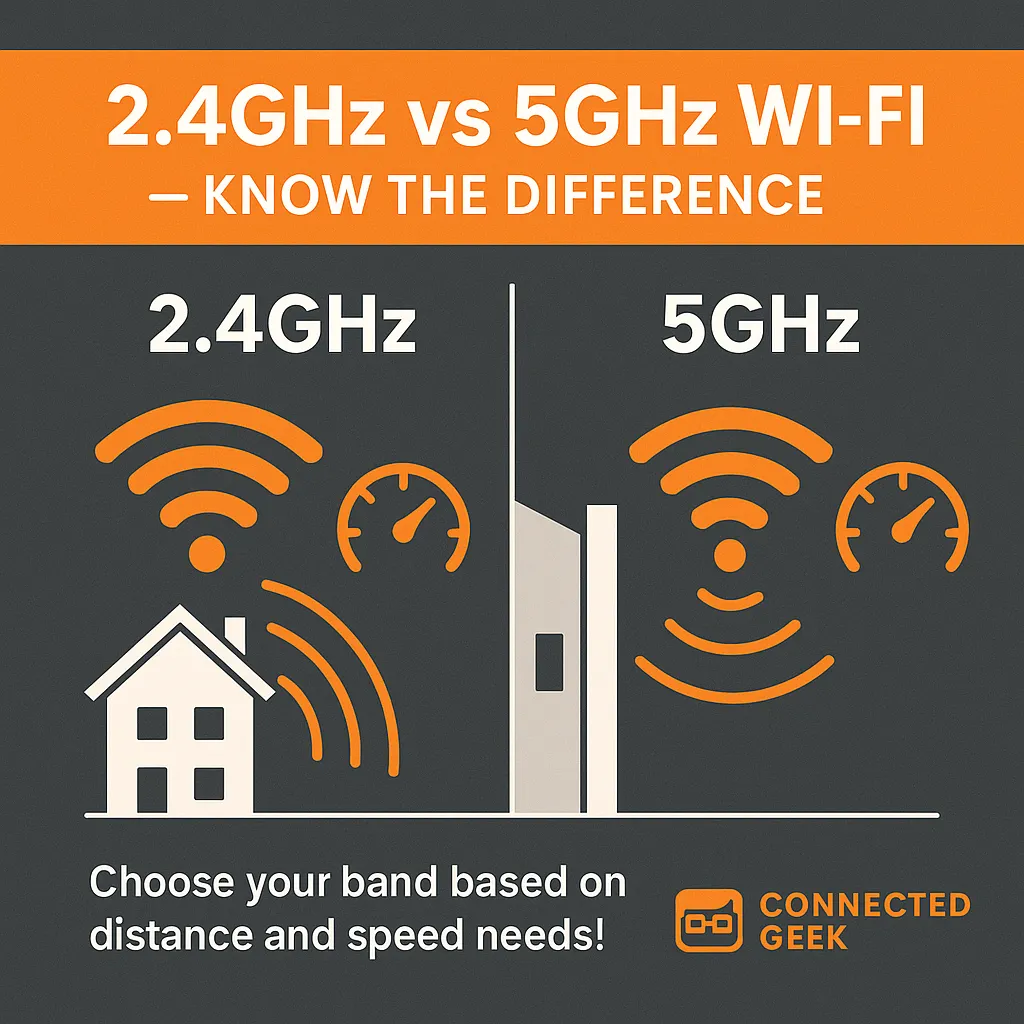
The 2.4GHz band is the “classic” Wi‑Fi band. Its biggest advantage is range. A 2.4GHz signal can travel farther from the router and does a better job penetrating walls, floors, and doors. That makes it ideal for rooms that are far away from your router or on another floor of your home. The trade‑off is that 2.4GHz is usually slower than 5GHz. You may notice lower top speeds, especially if several people are using the network at once.
Another thing to keep in mind is that many household gadgets—like baby monitors, older smart plugs, and even microwaves—also use the 2.4GHz range. That can create a bit more noise and congestion, which sometimes leads to lag or occasional drops. Still, when your Windows 11 device is far from the router, connecting to the 2.4GHz network is usually the more reliable choice, even if it’s not the fastest.
5GHz: Faster Speeds and Less Interference
The 5GHz band is the newer, speed‑focused option. Its main strengths are much faster speeds and less interference. Because fewer household devices use 5GHz, the airwaves are typically less crowded, which helps your connection feel smoother and more responsive. This is perfect for activities that need a lot of bandwidth, like streaming 4K movies, downloading large games, or making high‑quality video calls on your Windows 11 PC.
The downside is that 5GHz has a shorter range and doesn’t travel through walls as well as 2.4GHz. You’ll get the best results when you’re in the same room as the router or only a room or two away. If you move too far, your device might struggle to stay connected or may automatically fall back to 2.4GHz if your router supports band steering.
Which Band Should You Use on Windows 11?
A simple rule of thumb works well for most homes: use 5GHz when you’re close to the router, and 2.4GHz when you’re farther away. On a Windows 11 laptop or desktop that sits near your router, choose the 5GHz network name in your Wi‑Fi list. This is the best choice for streaming and gaming near the router, because you’ll enjoy higher speeds and lower latency, which means fewer buffering wheels and smoother online matches.
For devices that live farther from the router—like a PC in an upstairs bedroom or a laptop you often use at the back of the house—connect them to the 2.4GHz network. Even though it’s slower on paper, the stronger signal and better wall penetration often make it more stable in real‑world use. A steady 2.4GHz connection usually beats a flaky 5GHz one that keeps dropping out.
Final Thoughts
You don’t need to be a networking expert to get good Wi‑Fi on Windows 11. Remember: 2.4GHz offers longer range, slower speed, and better wall penetration, while 5GHz gives you shorter range, much faster speed, and less interference. Match the band to how and where you use your device, and you’ll get a more reliable, enjoyable online experience throughout your home.
