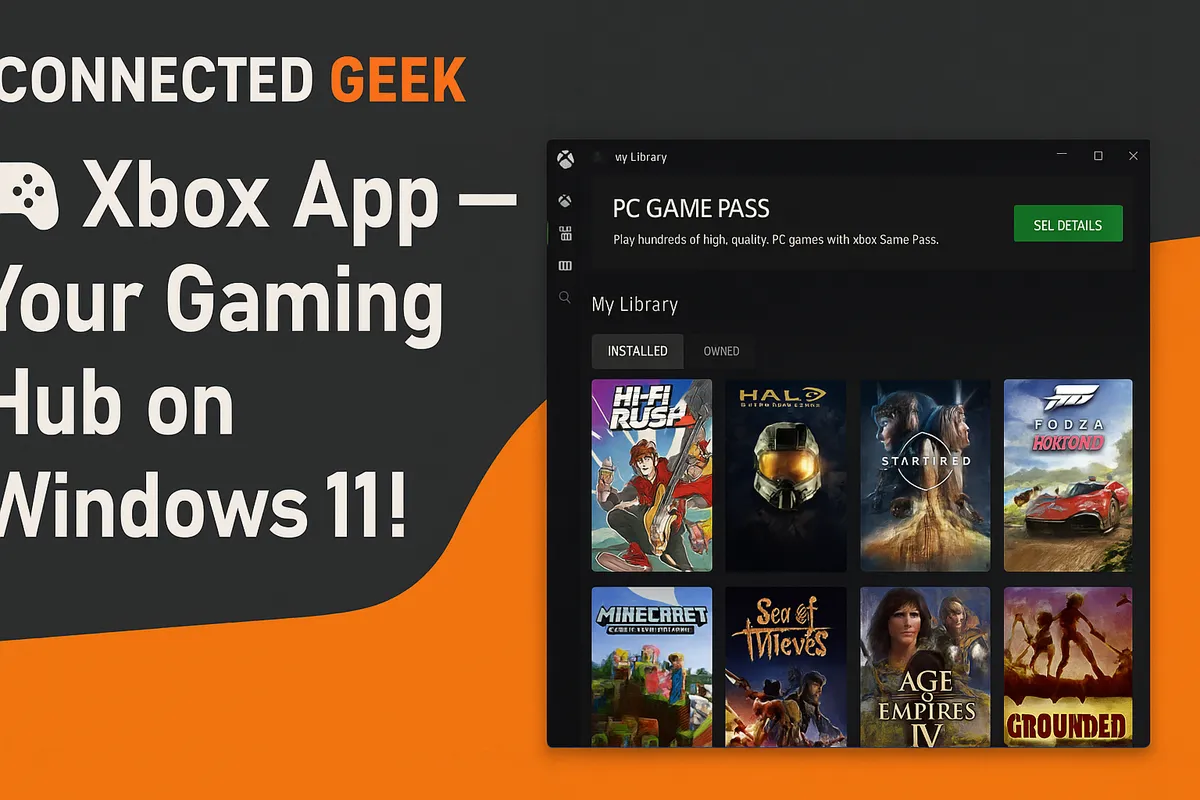
The Xbox App in Windows 11: Your Gaming Hub Without a Console
Gaming, Windows 11, Xbox App
Discover the Xbox App in Windows 11: Your PC Gaming Command Center
If you’re running Windows 11 and you love games even a little bit, there’s a built‑in gem you absolutely need to explore: the Xbox app. It’s not just a shortcut for console players—it’s a full‑blown PC gaming hub tucked right into your Start menu, ready to turn your computer into a powerful, connected gaming space.
How to Find the Xbox App in Windows 11 (It’s Easier Than You Think)
Windows 11 doesn’t hide the Xbox app behind complicated menus or obscure settings. In fact, it’s only a couple of clicks away. All you need to do is open the Start menu and type “Xbox” into the search bar. As soon as you start typing, you’ll see the green Xbox icon pop up in the results. Click it, and you’re in. That’s it—no extra downloads, no digging through folders, just instant access to a feature‑packed gaming dashboard that’s already part of your system.
Once you launch it the first time, you can right‑click the app icon and pin it to your Start menu or taskbar for even faster access. From then on, your gaming world is literally one click away every time you sit down at your PC. It feels like unlocking a secret level that’s been hiding in your operating system all along.
What the Xbox App Includes: A Packed Gaming Hub on Your Desktop
Open the Xbox app and you’re greeted with a clean, energetic interface that feels like a proper gaming dashboard rather than just another utility. The heart of it is your game library. This is where you’ll see the PC games you’ve installed through the Xbox app and, in many cases, titles you’ve connected from other sources. You can sort, filter, and launch games directly, turning the app into a central launchpad instead of hunting through desktop shortcuts or folders.
Then there are achievements, which add an addictive layer of progression to your playtime. The Xbox app tracks your Gamerscore and individual achievements across supported titles, so every tricky boss fight, hidden collectible, or hard‑mode run can reward you with something tangible. It’s incredibly satisfying to watch your profile grow over time and compare your accomplishments with friends.
Speaking of friends, the integrated friends list keeps you connected to the wider Xbox network, whether your buddies are on PC, Xbox Series X|S, or even Xbox One. You can see who’s online, what they’re playing, send messages, and join parties. It transforms solo PC gaming into a social experience, letting you coordinate co‑op sessions or simply chat while you each dive into different games.
One of the most exciting sections is the Game Pass catalogue. If you subscribe to PC Game Pass or Xbox Game Pass Ultimate, the app becomes a living, breathing library of hundreds of titles—from indie darlings to massive blockbusters—ready for you to install. You can browse by genre, popularity, or new releases, read descriptions, check system requirements, and discover games you might never have found on your own. It feels like walking into an endless digital arcade where everything is included in your membership.
To keep you in the loop, the Xbox app also features PC gaming news and highlights. You’ll see curated collections, featured updates, and announcements about new Game Pass arrivals, major patches, and seasonal events. Instead of bouncing between websites and launchers, you get a focused stream of what matters most to you as a PC gamer, all in one enthusiastic, game‑centric space.
Jump into Game Pass Titles Directly from the App
The Xbox app truly shines when it comes to accessing Game Pass games directly. Once you’re signed in with a Game Pass‑enabled account, the catalogue isn’t just a list—it’s an instant install and play hub. See a game you like? Click it, hit the Install button, choose your drive if needed, and the download kicks off immediately, no extra store windows required.
When installation finishes, that same game tile now gives you a bold Play button. Launching is as simple as clicking once and watching your new adventure spring to life. You can queue multiple downloads, pause and resume them, and manage your storage, all from within the app. It feels incredibly streamlined—almost like having a console‑style experience on your PC, but with the flexibility and power of Windows 11 underneath.
Better yet, the app keeps track of what you’ve recently played, making it effortless to jump back into your current obsession. Combined with cloud saves on many titles, you can bounce between different PCs and pick up right where you left off, which is a massive win for anyone who games on both a desktop and a laptop.
Why the Xbox App Is Awesome Even Without a Console
You might assume the Xbox app is only for people who already own an Xbox console, but that couldn’t be further from the truth. Even if you’ve never touched a console, the Xbox app is incredibly useful on its own. On Windows 11, it effectively turns your PC into a first‑class citizen in the Xbox ecosystem, giving you access to PC‑exclusive Game Pass titles, cross‑platform multiplayer, and a polished launcher that rivals any dedicated game client out there.
As a pure PC gamer, you get a unified library, powerful discovery tools, and a social layer that many standalone launchers simply don’t offer. You can build a friends list, share what you’re playing, and hop into multiplayer sessions with people on console without needing any extra hardware. It’s a fantastic way to expand your gaming circle and join a larger community, all from the computer you already own.
On top of that, PC Game Pass alone makes the app worth using. For a single monthly fee, you can explore a constantly evolving library of games that would cost a small fortune to buy individually. The Xbox app makes browsing, installing, and managing those titles feel simple and inviting, which encourages you to try genres and experiences you might normally skip. One evening you’re diving into a massive RPG, the next you’re testing a quirky indie platformer—no extra purchases, just pure gaming freedom.
In short, the Xbox app in Windows 11 is a thrilling discovery waiting behind a quick Start menu search. Type “Xbox”, open the app, and you unlock a vibrant world of games, achievements, friends, Game Pass, and news—all tailored to your PC. Whether you own a console or not, this built‑in hub can transform how you play, connect, and explore new titles. Fire it up, start browsing, and let your next favorite game find you.
