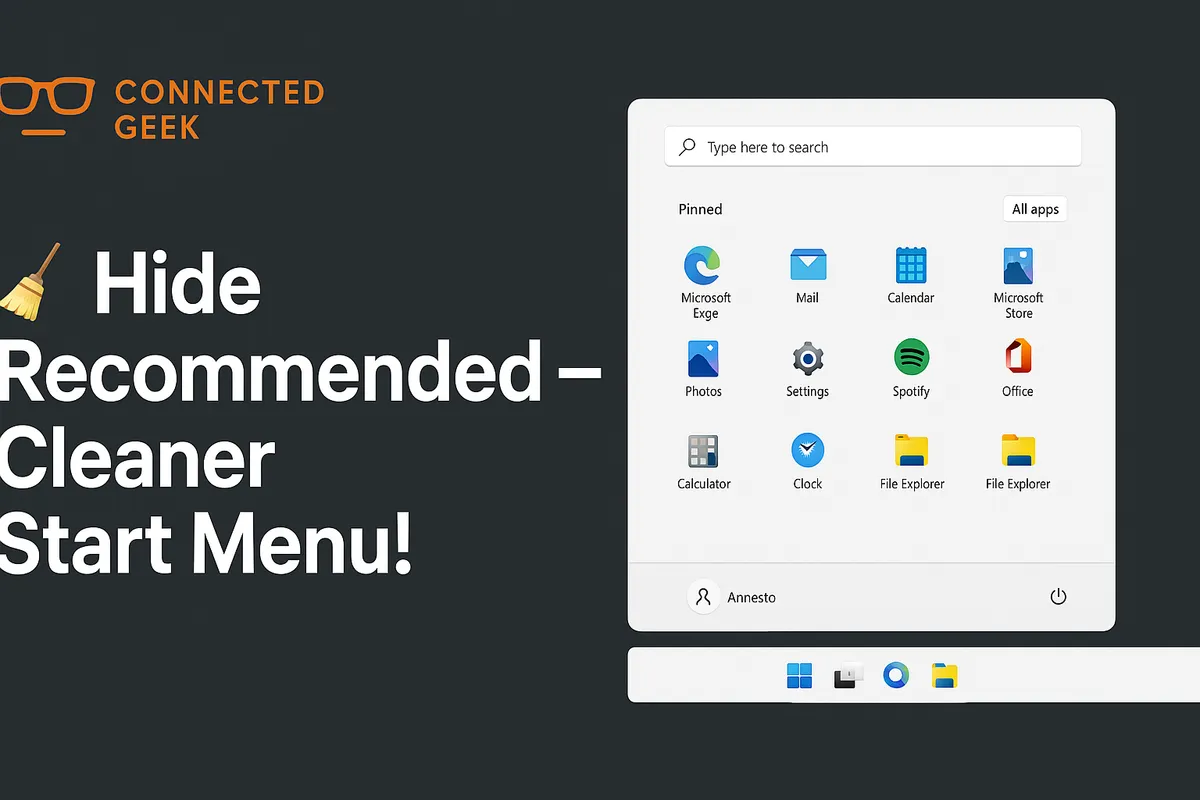
Windows 11 Start Menu Recommended: Take Control of What You See
Windows 11, Start Menu, Privacy, Productivity
How to Take Control of the Windows 11 Start Menu Recommended Section
The Recommended section in the Windows 11 Start Menu can be a handy shortcut to your recent activity — or an unwanted peek into your digital life if you share your PC. In this guide, you will learn what it shows, why some people love it, and exactly how to switch it off for a cleaner, more private Start Menu.
What Is the Recommended Section in Windows 11?
When you click the Start button in Windows 11, you see two main areas: pinned apps at the top and the Recommended section below. That Recommended panel is Windows’ way of saying, “Here are the things you probably want to get back to.” It scans your recent activity and surfaces shortcuts so you do not have to hunt through folders, taskbar icons, or app menus.
Recently added apps
One of the first things the Recommended section shows is recently added apps. Whenever you install new software, Windows 11 quietly notes it and may place it in the Recommended area for a while. This makes it easy to launch something you have just installed without scrolling through the full app list or searching by name.
For example, if you download a new photo editor or a note-taking app, you might see it appear under Recommended the next time you open Start. This is particularly helpful if you are trying out multiple new apps and have not pinned your favorites yet.
Most used apps
Windows 11 also tracks which programs you use the most and can show most used apps in that same Recommended area (and in some layouts, at the top of the app list). These are the apps you open again and again: your browser, your email client, your favorite game, or that work-related tool you rely on every day.
Instead of manually pinning everything to the Start Menu, you can simply rely on Windows to bubble up your most-used apps automatically. Over time, the system learns your habits and adjusts this list, so what you see is a reflection of what you actually use, not just what is installed.
Recently opened files from Office, Photos, Edge, and more
The Recommended section does not stop at apps. It also shows recently opened files from apps like Microsoft Office, Photos, and Microsoft Edge, among others. This can include:
- Word documents, Excel spreadsheets, and PowerPoint presentations you edited recently
- Photos and videos you viewed or edited in the Photos app
- Web pages and PDFs you opened in Microsoft Edge
- Other documents and files you accessed through supported apps
This effectively turns the Start Menu into a “recent activity hub.” Instead of opening Word, then looking for your last document, you can often jump straight to that file from the Recommended area with a single click.
Why Many Users Love the Recommended Section
For a lot of people, the Recommended panel feels like a friendly shortcut rather than a nuisance. If your PC is mainly used by you and you like things to be fast and convenient, it can genuinely improve your day-to-day experience in Windows 11.
Quick resume of recent work
One of the biggest advantages is the ability to quickly resume recent work. Imagine you are working on a report in Word, browsing a few reference articles in Edge, and checking some numbers in Excel. You shut down your PC at the end of the day. The next morning, you click Start and see those same documents and websites under Recommended, ready to open with a single click.
Instead of retracing your steps — opening Word, navigating to “Open,” hunting through OneDrive or your Documents folder — Windows simply remembers what you were doing. This can save you a surprising amount of time over weeks and months, especially if you regularly juggle multiple files and projects.
Less searching, more doing
The Recommended section also cuts down on the need to search. Many of us have a habit of typing the first few letters of an app or file name into the Start search box. That works, but it is still an extra step and requires you to remember exactly what the file was called. With Recommended, you can often just recognize the document or photo by its name and icon and click it immediately.
For casual users and busy professionals alike, this “less searching, more doing” approach is appealing. It makes the PC feel more responsive and personal, as if it understands what you are likely to want next based on what you were just doing.
Helpful for new or infrequently used apps
The “recently added apps” and “most used apps” parts of Recommended are also handy if you do not want to spend time customizing your Start Menu. If you install something new, you will see it show up without having to pin it manually. If you start using a particular app more often, Windows can automatically surface it as a most-used app, saving you from digging for it every time.
In short, if you are the only person using your PC and you care more about speed than secrecy, the Recommended section can be a genuinely useful feature that makes Windows 11 feel smarter and more tailored to you.
When the Recommended Section Becomes a Problem
Of course, not everyone is thrilled to see their recent activity front and center every time they open the Start Menu. If you share your device with family members, friends, or coworkers, the Recommended panel can feel a bit too revealing. It can also simply be distracting if you prefer a cleaner, more minimal Start screen.
Privacy concerns on shared PCs
The biggest concern is privacy. Because Recommended shows recently opened files, anyone who clicks Start on your user account can see a snapshot of what you have been working on or viewing. That might include:
- Work documents containing sensitive information
- Personal photos and videos you would rather keep private
- Financial spreadsheets or tax forms
- Web pages that might reveal what you have been researching or shopping for
If you have ever opened the Start Menu in front of someone else and quickly thought, “Oh, I hope they do not notice that file name,” you already know why this can be uncomfortable. Even if you have nothing to hide, you may simply prefer not to broadcast your recent activity every time you click Start.
Visual clutter and distraction
Some users also dislike Recommended because it adds visual clutter. If you are someone who carefully pins just the apps you want and prefers a tidy Start Menu, that ever-changing list of files and apps underneath can feel messy. It is one more thing your eyes have to scan past to get to what you actually care about.
The good news is that Windows 11 gives you full control. If you like the idea of Recommended, you can leave it on. If you would rather not see it at all, you can turn off the features that feed it and effectively make it disappear.
How to Completely Turn Off the Recommended Section in Windows 11
If you are ready for a cleaner, more private Start Menu, you can switch off the features that power the Recommended panel. This is done through the Windows 11 Settings app, under Personalisation. The process is simple and only takes a minute or two.
Step 1: Open Settings
There are a few easy ways to open Settings in Windows 11. Choose whichever feels most natural to you:
- Click the Start button and then click the Settings gear icon (if it is pinned), or type “Settings” and press Enter.
- Press Windows key + I on your keyboard to open Settings directly.
Step 2: Go to Personalisation → Start
Once Settings is open, you will see a list of categories on the left-hand side. Follow these steps:
- Click Personalisation in the left-hand menu. This is where you can change your background, colors, themes, and Start Menu settings.
- In the main Personalisation window, scroll down and click Start. This opens the specific options that control how the Start Menu behaves.
Step 3: Turn off the three key toggles
Inside the Start settings page, you will see several switches that control what appears in your Start Menu. To effectively disable the Recommended section, you will want to turn off three specific options:
- Show recently added apps
- Show most used apps
- Show recently opened items in Start, Jump Lists, and File Explorer
To turn each one off, simply click the toggle so it moves to the Off position. The label should clearly show that the feature is now disabled. You can change them one by one, and the effect is immediate — there is no need to restart your PC.
What happens after you turn these off?
Once you have toggled off “Show recently added apps,” “Show most used apps,” and “Show recently opened items in Start,” your Start Menu will change in a few important ways:
- The Recommended section will no longer display new apps you install.
- Your most frequently used apps will not be highlighted automatically.
- Recently opened files from Office, Photos, Edge, and other apps will no longer appear in the Recommended area of Start.
In effect, you have told Windows 11, “Do not track or show my recent activity in the Start Menu.” You will still be able to open your files and apps normally, but they will not be surfaced automatically in that panel. Your Start Menu will look cleaner and more static, focused on whatever you have pinned yourself.
The Privacy Benefits of Hiding Recent Files from Start
Turning off the Recommended section is not just about aesthetics. It is also a smart privacy move, especially if other people have access to your PC, even occasionally. By hiding recent files from the Start Menu, you reduce the chances of someone casually glancing at your screen and seeing something you would rather keep private.
Protecting sensitive or personal documents
Many documents reveal more than we realize just from their file names alone. A Recommended tile labeled “Performance Review 2024” or “Medical Results” can raise questions you would rather not answer. By disabling “Show recently opened items in Start,” you keep these titles from popping up in a very visible place every time you open the Start Menu.
This does not encrypt or lock your files — they are still accessible if someone is using your account — but it does remove an easy, casual window into your recent work and personal life. For many home users and small office setups, that alone can make a big difference in how comfortable they feel using a shared device.
Reducing digital “over-sharing” on family PCs
On a family computer, the Recommended section can quickly become a jumble of everyone’s activity: kids’ homework, parents’ work files, online banking pages, vacation photos, and more. This can be confusing and potentially awkward, especially if children click on things they should not see or accidentally open a sensitive document while trying to start a game or a school app.
By turning off the Recommended features, you keep the Start Menu focused on pinned apps and the all-apps list, which is generally safer and easier for everyone to navigate. If you combine this with separate user accounts for each person, you can strike a nice balance between convenience and privacy without constant worries about who might see what.
A small but meaningful privacy habit
In the bigger picture, hiding recent files from the Start Menu is one of those small, low-effort steps that can meaningfully improve your sense of privacy. It is similar to clearing your browser history regularly or locking your screen when you step away from your desk. Each individual step may seem minor, but together they help you stay in control of your own information.
Finding the Right Balance for You
The nice thing about Windows 11 is that it does not force you into a one-size-fits-all Start Menu. You can mix and match the options we have talked about to find the balance that fits your life and your comfort level. You might decide to turn off only some of the Recommended features, or you might be happiest turning them all off for a completely static Start experience.
Example: Keep app suggestions, hide files
One middle-ground approach is to leave Show recently added apps and Show most used apps turned on, but disable Show recently opened items in Start. That way, you still get the convenience of Windows surfacing apps you care about, but your actual files and documents stay out of sight on the Start screen.
This can be a great option if you are comfortable with people knowing which apps you use, but not necessarily what you are doing inside those apps. It keeps the Recommended section somewhat useful while reducing the privacy risk significantly.
Example: Turn everything off for a minimalist Start Menu
If you prefer a minimalist approach, you can turn all three toggles off and rely entirely on pinned apps and the all-apps list. You will be in full control of what appears on your Start Menu, and nothing will change based on your recent activity. This can feel calmer and more predictable, which many users find refreshing, especially on a work machine they use all day.
Wrapping Up: Make the Start Menu Work for You
The Windows 11 Start Menu Recommended section is designed to be helpful by showing your recently added apps, most used apps, and recently opened files from apps like Office, Photos, and Edge. For many people, this makes it easier to quickly resume recent work without digging through folders or menus. For others, especially those who share their PCs, it can feel like an unnecessary window into their personal or professional life.
The key takeaway is that you are in control. By heading to Settings → Personalisation → Start and toggling off “Show recently added apps,” “Show most used apps,” and “Show recently opened items in Start,” you can completely disable the Recommended section and enjoy a cleaner, more private Start Menu. Or, if you like some of its conveniences, you can selectively leave certain options on and turn others off.
Whichever route you choose, the goal is simple: make Windows 11 work the way you want it to. Spend a couple of minutes exploring these Start settings, and you will be rewarded with a Start Menu that feels more comfortable, more personal, and better suited to how you actually use your PC every day.
