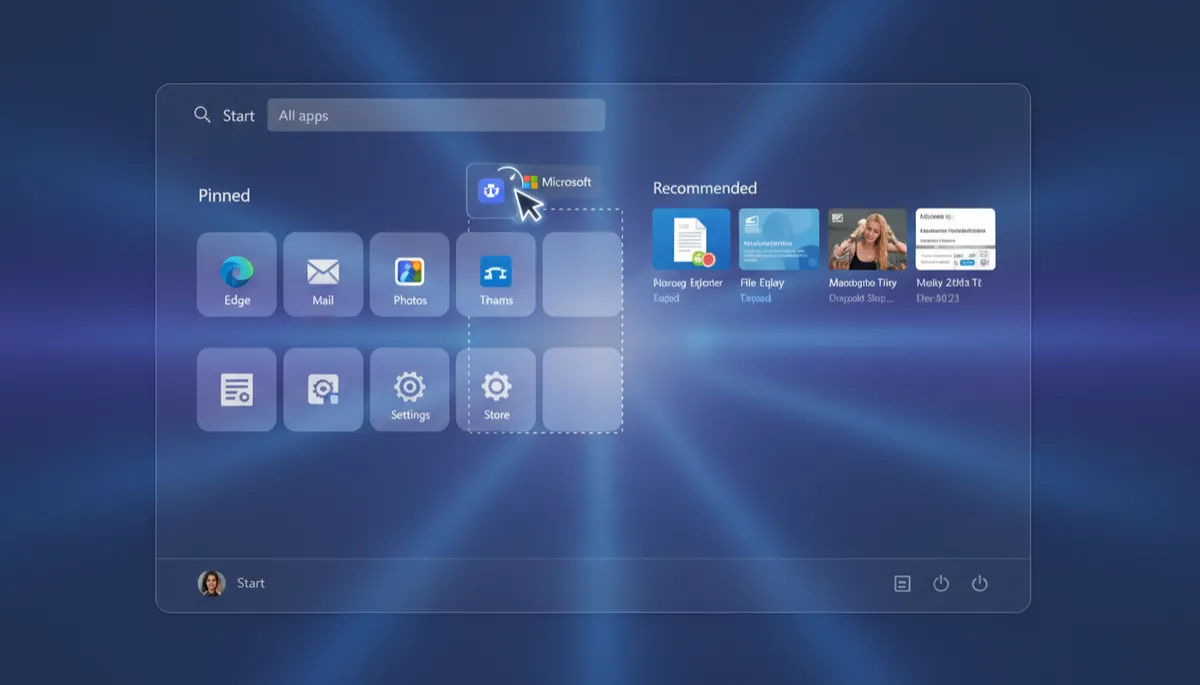
Windows 11 Start Menu: How to Pin, Unpin, and Organize Your Apps
Windows 11 Start Menu: How to Pin, Unpin, and Organize Your Apps
The Windows 11 Start Menu is fully customizable. Here is how to pin your favorite apps, remove the ones you never use, and organize everything your way.
Open the Start Menu
Press the Win key or click the Start button (the Windows logo) in the center of the taskbar.
Pin an App to Start
Find the app you want — either in the pinned grid or the All apps list. Right-click it and select Pin to Start. It appears in your pinned apps grid immediately.
Unpin an App
Right-click any pinned app in the Start Menu and select Unpin from Start. This removes it from the pinned grid but does not uninstall the app.
Move Pinned Apps Around
Click and drag any pinned app to a new position in the grid. Rearrange them so your most-used apps are at the top left — where your eye naturally lands first.
Pin from the All Apps List
Click All apps in the top-right of Start. Scroll to any app, right-click it, and select Pin to Start. Great for adding apps that do not appear in the default pinned grid.
Pin a Folder or File
In File Explorer, right-click any folder or file and select Pin to Start. This lets you jump to important project folders directly from the Start Menu.
