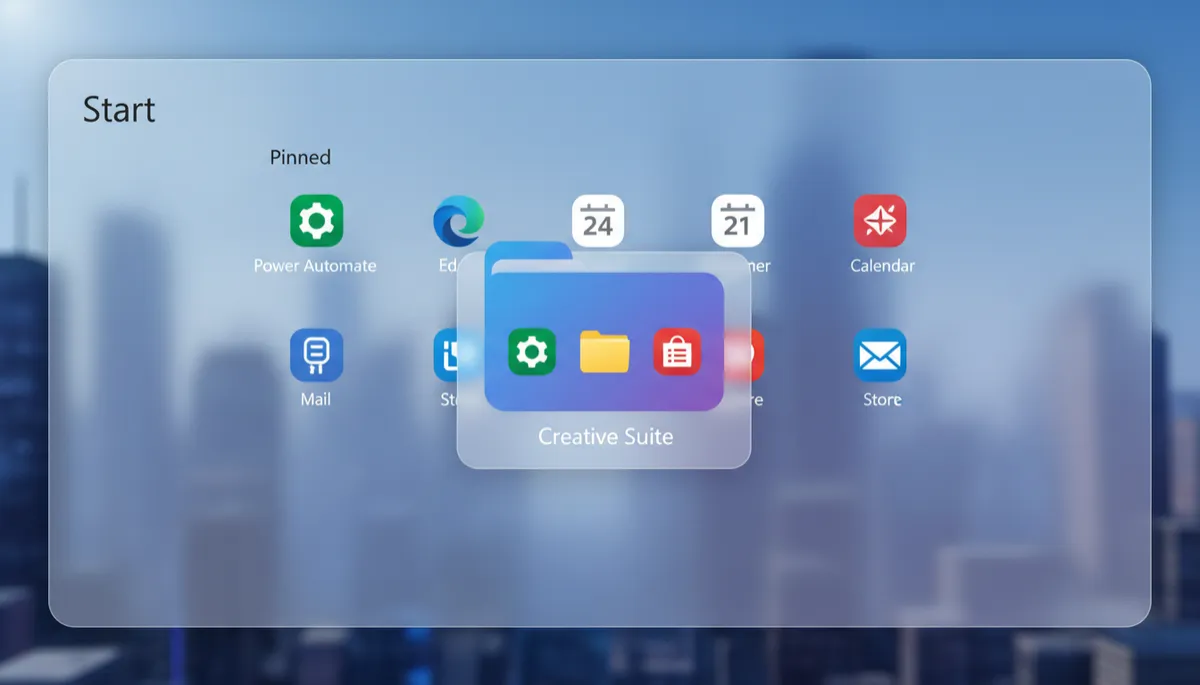
Windows 11 Start Menu Folders: Group Apps for Faster Access
Windows 11 Start Menu Folders: Group Apps for Faster Access
You can group pinned apps into folders right inside the Windows 11 Start Menu — just like your phone. Here is how to create, name, and manage them.
Create a Folder
Open the Start Menu and drag one pinned app on top of another pinned app. Release it when you see a rounded square appear behind both apps. A folder is created instantly containing both apps.
Name Your Folder
Click the folder to open it. At the top, you will see Edit name — click it and type a name like Work, Creative, Games, or whatever suits your grouping.
Add More Apps to a Folder
Drag any other pinned app onto the folder icon in the Start Menu. It gets added to the group. You can keep adding as many apps as you want.
Remove an App from a Folder
Click the folder to open it, then drag an app out of the folder back onto the main pinned grid. The app leaves the folder and becomes a standalone pinned app again.
Delete a Folder
Remove all apps from a folder by dragging them out one by one. Once the last app is removed, the folder disappears automatically.
Ideas for Folders
- Work — Outlook, Teams, Word, Excel
- Creative — Photos, Paint, Snipping Tool
- Gaming — Xbox, Game Pass, Steam
- Utilities — Task Manager, Notepad, Calculator
