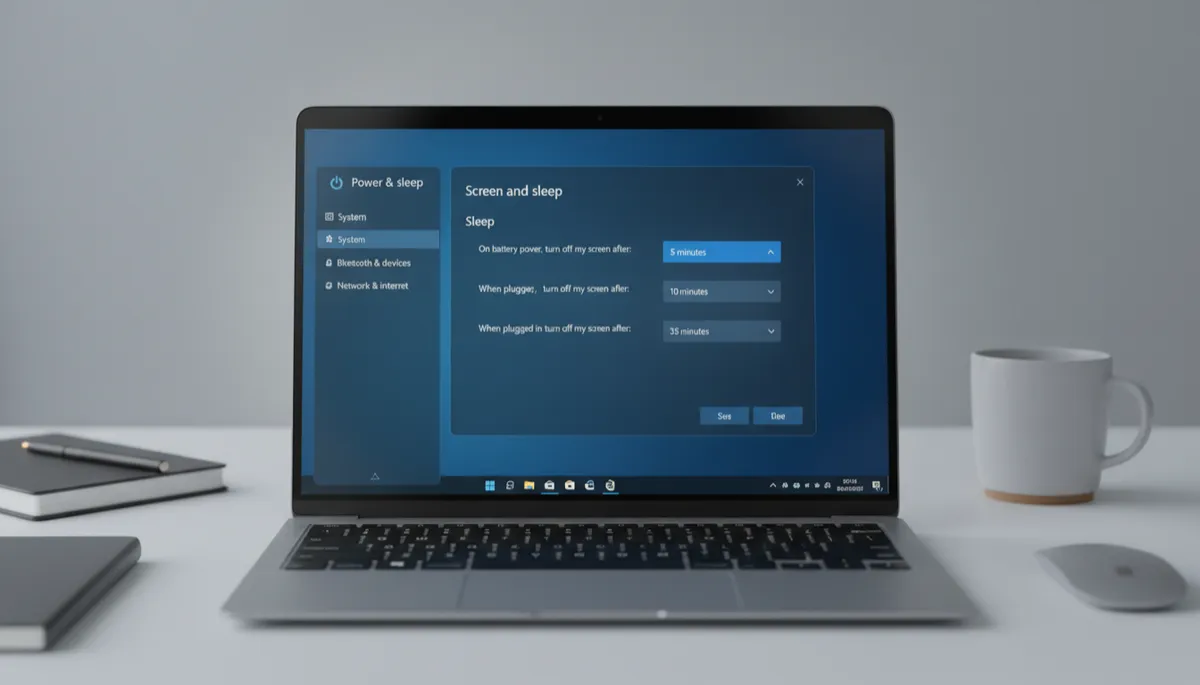
Set Different Screen Timeouts for Battery vs. Plugged In on Windows 11
Two Different Timeout Settings for Two Different Situations
Windows 11 lets you set separate screen and sleep timeouts for when your laptop is on battery vs. plugged in. When you're on battery, you want the screen to turn off quickly to preserve power. When plugged in at your desk, you don't want the screen constantly going dark while you're reading or watching a tutorial.
Recommended Settings for Laptop Users
| Setting | On Battery | Plugged In |
|---|---|---|
| Screen off after | 2–5 minutes | 15–30 minutes |
| Sleep after | 10–15 minutes | 30–60 minutes (or Never) |
How to Configure
- Go to Settings → System → Power & battery → Screen and sleep
- Set "On battery power, turn off my screen after" to 5 minutes
- Set "When plugged in, turn off my screen after" to 20 minutes
- Adjust sleep timeouts independently for each power state
Windows Switches Automatically
You don't need to change anything when you plug in or unplug. Windows detects the power state and applies the correct timeout automatically — longer when plugged in, shorter on battery.
Dynamic Lock — A Related Feature
Enable Dynamic Lock (Settings → Accounts → Sign-in options → Dynamic lock) to automatically lock your PC when your paired Bluetooth phone leaves range. Combine with screen timeout for a complete idle security setup.
