How to Prevent Your Screen from Turning Off During Presentations on Windows 11
Stop Your Screen from Going Dark Mid-Presentation
Nothing is more awkward than your laptop screen dimming or going dark while presenting. Windows 11 has several ways to prevent this — here's the easiest for each situation.
Method 1: Temporarily Set Screen Timeout to Never
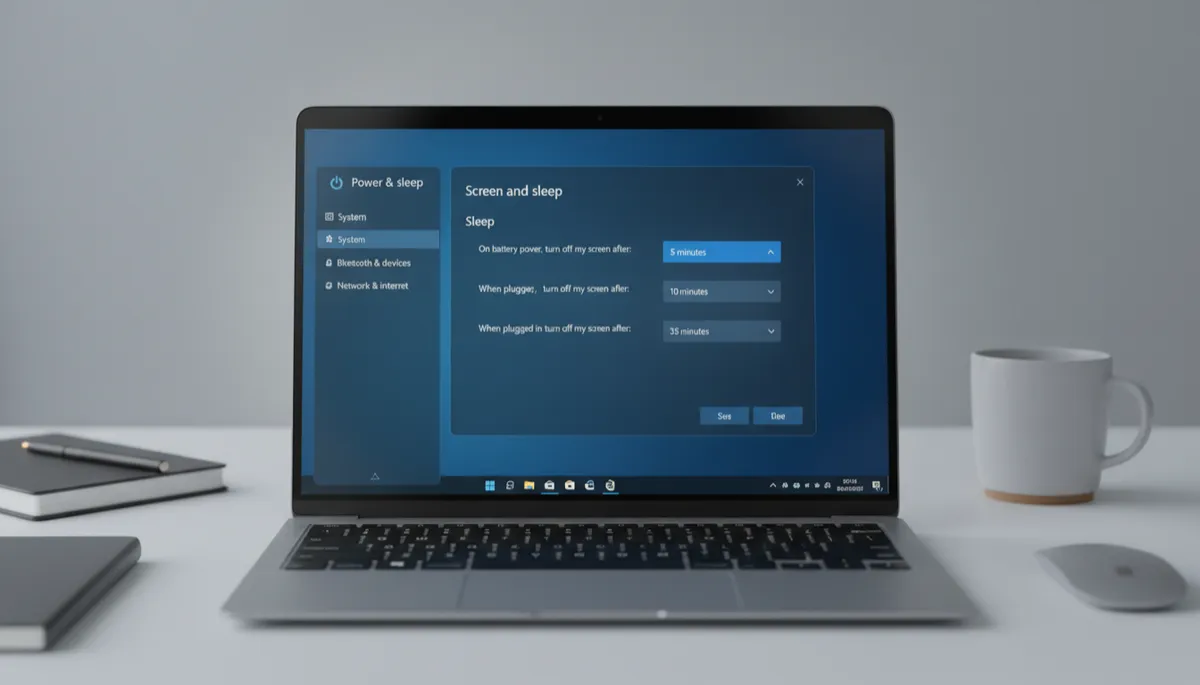
- Go to Settings → System → Power & battery → Screen and sleep
- Set both "On battery" and "Plugged in" screen timeouts to Never
- Restore your normal settings after the presentation
Method 2: Use Focus Assist + Check Battery Saver
- Press Win + A → toggle on Focus Assist — silences notifications during the presentation
- Make sure Battery Saver is off — it enforces aggressive timeout settings that can override your normal screen settings
Method 3: PowerPoint's Built-In Presenter Mode
When you start a PowerPoint slideshow (press F5 or Slide Show → From Beginning), Windows automatically prevents the screen from sleeping while the presentation is running. No settings changes needed.
Method 4: Caffeine or Mouse Jiggler App
Free utilities like Caffeine or Mouse Jiggler (available in the Microsoft Store) simulate mouse movement to keep the screen awake without changing system settings permanently. Ideal for frequent presenters.
Method 5: Move Your Mouse Occasionally
The simplest workaround: move the mouse cursor slightly every few minutes to reset the idle timer. Not elegant — but effective in a pinch.
