Windows 11 Narrator: How to Use the Built-In Screen Reader
What Is Narrator?
Narrator is Windows 11's built-in screen reader. It reads text on your screen aloud — including window titles, menus, text you type, and content in documents and web pages. It's designed for users with visual impairments but can also be useful for proofreading or hands-free listening.
How to Turn Narrator On and Off
- Press Win + Ctrl + Enter to start Narrator
- Press Win + Ctrl + Enter again to stop it
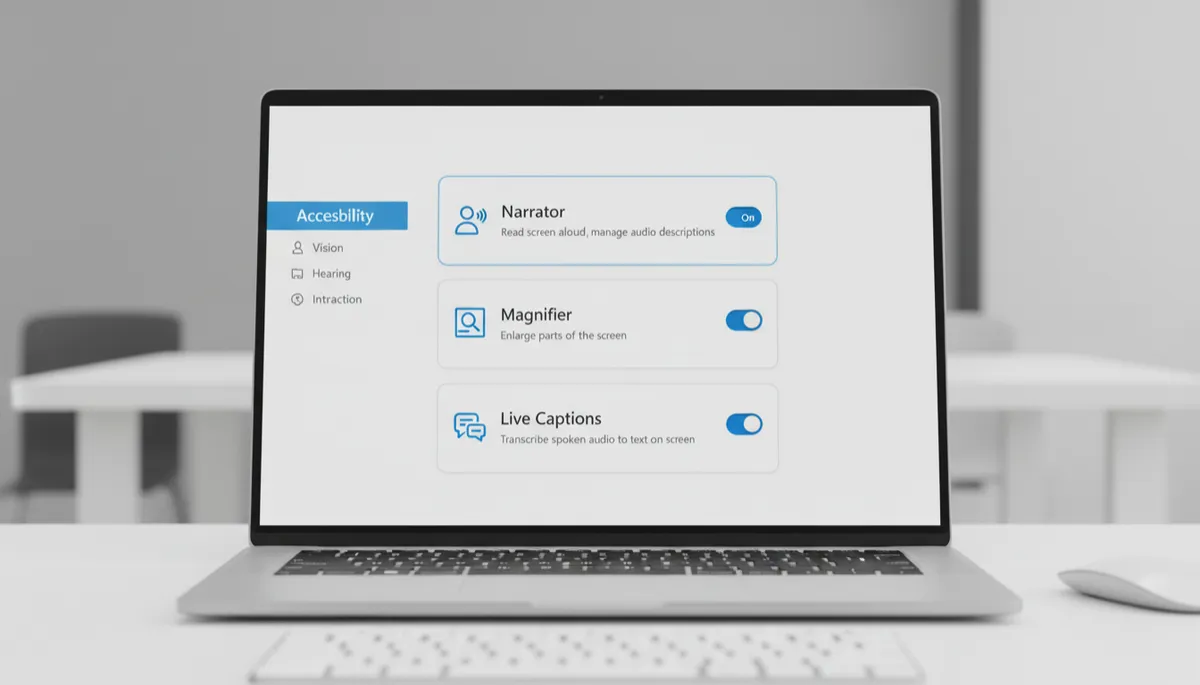
- Or go to Settings → Accessibility → Narrator and toggle it on
When Narrator starts, it announces: "Narrator on."
Narrator Voice Settings
Go to Settings → Accessibility → Narrator → Narrator's voice:
- Voice: Choose from multiple natural-sounding voices including different accents and genders
- Speed: How fast Narrator reads (1–10 scale)
- Pitch: Higher or lower voice pitch
- Volume: Narrator volume independent of system volume
Basic Narrator Navigation
Narrator uses a modifier key (default: Caps Lock or Insert) combined with other keys:
- Caps Lock + Arrow keys: Move between elements on screen
- Caps Lock + Space: Activate the current item (like clicking)
- Caps Lock + A: Read all text from the current position
- Caps Lock + D: Read the title of the current window
Scan Mode — Browse Without the Modifier Key
Press Caps Lock + Space to toggle Scan Mode. In Scan mode, use the arrow keys alone to navigate — no modifier key needed. Easier for users new to screen readers.
