Windows 11 Multi-Monitor Tips for Productivity
Windows 11, Productivity, Multi-Monitor Tips
Multi-Monitor Multitasking Tips in Windows 11: Work Smarter, Not Harder
Using more than one monitor with Windows 11 can feel like upgrading your entire workspace overnight. With a few simple tricks, you can move windows effortlessly, personalize each screen, and keep essential tools within easy reach. Let’s walk through some friendly, practical tips to help you get the most out of your multi-monitor setup.
Move Windows Between Monitors with Win + Shift + Arrow
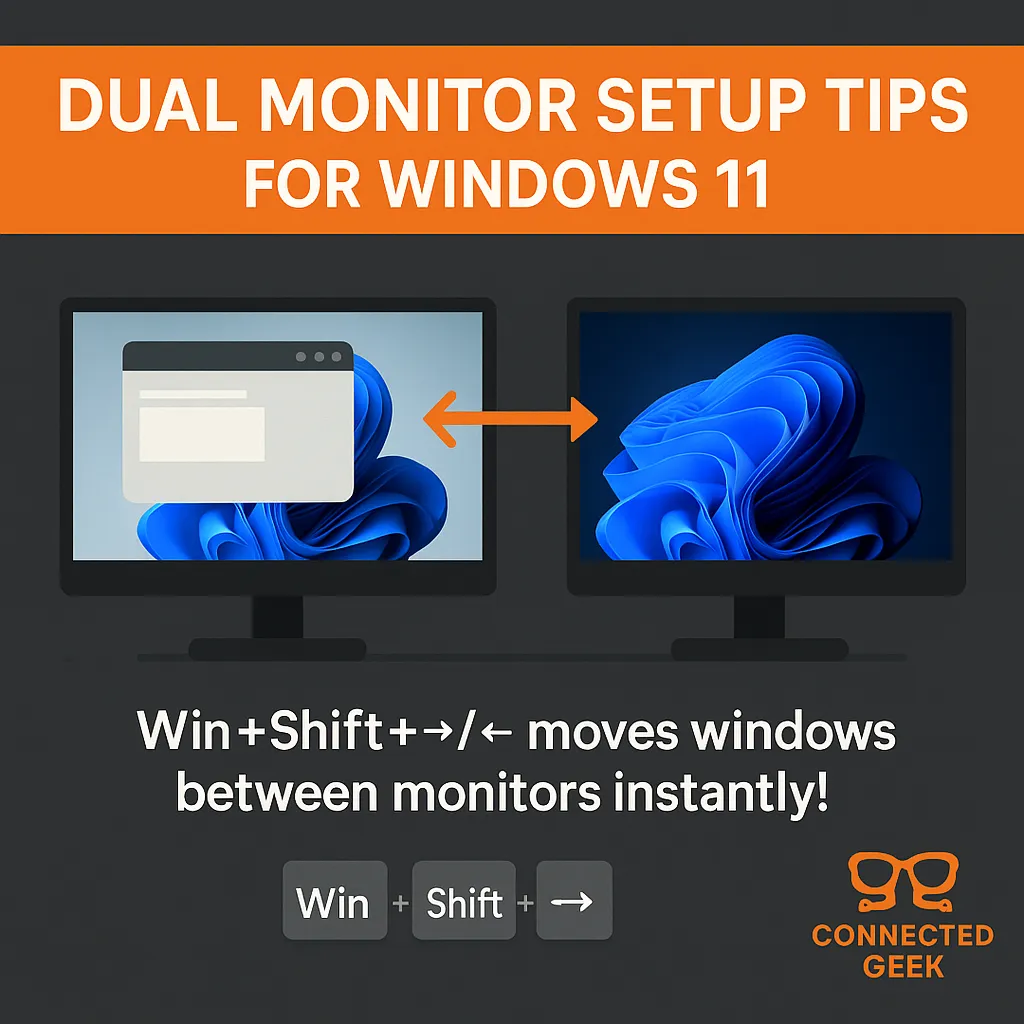
Dragging windows between screens works, but it gets old quickly when you juggle many apps. A faster way is to use the keyboard shortcut Windows key + Shift + Left or Right Arrow. With the window you want selected, press this combination to instantly hop it to the next monitor in that direction. It’s especially handy when you are in the flow and do not want to fumble with the mouse or trackpad. After a day or two, your fingers will probably reach for this shortcut automatically whenever you rearrange your workspace.
You can combine this with Windows 11 snap layouts too. Snap a window to one side of a screen, then use Win + Shift + Arrow to move the snapped layout to another monitor. This keeps your layout consistent while you shift focus between displays, perfect for comparing documents or keeping chat apps visible while you work.
Give Each Monitor Its Own Wallpaper Personality
One of the joys of multiple monitors is giving each screen its own look. Windows 11 lets you set different wallpapers per monitor, so you might keep something calm on your main work screen and a fun or inspirational image on a secondary display. To do this, right-click the desktop and choose Personalize, then select Background. When you right-click a wallpaper thumbnail, you will see options like “Set for monitor 1” or “Set for monitor 2.” Just pick the image you like and assign it to the screen you want.
This small touch makes it easier to tell your displays apart at a glance and can even help you mentally separate tasks. For example, use a neutral background on your productivity monitor and a brighter scene on the one you use for communication or media. It is a subtle but surprisingly effective way to organize your digital space.
Adjust Display Scaling Per Monitor for Comfortable Viewing
If you mix monitors with different sizes or resolutions, you might notice that text and icons appear larger on one screen and tiny on another. To fix this, you can adjust display scaling per monitor. Open Settings > System > Display, then click the monitor you want to tweak. Under Scale, choose a percentage that feels comfortable, such as 100%, 125%, or 150%.
Take a moment to experiment: increase scaling if you find yourself leaning forward to read, or decrease it if things feel oversized and cramped. The goal is to have apps look consistent and easy on your eyes across every screen. Once each monitor is dialed in, moving windows between them feels natural, without sudden jumps in text size or layout.
Enable the Taskbar on All Displays for Faster Access
Constantly mousing back to your main screen just to click the Start button or switch apps can slow you down. Windows 11 lets you show the taskbar on all displays, so your essential tools are always nearby. To turn this on, right-click the taskbar, choose Taskbar settings, then expand the Taskbar behaviors section. Look for the option to show the taskbar on all displays and check it.
You can also decide how app buttons appear across monitors, such as showing a window’s icon only on the screen where it is open. This keeps things tidy and makes it easier to jump between tasks without hunting. Once enabled, you will likely find yourself staying focused on whichever monitor you are using, instead of constantly bouncing back to a “home” screen just for the taskbar.
Bringing It All Together
With a few thoughtful tweaks—keyboard shortcuts for moving windows, personalized wallpapers, per-monitor scaling, and a taskbar on every display—your Windows 11 multi-monitor setup can feel smooth, organized, and genuinely enjoyable to use. Try adding one or two of these tips to your daily routine, then build from there. Before long, you will wonder how you ever managed with a single screen.
SEO Title: Multi-Monitor Multitasking Tips in Windows 11 for a More Productive Workspace
Meta Description: Learn friendly, practical multi-monitor tips for Windows 11, including keyboard shortcuts, different wallpapers per monitor, display scaling, and taskbar settings to boost your productivity.
