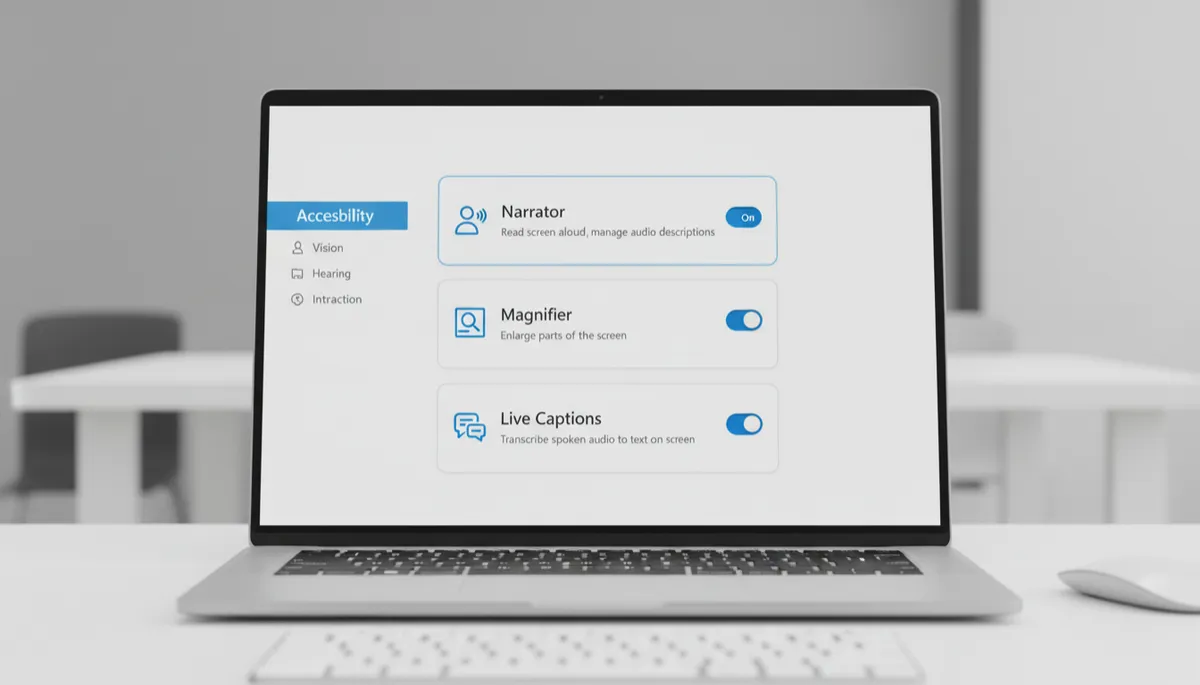
Windows 11 Magnifier: Zoom In on Any Part of Your Screen
Magnifier: Zoom Into Any Part of Your Screen
Windows 11 Magnifier enlarges any portion of your screen — text, images, menus, anything — making it easier to read fine print, inspect details, or work on a lower-resolution display.
How to Open and Close Magnifier
- Open: Press Win + = (Windows key + equals sign)
- Zoom in: Press Win + = repeatedly, or click + in the Magnifier toolbar
- Zoom out: Press Win + –
- Close: Press Win + Esc
Magnifier Views
Press Ctrl + Alt + M to cycle through three view modes:
- Full screen: Entire screen is magnified. Pan around by moving your mouse to screen edges
- Lens: A magnified rectangle follows your mouse cursor — like a magnifying glass hovering over the screen
- Docked: Magnified view is pinned to a strip at the top of the screen, leaving the rest at normal size
Magnification Levels
Magnifier zooms from 100% to 1600% in 100% increments by default. Change the step size in Settings → Accessibility → Magnifier → Zoom increment — 25% or 50% increments give finer control.
Useful Settings
- Follow the text cursor: Magnified view scrolls to follow wherever you type
- Smooth edges: Reduces pixelation at high zoom levels — enable in Magnifier settings
Useful Even Without Accessibility Needs
Win + = is worth knowing even if you don't use accessibility features regularly — for reading tiny text, examining image details, or inspecting fine print in documents. Quick to open, quick to close.
