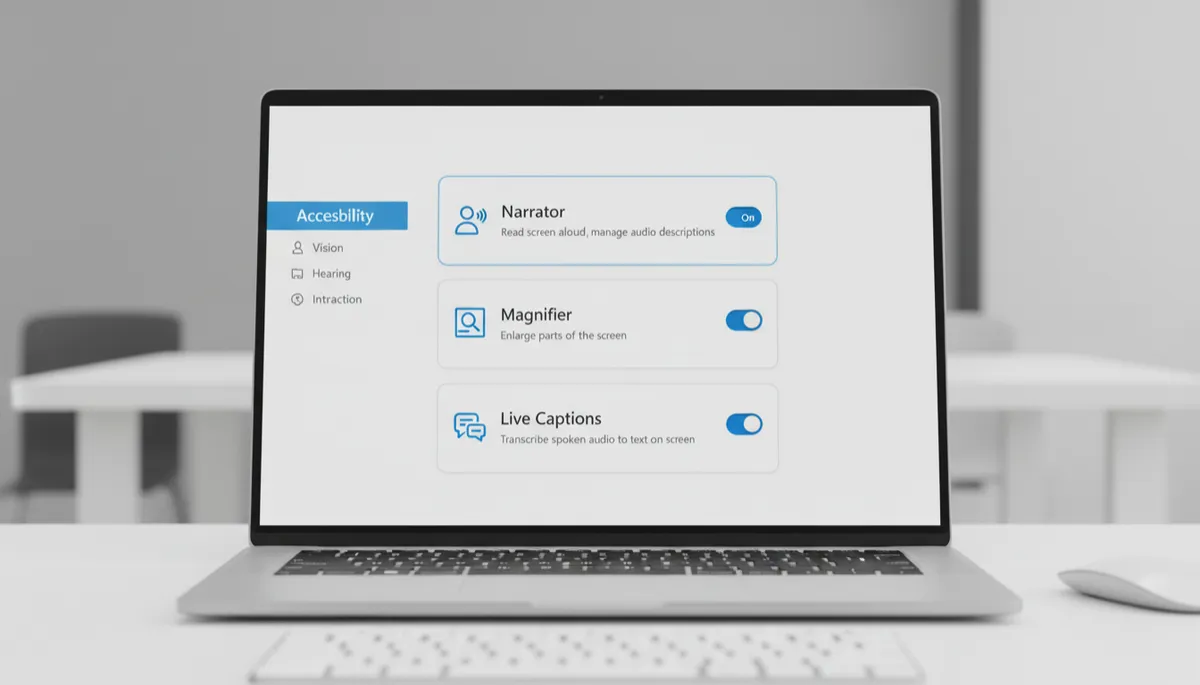
Live Captions in Windows 11: Real-Time Captions for Any Audio
Real-Time Captions for Any Audio on Your PC
Windows 11 Live Captions transcribes audio in real time — from videos, calls, podcasts, games, or microphones — and displays it as text on screen. No internet connection required after initial setup, and no data leaves your device.
How to Enable Live Captions
- Press Win + Ctrl + L
- The first time: Windows downloads the speech recognition package (a few hundred MB)
- After setup, a captions bar appears at the top or bottom of your screen
Or go to Settings → Accessibility → Captions → Live captions → toggle on.
What It Captions
- Any video playing in a browser or media player
- Video calls (Teams, Zoom, Meet, and others)
- Podcasts and audio files
- Your own microphone input — useful for live transcription
- System sounds and game audio
Positioning the Captions Bar
Click the settings gear in the captions bar → Position. Dock at the top or bottom of the screen, or make it a floating window you can drag anywhere — useful on multi-monitor setups.
Customizing Caption Appearance
Go to Settings → Accessibility → Captions → Caption style. Options include font size, color, background opacity, and text style. Presets available (White on Black, Yellow on Black) or create a custom style.
Privacy
Live Captions processes audio entirely on your device using on-device AI. Audio is not sent to any server — safe to use in confidential meetings or for sensitive content.
