Top Windows 11 Keyboard Shortcuts for Productivity
Windows 11, Productivity, Keyboard Shortcuts
Essential Multitasking Keyboard Shortcuts in Windows 11 You’ll Actually Use
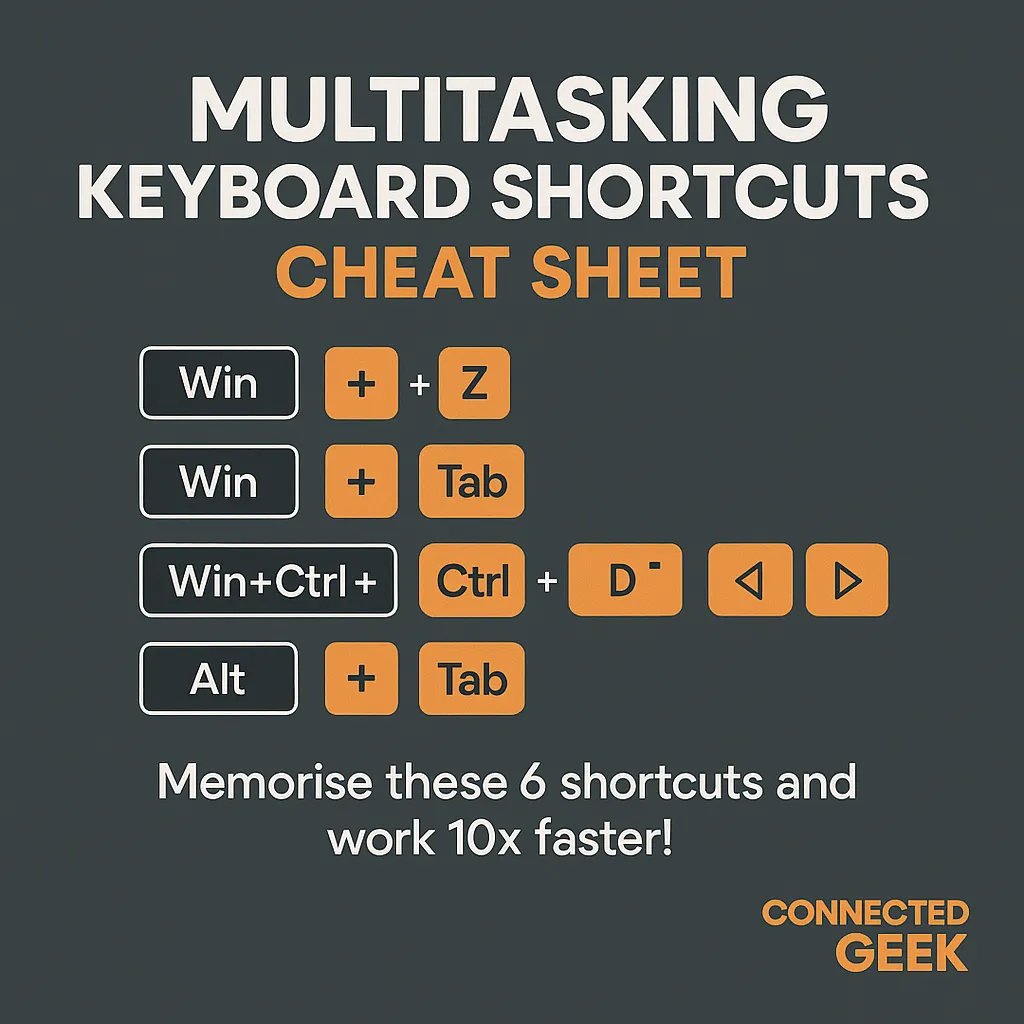
If you ever feel overwhelmed by too many windows, tabs, and apps, Windows 11 has your back. With a few easy keyboard shortcuts, you can organize your screen, jump between tasks, and keep your desktop tidy without lifting your hands off the keyboard. Let’s walk through six friendly, must-know shortcuts—and why you’ll want to save them somewhere handy.
Win + Z: Tidy Windows with Snap Layouts
Snap Layouts are one of Windows 11’s nicest quality-of-life upgrades. Press Windows key + Z while a window is active, and a small grid of layout options appears at the top of your screen. You can instantly choose how to arrange that window side-by-side, in a column, or in a custom grid with other apps. It’s perfect for pairing a browser with a document, or keeping chat and email visible while you work. After using it a few times, dragging windows around will feel painfully slow by comparison.
Win + Tab: See Everything with Task View
When your screen feels cluttered, Windows key + Tab is your quick overview button. This opens Task View, showing thumbnails of all open windows and your virtual desktops along the top. You can click any window to switch to it, or create and manage desktops from here. Think of Task View as your command center: one glance tells you what you’re working on and what you forgot you still had open.
Win + Ctrl + D: Create a New Virtual Desktop Instantly
Virtual desktops are like having multiple clean desks you can switch between. Press Windows key + Ctrl + D to create a brand new desktop on the spot. You might keep work apps on one desktop, personal browsing on another, and maybe a distraction-free writing space on a third. It’s a gentle, low-effort way to separate parts of your day without constantly closing and reopening apps.
Win + Ctrl + → / ←: Switch Between Desktops Smoothly
Once you’ve created multiple desktops, you’ll want a quick way to hop between them. That’s where Windows key + Ctrl + Right Arrow or Left Arrow comes in. These shortcuts slide you to the next or previous virtual desktop in a smooth animation. It feels a bit like flipping pages in a book—only the pages are full working environments. It’s especially handy when you get a sudden message and need to jump to your “communication” desktop, then slide right back to your focused workspace.
Win + Ctrl + F4: Close the Current Desktop When You’re Done
Finished with a project and want to clean things up? Press Windows key + Ctrl + F4 to close your current virtual desktop. Any open apps on that desktop aren’t lost—they simply move to the next available desktop. It’s a friendly way to “pack up” a workspace without worrying that you’ve accidentally closed important windows or documents.
Alt + Tab: Quickly Cycle Through Open Windows
The classic multitasking shortcut still deserves a place in your muscle memory. Hold Alt and tap Tab to cycle through your open windows; keep holding Alt and press Tab repeatedly until you land on the window you want. Release Alt to switch. It’s wonderfully fast for bouncing between two or three main apps, like a browser, email, and chat, without reaching for the mouse every few seconds.
Save These Shortcuts and Make Them Habit
To really benefit from these shortcuts, don’t just read them—save them. Jot them on a sticky note, pin them in a notes app, or set them as a quick reference on your desktop. Then, pick one or two to practice for a day until they feel natural. Before long, you’ll be snapping windows, switching desktops, and gliding through tasks like it’s second nature, all while keeping your workflow calm, organized, and just a little more fun.
