Windows 11 Game Bar Keyboard Shortcuts: The Complete Cheat Sheet
Windows 11, Game Bar, Gaming Shortcuts
Windows 11 Game Bar Keyboard Shortcuts Cheat Sheet for Gamers
If you game on Windows 11 and you’re still fumbling through menus to capture clips or check performance, you’re leaving free power on the table. The Xbox Game Bar is baked right into Windows 11, and once you’ve got its keyboard shortcuts down, it feels like having a mini streaming and recording deck at your fingertips—no extra hardware required. This cheat sheet walks you through the must‑know Game Bar hotkeys, a few clutch system shortcuts, and how to remap everything so it fits your playstyle perfectly.
The Core Command: Win + G to Open or Close Game Bar
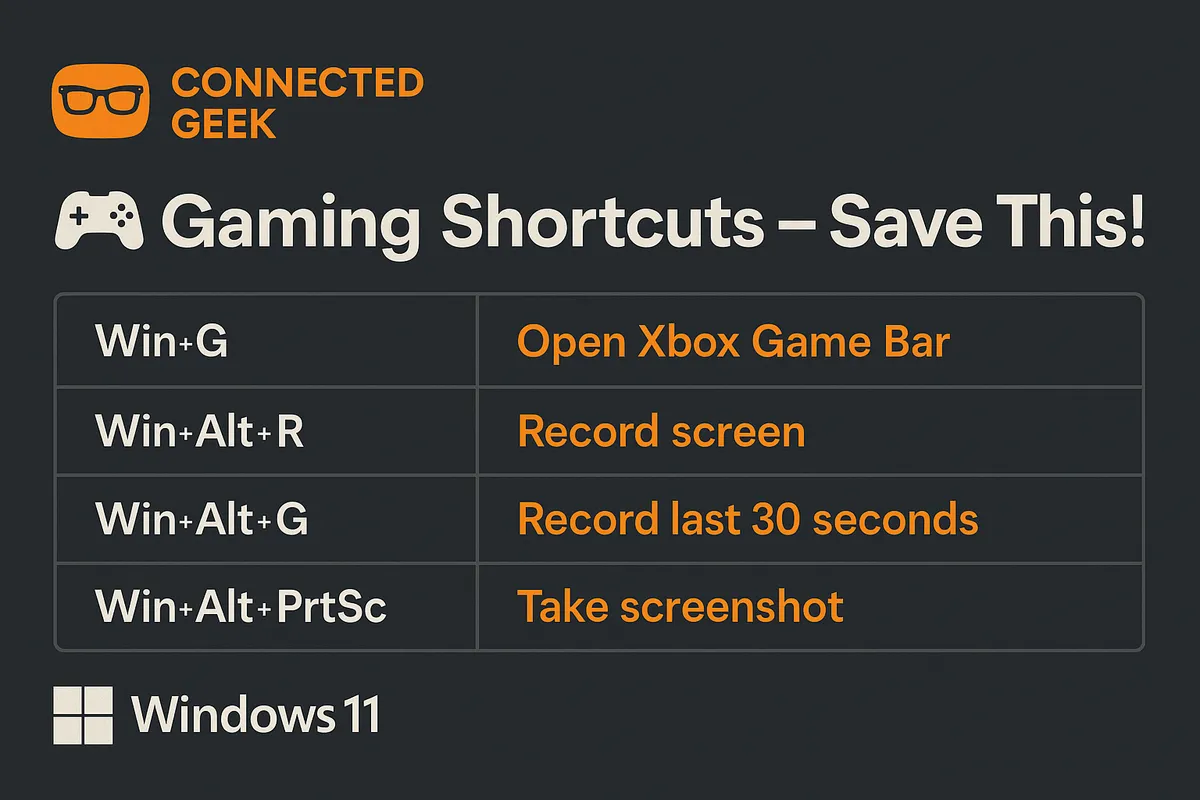
Think of Win + G as your command center key. Whenever you’re in a game—or even on the desktop—pressing Windows logo key + G instantly toggles the Game Bar overlay. Hit it once to bring up the widgets for capture, audio, performance, and more; hit it again to close and drop right back into the action. It’s fast, it’s clean, and once it’s muscle memory, you’ll wonder how you ever gamed without it. Just make sure Game Bar is enabled in settings, otherwise this combo won’t fire up the overlay at all.
Snap the Perfect Moment: Win + Alt + PrtSc for Screenshots
When your raid finally clears that boss or you pull off a ridiculous flick shot, you don’t want to dig through menus to grab a still. That’s where Win + Alt + PrtSc comes in. Pressing Windows + Alt + Print Screen instantly captures a screenshot of your active game window using Game Bar’s capture engine. No overlays, no extra UI—just a clean shot saved straight to your captures folder (by default, that’s under Videos > Captures in your user directory). It’s perfect for sharing clutch moments on Discord or loading screens that are meme‑worthy all on their own.
Record the Full Session: Win + Alt + R to Start or Stop Recording
If you like to record entire matches, speedruns, or story segments, Win + Alt + R is your go‑to. Press Windows + Alt + R once and Game Bar starts recording your current game window in the background. You’ll see a small recording indicator so you know it’s rolling, but you can keep your focus on the game. Hit the same combo again to stop the recording, and the clip is auto‑saved and ready for editing or upload. It’s ideal for content creators who want simple, no‑nonsense capture without firing up heavy third‑party tools every time they play.
Never Miss a Highlight: Win + Alt + G to Save the Last 30 Seconds
We’ve all had that moment: you just nailed an insane play and only then realize you weren’t recording. With Win + Alt + G, that problem basically disappears. Press Windows + Alt + G and Game Bar instantly saves the last chunk of gameplay—by default, around the last 30 seconds, though you can tweak this duration in capture settings. It’s like a built‑in “instant replay” button. Leave background recording enabled, play as usual, and when something legendary happens, tap this shortcut to lock it in forever instead of just telling your friends, “You had to be there.”
Control Your Comms: Win + Alt + M to Mute Your Microphone
Whether you’re streaming, recording, or just in a sweaty ranked lobby, fast mic control is crucial. The shortcut Win + Alt + M lets you mute or unmute your microphone on the fly. One tap of Windows + Alt + M toggles the mic state for Game Bar’s capture and supported chat overlays. It’s perfect when the doorbell rings, your dog starts barking, or you need to yell at your router without broadcasting it to the squad. No more scrambling through menus or frantically clicking tiny icons mid‑fight—just hit the combo and keep playing.
Watch Your Frames: Win + Alt + T for Performance Stats
If you care about frame rates, CPU usage, and GPU load—and let’s be honest, most PC gamers do—then Win + Alt + T is a power move. Press Windows + Alt + T to toggle the performance overlay from Game Bar. This can show FPS, system usage, and other stats in a small, always‑on‑top panel while you play. It’s incredibly handy when you’re tuning settings, testing a new GPU, or trying to squeeze a few extra frames out of a demanding title. Instead of guessing whether that new graphics tweak helped, you can see the numbers live as you play.
System Shortcuts Every Windows Gamer Should Know
Game Bar shortcuts are awesome, but pairing them with a few core Windows 11 system hotkeys makes your whole setup feel smoother and more “pro gamer” ready. These three are especially clutch during long sessions:
- Win + A – Opens the Quick Settings panel. From here you can rapidly toggle Wi‑Fi, Bluetooth, Night Light, and adjust volume or brightness. It’s perfect for killing background distractions or tweaking audio levels between rounds without alt‑tabbing through a maze of windows.
- Win + Tab – Brings up the Task View, showing all your open apps and virtual desktops. It’s a clean way to jump between your game, Discord, browser, and music player. If you like separate desktops for “gaming” and “everything else,” this shortcut is your quick warp gate.
- Win + D – Instantly shows the desktop by minimizing all open windows. Hit it again to restore them. It’s great when you need to quickly drag a file, check a folder, or click a launcher without fully exiting your game view for long.
How to Remap Game Bar Shortcuts in Windows 11
Every gamer has a different setup—different keyboards, different hand positions, and different muscle memory. The good news is that you’re not locked into the default Game Bar combos. You can remap most Game Bar shortcuts directly in Windows 11 so they line up with what feels natural to you.
Here’s how to do it:
- Press Win + I to open Settings, or click the gear in the Start menu.
- In the left sidebar, select Gaming.
- Click Game Bar (sometimes labeled “Xbox Game Bar”).
- Scroll down to the Keyboard shortcuts section. You’ll see entries for opening Game Bar, taking screenshots, starting/stopping recording, saving the last 30 seconds, muting the mic, and more.
- Click in the shortcut box you want to change, press your new key combo, and then confirm. Windows will warn you if the combo conflicts with an existing system shortcut so you don’t accidentally break something important.
This is huge if you prefer, say, Ctrl + F10 for recording or want your instant replay on a function key that’s easy to tap between abilities. Just remember that some shortcuts—like core Windows system keys—can’t be overridden, so pick combinations that feel comfortable but don’t clash with your usual gameplay inputs.
Level Up Your Windows 11 Gaming Flow
Mastering these shortcuts turns Windows 11 from “just an OS” into a legit gaming hub. With Win + G to open Game Bar, Win + Alt + PrtSc for screenshots, Win + Alt + R for full recordings, Win + Alt + G for instant replays, Win + Alt + M to control your mic, and Win + Alt + T for live performance stats, you’re ready to capture and tweak every session like a pro. Add in Win + A, Win + Tab, and Win + D for system control, then remap everything under Settings → Gaming → Game Bar to fit your style, and your keyboard becomes your ultimate in‑game control panel. Learn them, practice them, and let your gameplay—not your menus—take center stage.
