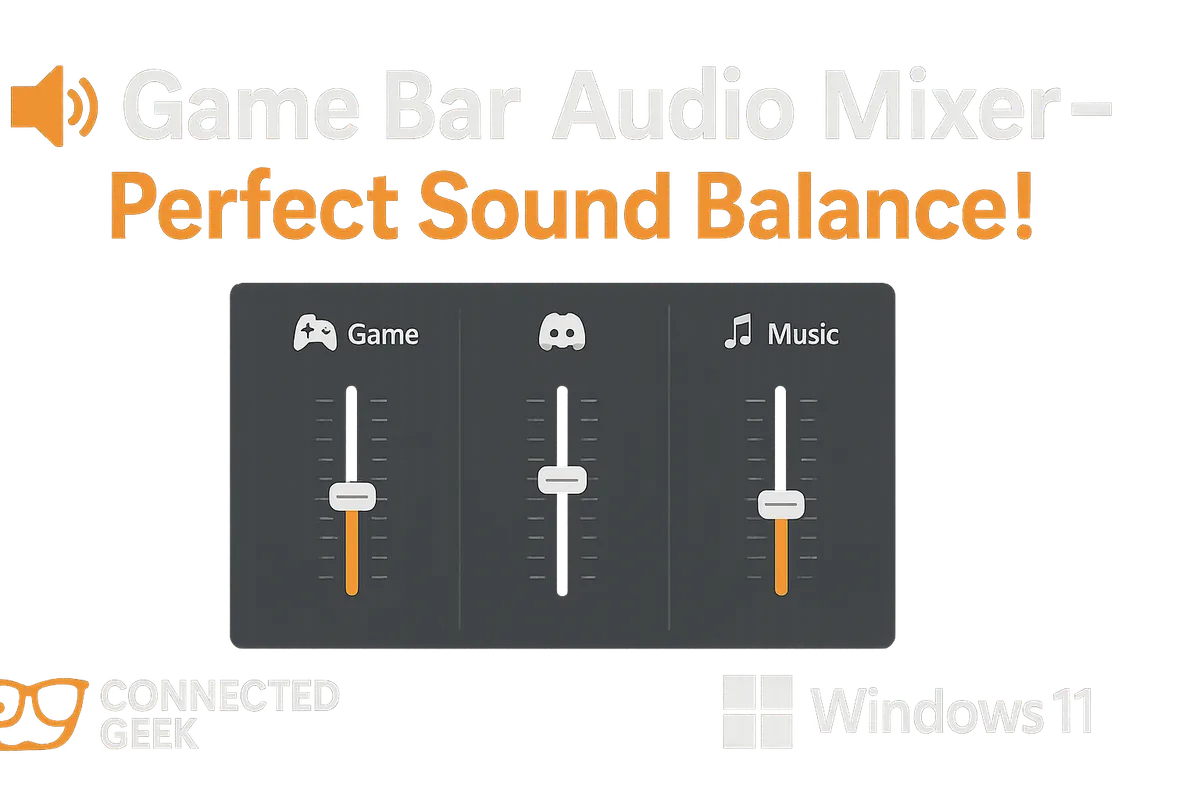
Windows 11 Game Bar Audio Mixer: Balance Game Sound Without Alt-Tabbing
Gaming, Windows 11, Audio Control
Master Your Sound: A Gamer’s Guide to the Windows 11 Game Bar Audio Mixer
Your aim is cracked, your ping is low, but your squad can’t hear you over the blasting Spotify playlist. If your audio mix is more chaotic than a bronze lobby, it’s time to meet your new best friend: the Windows 11 Game Bar Audio Mixer. This built‑in tool lets you tune every sound source like you’re the DJ of your own game session—without ever leaving the action.
Step One: Summon the Game Bar (Win + G → Audio Widget)
First, you need to call the Game Bar onto the battlefield. While you’re in a game—or honestly, on any screen in Windows 11—press Win + G. That key combo is your secret cheat code to open the Xbox Game Bar overlay. No mods, no downloads, just straight from Windows itself.
Once the overlay pops up, look for the Audio widget. If you don’t see it right away, check the top bar of the Game Bar for the little speaker icon. Click it, and the Audio panel will appear, usually docking on the side of your screen like a mini control tower for everything you hear and say while gaming.
Meet Your Squad: Individual Volume Sliders for Every Audio Source
The magic of the Game Bar Audio Mixer is that it breaks your sound down by app, not just one big master volume blob. Think of it as your party list: each app gets its own nameplate and slider, ready to be buffed or nerfed on the fly.
- Your game: Whether you’re in Valorant, Fortnite, or a cozy indie, the game itself shows up with its own slider so you can crank up footsteps or tone down explosions.
- Discord or Teams: Your comms apps appear as separate sources, letting you boost your teammates’ voices without turning the whole system volume into a jumpscare.
- Spotify (or other music apps): Keep the hype playlist rolling, but drop it just low enough that you can still hear the enemy reloading around the corner.
- Microphone: There’s a dedicated section for your input devices too, so you can control how loud you sound to everyone else, right next to your game audio.
Each slider moves independently, so you can run your game at 80, Discord at 100, Spotify at 25, and your mic at a comfortable level. It’s like building a custom sound loadout that fits exactly how you like to play.
Instant Silence: How to Mute Individual Sources
Sometimes you don’t need a gentle volume adjustment—you need that app to shut up now. Maybe your friend just joined Discord with a leaf blower in the background, or an ad started screaming from your music app mid‑clutch. The Game Bar Audio Mixer has your back.
Next to each app’s slider, you’ll see a small speaker icon. Click it, and that specific source is instantly muted. Click it again to unmute. You can also slam the slider down to zero, but the mute button is faster when you’re mid‑fight and every millisecond counts. For your microphone, there’s usually a clear mic mute toggle in the input section, perfect for quickly hiding your frantic snack‑bag noises from your squad.
Why This Crushes Alt‑Tabbing to the Old Windows Volume Mixer
Sure, you could still alt‑tab, right‑click the speaker icon, open the classic Volume Mixer, and start hunting for the right app. But that’s like opening your inventory mid‑1v1 to rearrange your loot—technically possible, strategically terrible.
With the Game Bar Audio Mixer, you never actually leave your game. Win + G brings up an overlay on top of your current screen, so your match stays visible while you tweak volumes. No black screens, no game minimizing, no risk of misclicking into the wrong window and eating a headshot while you’re staring at your desktop. It’s built for in‑game control, not desktop admin work.
On top of that, the layout is cleaner and more focused on what gamers actually use: game audio, voice chat, music, and mic levels. Instead of scrolling through a wall of background apps and system sounds, you get a tight, easy‑to‑read stack of the stuff that matters while you’re playing. Less menu time, more game time.
Competitive Gaming: Hear Every Footstep, Not Every Notification
If you’re grinding ranked, audio is intel. The Game Bar Audio Mixer lets you push your game volume up so footsteps, reloads, and ability cues are crystal clear, while dropping Spotify and other background apps to barely‑there levels. You can also bump up Discord slightly so your IGL doesn’t get drowned out by explosions.
Mid‑match, if someone in voice suddenly becomes a walking storm of background noise, a quick Win + G and a tap on the Discord mute icon keeps your focus locked without fumbling through the Discord window itself. It’s all about shaving off those tiny distractions that can cost you a round.
Streaming: Balance Game, Chat, and Music Like a Pro
For streamers, audio is half the show. You want your viewers to hear the game, your voice, your friends, and maybe a little background music—without any one thing hijacking the entire stream. The Game Bar Audio Mixer gives you a quick way to monitor and adjust what you hear, which usually lines up with what your streaming software captures.
Got a hype moment coming up? Nudge the music down a bit so your commentary and the in‑game sound effects hit harder. Chat getting rowdy in Discord? Knock them down a few notches so they don’t drown out your reactions. And when you need to cough, yell at your cat, or answer someone off‑mic, a quick mic mute in the Game Bar keeps your stream clean without tabbing out of your game or OBS.
Casual Play: Vibes First, Chaos Controlled
Not every session is sweaty ranked. Sometimes you just want to chill in a cozy game, hang out in a voice channel, and let your playlist do its thing. The Game Bar Audio Mixer is perfect for those low‑pressure nights too. You can turn the game audio down to a gentle background hum, pump up Spotify, and keep Discord at a comfy level so you can chat without shouting over anything.
If a cutscene with great music or story pops up, you can instantly lower Discord and music with a couple of sliders so you can soak it in. When it’s over, slide everything back up and keep the vibes rolling. No pausing, no desktop detours—just smooth, on‑the‑fly control that matches how you actually play.
Final Round: Make the Audio Mixer Part of Your Loadout
Once you get used to hitting Win + G and tweaking the Audio widget, it feels less like a hidden Windows feature and more like essential gear—right up there with your mouse, headset, and favorite keybinds. Individual sliders for your game, Discord or Teams, Spotify, and your microphone mean you’re always in control of the soundscape, whether you’re sweating in ranked, performing for chat, or just relaxing after a long day.
