Windows 11 Family Safety Notifications: Get Alerts for Screen Time, Content and Purchases
Parenting, Microsoft Family Safety, Windows 11
Understanding Microsoft Family Safety Notifications in Windows 11
Microsoft Family Safety in Windows 11 is like a quiet co‑parent in the background, helping you keep an eye on your child’s digital world without hovering over their shoulder. One of its most helpful features is the real‑time notifications that arrive directly on your phone. Instead of waiting for a weekly report, you can see what is happening as it happens and respond calmly and confidently.
The Key Notifications Parents Receive on Their Phone
When you set up Microsoft Family Safety, Windows 11 can quietly send you several types of alerts. These notifications are designed to support healthy habits, not to catch kids out, so it helps to talk them through with your child ahead of time.
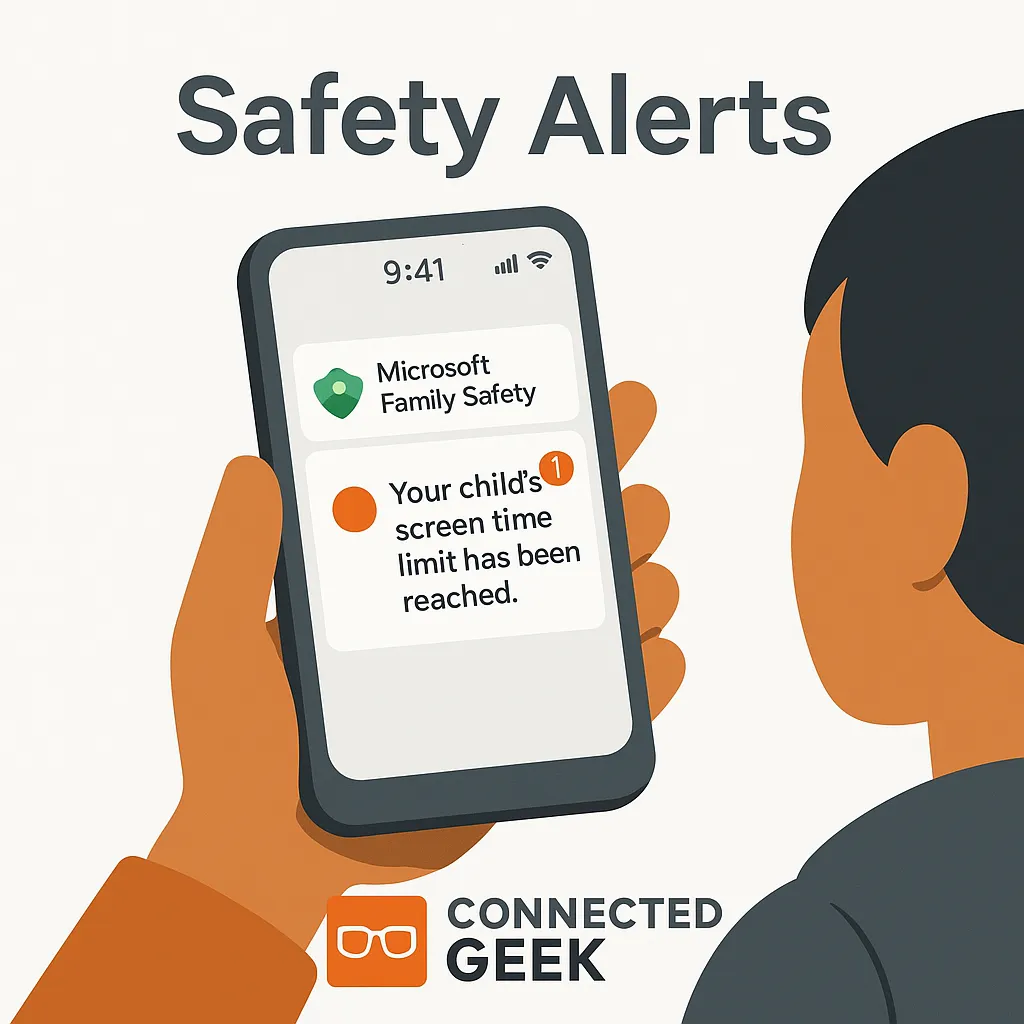
- Screen time limit reached: When your child uses up their daily screen time on a Windows 11 device, you get a notification on your phone. Often, your child can also send a request for more time, which appears as an alert you can approve or decline with a tap. This makes those “just five more minutes” conversations easier because the boundaries are clear and consistent.
- Blocked content attempted: If your child tries to visit a website that is filtered or blocked, Family Safety can notify you. The alert usually includes the site address and which child attempted to access it. This is a great chance to have a calm, age‑appropriate chat about why certain content is off‑limits, rather than discovering it days later in a report.
- Purchase approval requests: When your child tries to buy a game, app, or in‑app item using their Microsoft account, you can receive a request on your phone asking for approval. You see what they want to buy and how much it costs, and you can approve or deny right from the notification. It is an easy way to guide spending and teach money awareness without needing to grab the device out of their hands.
How to Set Up Family Safety Notifications for Windows 11
Getting these alerts working smoothly starts with creating a Microsoft family group and connecting your child’s Windows 11 account. Once that is in place, turning on notifications only takes a few minutes and does not require any technical know‑how.
- Create or sign in to your family group: On your computer, visit the Microsoft Family Safety website and sign in with your Microsoft account. Add your child’s account to your family if you have not already. Make sure they use that child account to sign in to their Windows 11 device.
- Install the Family Safety app on your phone: Download the Microsoft Family Safety app from the iOS App Store or Google Play Store. Sign in with the same Microsoft account you use as the family organizer. This app is where your notifications will appear and where you can manage settings on the go.
- Allow notifications on your phone: When you first open the app, it will ask for permission to send notifications. Be sure to tap “Allow.” You can later fine‑tune this in your phone’s notification settings if you want alerts to appear on your lock screen, make a sound, or stay silent but visible.
- Turn on screen time and content filters: In the Family Safety app, choose your child, then go to the screen time and content filter sections. Set daily limits, schedule allowed hours, and choose appropriate web and app filters. Once these are active, relevant notifications, such as “time is up” or “blocked site attempted,” start flowing to your phone automatically.
It is worth spending a few extra minutes exploring the settings together with your child, explaining that the goal is balance and safety, not punishment. When kids understand the “why,” they are often more cooperative with the “how.”
What the Microsoft Family Safety App Shows Parents
The Family Safety app is your central dashboard for understanding how your child uses their Windows 11 device. Think of notifications as quick nudges, and the app as the full story when you have time to look more closely.
- Screen time overview: See how much time your child spends on their Windows 11 PC each day, and how that time is split across different apps and games. You can adjust limits right from this view if you notice something creeping up.
- App and game usage: The app lists which apps your child uses most, helping you distinguish between homework tools and pure entertainment. This makes it easier to reward productive use and gently rein in time‑wasting habits.
- Web and search activity: You can see which sites your child visits and which ones were blocked. This is helpful for spotting new interests, potential risks, or simply understanding what they are curious about right now.
- Spending and purchase history: If you allow purchases, the app keeps a record of what was bought and when. Combined with purchase approval requests, this makes it easier to set clear rules about digital spending and stick to them.
All of this information is presented in a straightforward, parent‑friendly way. You do not need to be especially tech‑savvy to understand it or to make changes when needed.
Why Real‑Time Alerts Beat After‑the‑Fact Reports
Traditional activity reports, such as weekly email summaries, can be useful, but they often arrive long after the moment has passed. Real‑time notifications in Microsoft Family Safety change the dynamic in a much more positive way for both parents and kids.
- Gentler, in‑the‑moment conversations: When you get an alert that your child’s time is up or that they tried to access blocked content, you can address it that same day, while it is still fresh and relevant. This usually feels more like guidance than a surprise lecture about something that happened last week.
- Flexible, fair decisions: Maybe it is a rainy weekend, a special occasion, or a big school project. When a “screen time limit reached” notification pops up, you can choose to grant extra time without changing your overall rules. Kids see that limits are firm but can be adjusted thoughtfully when there is a good reason.
- Less guesswork, more trust: Real‑time purchase requests and content alerts remove the mystery around what is happening on the device. You do not have to snoop or constantly check in, because the important moments are brought to you automatically. Over time, this can actually build trust, as your child understands that you are involved and available, not just checking up on them after the fact.
Used well, Microsoft Family Safety notifications in Windows 11 are less about control and more about connection. They give you the information you need, when you need it, so you can support your child in building healthy, respectful digital habits that will serve them well for years to come.
