Control Game Age Ratings for Kids in Windows 11 with Microsoft Family Safety
Parenting, Online Safety, Windows 11
How to Control Game Age Ratings for Children in Windows 11 with Microsoft Family Safety
Helping children enjoy games safely on Windows 11 can feel overwhelming, especially when new titles appear every week. Microsoft Family Safety gives parents practical tools to match games to a child’s age and maturity, using familiar rating systems like PEGI in Europe and ESRB in North America. With a few thoughtful settings, you can let your child explore and play while still feeling confident about what they are downloading.
Understanding PEGI and ESRB age ratings
Before you change any settings, it helps to know what the ratings actually mean. In much of Europe, games use the PEGI system, while in North America you will usually see ESRB ratings. Both are designed to guide parents, not to replace your judgement, so think of them as a starting point for family conversations about what is appropriate.
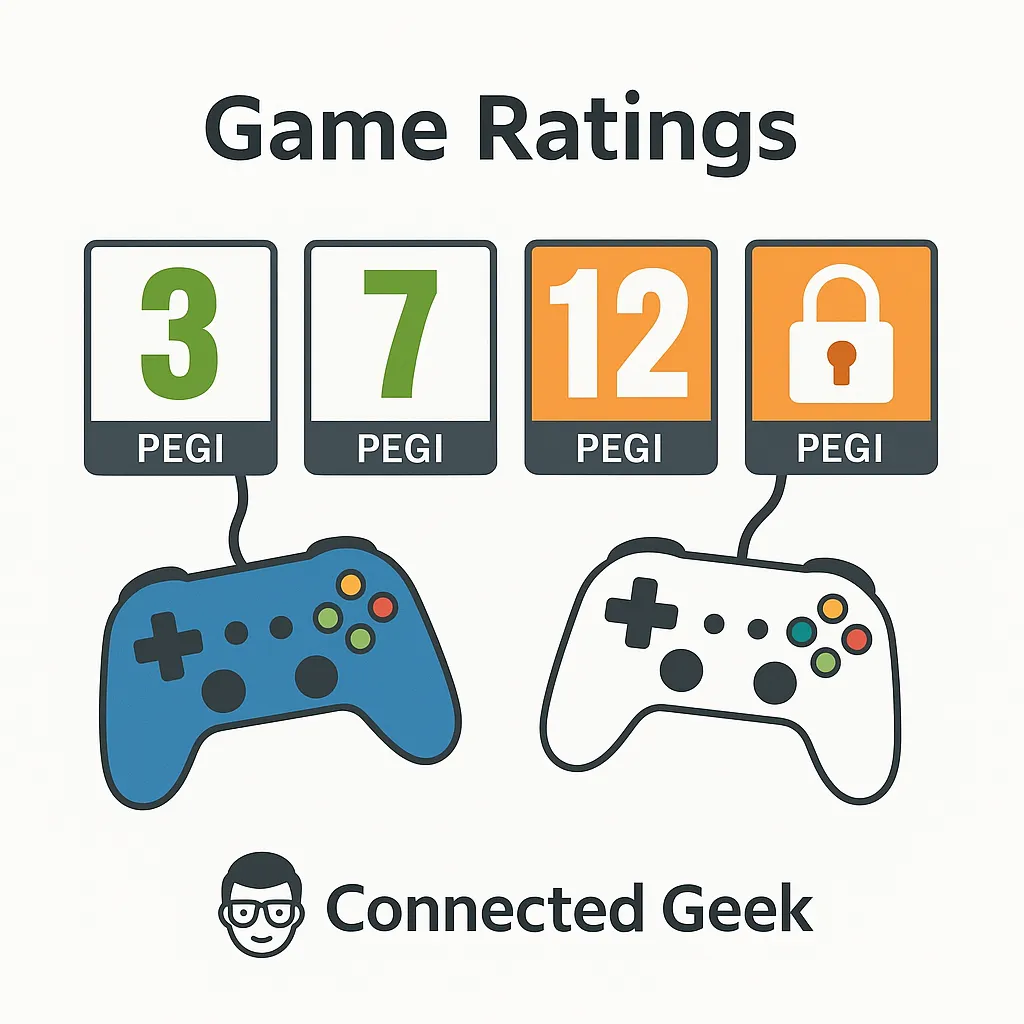
PEGI ratings (Europe) are:
- PEGI 3: Suitable for all ages; cartoon-style violence at most, no bad language or frightening scenes.
- PEGI 7: May include mild violence or slightly scary moments, but still aimed at younger children.
- PEGI 12: More realistic violence, mild swearing, or suggestive themes; often fine for early teens with guidance.
- PEGI 16: Stronger violence, sexual content, or use of tobacco and alcohol; aimed at older teenagers.
- PEGI 18: Adult-only themes, intense violence, or explicit content; not suitable for children.
ESRB ratings (North America) are:
- EC / E (Early Childhood / Everyone): Content is very mild and suitable for young children.
- E10+ (Everyone 10+): May include mild cartoon or fantasy violence and minimal language.
- T (Teen): For ages 13 and up; can feature more frequent violence, stronger language, or suggestive themes.
- M (Mature 17+): Intense violence, blood, or sexual content; meant for adults and older teens.
- AO (Adults Only): Explicit adult content; these games are not appropriate for children at all.
Where to configure game age limits in Microsoft Family Safety
To use these ratings on Windows 11, your child needs a Microsoft account that is part of your Microsoft Family. Once that is set up, you can manage everything either from the Family Safety website or the Family Safety mobile app on your phone or tablet, whichever is easier for you during a busy day.
On the Family Safety portal in a browser, sign in with your Microsoft account and choose your child’s profile. Then:
- Go to Content filters.
- Scroll to the section for Apps and games.
- Set the Allowed age rating that matches your child’s age and your comfort level.
The Family Safety app follows the same logic. Tap your child’s name, open Content filters, then adjust the age limit for apps and games. Windows 11 uses your region settings to decide whether to apply PEGI or ESRB, so you do not need to manually choose a system; the ratings are translated automatically into an age-appropriate limit for your country.
What happens when a game is above your child’s age rating?
Once you have set the age limit, Windows 11 and the Microsoft Store quietly enforce it in the background. When your child searches for games, titles that exceed the selected PEGI or ESRB rating are either blocked from installation or flagged for your approval, depending on your settings. This means you are not relying on your child to read fine print or understand rating symbols every time they browse.
If your child tries to install a game above their rating, they will see a message explaining that the game is restricted by family settings. In many cases, they can choose to ask for permission. You will then receive an email or a notification in the Family Safety app with details about the game and its rating. From there, you decide whether to allow it once, always allow it, or keep it blocked. This creates a natural moment to talk with your child about why a game is or is not suitable right now.
Pairing age ratings with purchase approval for full control
Age ratings are powerful, but they work best when combined with purchase controls. Without purchase approval, a curious child could still spend money on in game add ons or new titles that sit right at the edge of their allowed rating. Microsoft Family Safety lets you add a second layer of protection so that spending and content are both under your guidance.
In the Family Safety portal or app, open your child’s profile and look for the section related to Spending or Ask to buy. You can:
- Require an adult to approve every purchase, even if the game falls within the allowed age range.
- Add money to your child’s Microsoft account so they can manage a small budget, while still needing approval for new games.
- Review purchase history, so you always know which games and add ons have been bought.
When age ratings and purchase approval work together, you get a balanced system. The age limit stops clearly unsuitable games from being installed, while purchase approval lets you look more closely at borderline titles and extra content. Your child can still feel a sense of independence by browsing, requesting games, and managing a small allowance, but you remain the final decision maker.
Making game time safer and more relaxed
Setting up Microsoft Family Safety on Windows 11 takes a little time at first, but it quickly pays off in peace of mind. By choosing appropriate PEGI or ESRB levels, knowing what each rating means, and combining those limits with purchase approval, you create a safer digital space that still leaves room for fun. As your child grows, you can gently adjust the settings and talk together about why some games become available and others remain off limits. In this way, the technology supports not just control, but ongoing, thoughtful conversations about healthy gaming habits.
