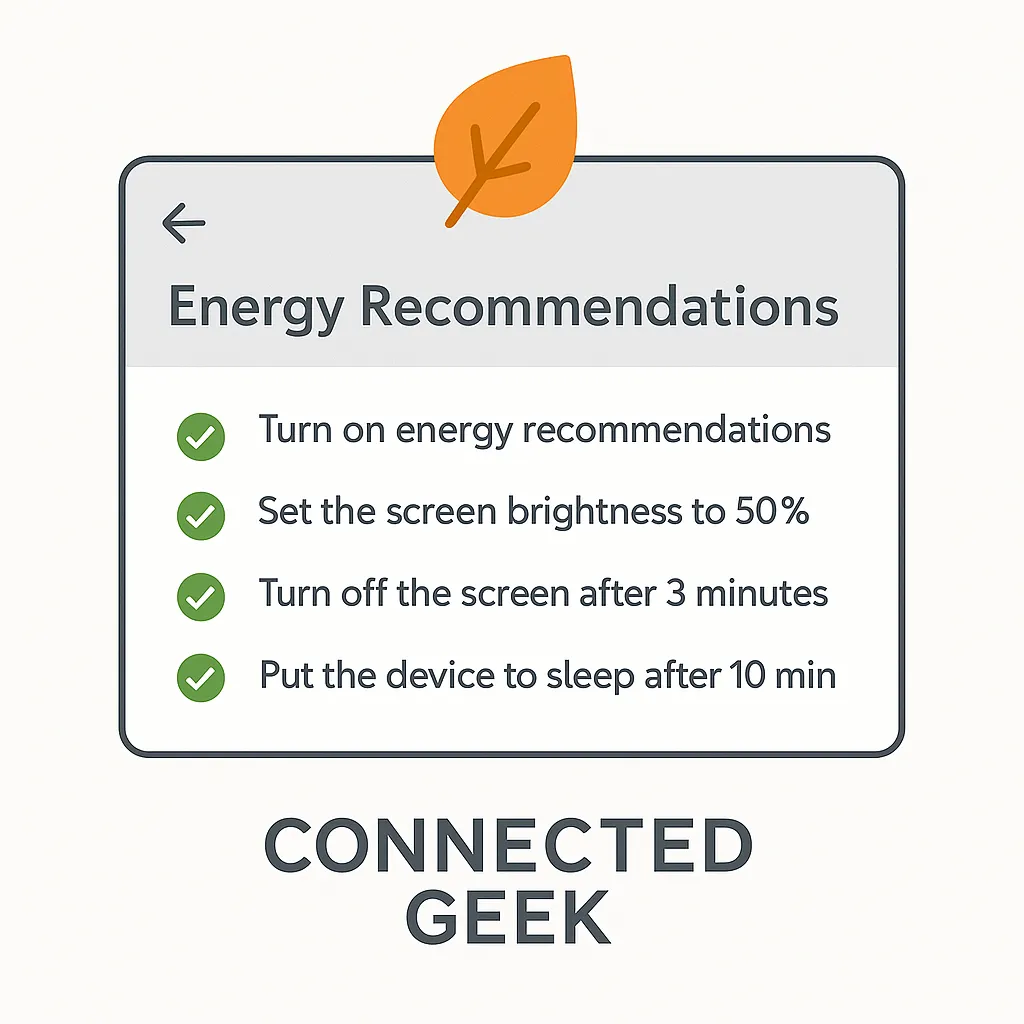
Windows 11 Energy Recommendations: Let Windows Suggest Your Power Savings
Windows 11, Power Settings, Energy Saving
Windows 11 Energy Recommendations: An Easy Way to Save Battery and Power
If you have ever opened the power settings on your PC and felt a little overwhelmed, you are not alone. Windows 11 introduces a friendly helper called Energy recommendations that takes the guesswork out of saving battery life and reducing energy use, all without needing to be a tech expert.
Where to Find Energy Recommendations in Windows 11
Energy recommendations are tucked neatly into the Windows 11 Settings app, and you can get there in just a few clicks. Here is the exact path:
- Click the Start button and choose Settings, or press Windows key + I on your keyboard.
- In the left-hand menu, select System.
- Click Power & battery.
- Scroll until you see Energy recommendations, then select it to open the list.
Once you are there, Windows will scan your current settings and show clear, easy-to-read suggestions for improving energy efficiency on your device.
What Kinds of Suggestions Does It Make?
The Energy recommendations page focuses on small, practical tweaks that can add up to noticeable savings over time. You will typically see suggestions related to:
- Screen timeout – Windows may suggest turning off your screen sooner when you are not using the PC. For example, instead of staying on for 10 or 15 minutes, it might recommend a shorter timeout like 3 or 5 minutes. This is especially helpful on laptops, where the display is one of the biggest battery drains.
- Sleep timers – You might see a recommendation to put your device to sleep more quickly when it is idle. That means your PC will slip into a low-power state sooner, using far less energy while still being ready to wake up quickly when you need it again.
- Screen brightness – Bright screens look great, but they also use more power. Energy recommendations can suggest lowering your display brightness slightly or enabling features like automatic brightness adjustment, which dims the screen when full brightness is not necessary.
- Turning off certain features – Some background features and hardware options can quietly consume power. Windows might suggest turning off things such as always-on network connections, disabling unused wake features, or switching off certain background tasks that are not essential for everyday use.
Each suggestion is written in plain language, so you can quickly understand what will change and why it matters. You do not need to know the technical details; Windows does the thinking for you.
Applying Suggestions with a Single Click
One of the best parts of Energy recommendations is how simple it is to use. Next to each suggestion, you will see an option to apply it immediately. In many cases, it is literally a one-click change.
Instead of hunting through several different menus to find the right slider or checkbox, you just review the recommendation and click the button to accept it. Windows then updates the underlying power settings for you in the background. If there are several suggestions, you can go through them one by one, accepting the ones that make sense for how you use your PC.
A Gentle Starting Point for Power Settings Beginners
Power settings pages can look a bit intimidating, especially if you are not sure what “sleep,” “hibernate,” or “power mode” really do. Energy recommendations are designed as a friendly starting point for people who know they want better battery life or lower power use, but do not know where to begin.
Instead of making you dig through every option, Windows 11 highlights the changes that will have the biggest impact. It explains each one in simple terms, and lets you act on them right away. This removes the fear of “breaking something” or choosing the wrong setting, because the recommendations are safe, sensible defaults created by Microsoft with everyday users in mind.
Over time, you might feel more confident exploring the full Power & battery section. But even if you never touch another option, using Energy recommendations gives you a quick win: better efficiency with almost no effort.
Balancing Performance and Battery Life
A common worry with power-saving tools is that they might slow your computer down too much. Windows 11’s Energy recommendations aim for a balance between performance and battery life, rather than simply dialing everything down to the lowest possible level.
Many of the suggestions target times when you are not actively using your PC: when you step away from your desk, close the lid of your laptop, or stop touching the keyboard and mouse for a while. By dimming the screen sooner or putting the device to sleep more quickly, Windows saves energy without affecting how fast apps feel while you are actually working, browsing, or streaming.
Even changes like slightly lower brightness are chosen carefully. In many environments, you will hardly notice a small reduction, but your battery certainly will. And if you ever feel that a recommended setting makes your PC feel sluggish or too dim, you can always go back to Settings → System → Power & battery → Energy recommendations and adjust things again or switch specific options off.
Making Energy Saving Effortless
Windows 11 Energy recommendations are a simple, friendly way to get more from your device without diving into complicated settings. By guiding you to the most effective tweaks—like screen timeout, sleep timers, brightness, and turning off unneeded features—and letting you apply them with a single click, Windows does the heavy lifting for you.
Whether you want your laptop battery to last longer on the go, or you just like the idea of using a little less electricity at home, this feature is a great place to start. The next time you are in front of your Windows 11 PC, take a moment to visit Settings → System → Power & battery → Energy recommendations and see what Windows suggests. You might be surprised by how much you can save with just a few friendly, guided clicks.
