Windows 11 Ease of Access: The Complete Settings Guide
Ease of Access: Windows 11's Complete Accessibility Hub
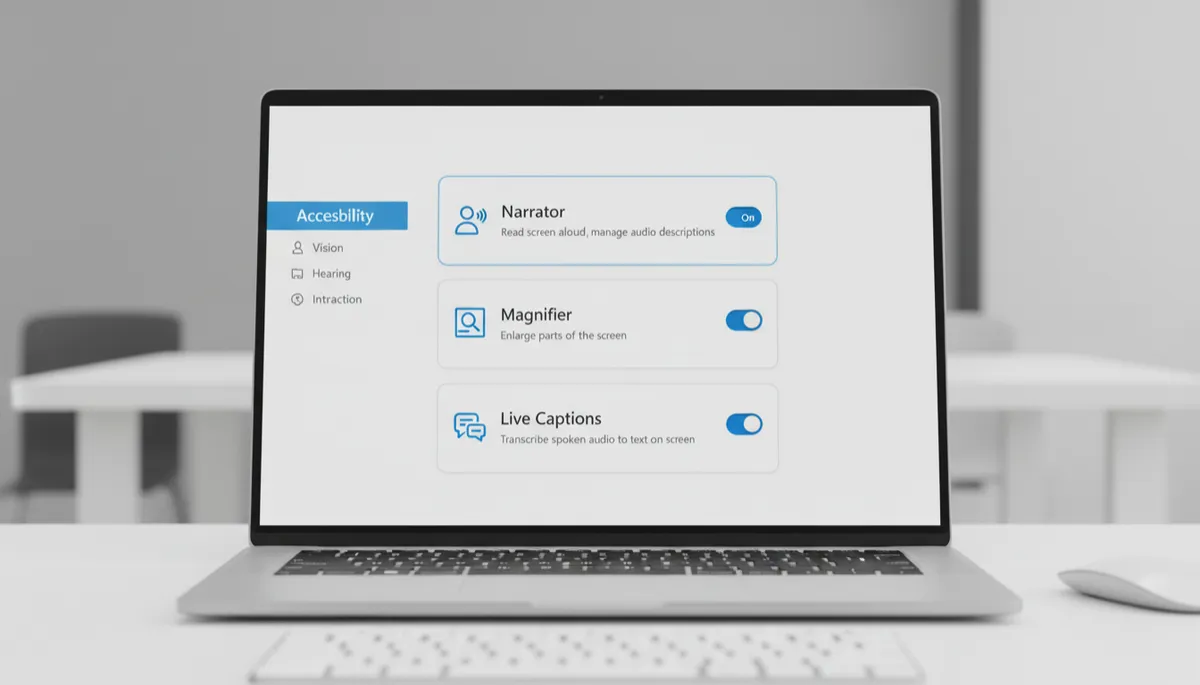
Windows 11 consolidates all accessibility features under Settings → Accessibility. Here's a complete map of what's there and when to use each feature.
Vision Settings
- Text size: Increase system-wide text size without changing display resolution
- Visual effects: Reduce animations, transparency, and scrolling — helps users with motion sensitivity
- Mouse pointer and touch: Change pointer size and color; increase touch indicator size
- Text cursor: Make the text cursor thicker and add a color indicator so it's easier to spot
- Color filters: Apply color blindness filters (protanopia, deuteranopia, tritanopia) or grayscale mode
- Contrast themes: High-contrast black or white themes for users with low vision
- Magnifier (Win + =): Zoom into any screen content
- Narrator (Win + Ctrl + Enter): Screen reader
Hearing Settings
- Captions (Win + Ctrl + L): Live Captions for any audio
- Mono audio: Combines left and right audio channels — helpful for users with single-ear hearing loss
- Flash notifications: Make the screen flash instead of playing a sound for alerts
Interaction Settings
- Voice access: Full voice control of Windows without third-party software
- Sticky Keys: Allows one-key-at-a-time keyboard shortcuts
- Filter Keys: Ignores brief or repeated keystrokes
- Mouse Keys: Control the mouse cursor using the numeric keypad
- Eye control: For compatible eye-tracking hardware
The Hidden Time Saver: Win + U
Press Win + U from anywhere to jump directly to Accessibility settings — faster than navigating through Settings menus.
