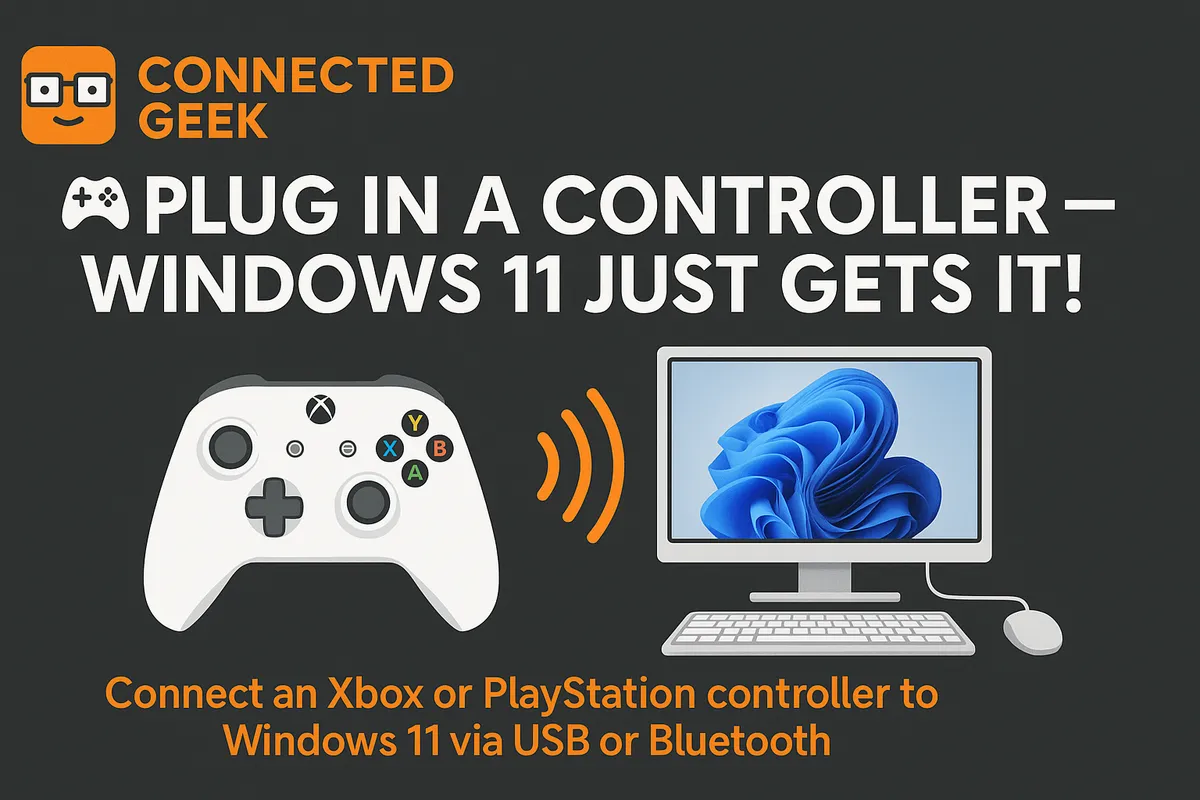
Controller Support in Windows 11: Xbox, PlayStation and More
Windows 11, Gaming Controllers
Controller Support in Windows 11: A Friendly Guide to Getting Set Up
If you are moving your gaming to a Windows 11 PC, the good news is that using a controller is easier than ever. Whether you prefer an Xbox pad, a PlayStation controller, or a simple budget gamepad, Windows 11 is built to recognize and use most of them with very little fuss. This guide walks you through the main options, how to connect them, and how to confirm everything is working, so you can relax and get back to playing.
Xbox Controllers: The Smoothest Experience on Windows 11
Microsoft designs Xbox controllers and Windows to work together, so if you want the most straightforward setup, this is usually the best route. For most modern games, an Xbox controller will be detected automatically, with in-game button prompts that match what you see on the pad.
Xbox Wired: Instant USB Plug-In Convenience
A wired Xbox controller is about as plug-and-play as it gets. Simply connect the USB cable from your controller to any USB port on your Windows 11 PC. Within a few seconds, Windows should install the necessary drivers in the background. There is no extra software required for basic use, and you will usually see the controller start working immediately in most modern games and in game launchers like Steam or the Xbox app. If you like things simple and reliable, this is a very reassuring option.
Xbox Wireless: Bluetooth or Xbox Wireless Adapter
If you prefer to play without a cable, you have two friendly options: Bluetooth or the official Xbox Wireless adapter. Many modern Xbox controllers support Bluetooth, which is perfect for laptops and desktops that already have Bluetooth built in. To pair, hold the pairing button on the controller until the Xbox logo flashes, then on Windows 11 open Settings, go to Bluetooth & devices, choose Add device, and pick Bluetooth. Your controller should appear in the list, and once you select it, the connection is usually complete within moments.
For the most stable connection and lower latency, especially on a desktop without good Bluetooth, the Xbox Wireless adapter is a great choice. It uses the same wireless technology as an Xbox console. Plug the adapter into a USB port, press its pairing button, then hold the pairing button on your controller. Windows 11 handles the rest, and you can comfortably sit back on the sofa without worrying about cables or dropouts.
PlayStation DualShock 4 and DualSense on Windows 11
If you are used to playing on a PlayStation, you do not have to give up that familiar feel when you move to PC. Both the DualShock 4 (PlayStation 4) and DualSense (PlayStation 5) controllers can work nicely with Windows 11 using either USB or Bluetooth, though there are a few small details to keep in mind.
Using USB with DualShock 4 and DualSense
To connect by cable, plug your controller into a USB port using a compatible cable (Micro‑USB for DualShock 4, USB‑C for DualSense). Windows 11 will detect it and install basic drivers automatically. Many games, especially through Steam, can then map the controller to an Xbox layout behind the scenes, so it behaves much like an Xbox pad. You might still see Xbox button icons on screen, but the controls will feel natural once you remember which button corresponds to which prompt.
Using Bluetooth with DualShock 4 and DualSense
Wireless setup is also friendly. First, put the controller into pairing mode by holding Share (or Create on DualSense) and the PS button together until the light bar flashes rapidly. On Windows 11, open Settings, then Bluetooth & devices, and click Add device followed by Bluetooth. Select the controller when it appears. Once connected, many modern games and platforms will recognize it just fine. For advanced features like adaptive triggers or motion controls, you may need extra software, but for basic gaming the default support is usually enough to get you playing comfortably.
Generic USB Gamepads: Budget-Friendly Options
You do not have to buy a big-brand controller to enjoy games on Windows 11. Many generic USB gamepads, including older or budget models, work perfectly well. These typically connect via USB, and Windows installs a standard driver automatically. In many cases, games will see them as regular controllers, though button labels in the game may not match your actual pad. If you are mainly playing indie titles, retro games, or simpler action games, a generic gamepad can be a very comfortable and affordable option.
How to Verify Your Controller Works in Windows 11
Once you have connected your controller, it is reassuring to confirm that Windows actually sees it. The easiest way is through the Settings app. Open Settings, select Bluetooth & devices, and look for the Controllers section. Your connected pad should appear here by name, such as “Xbox Wireless Controller” or “Wireless Controller” for a PlayStation pad. If you see it listed, Windows 11 recognizes it and you are ready to launch a game.
If it does not show up, do not panic. Gently try unplugging and plugging the USB cable back in, or turning the controller off and on again for wireless models. You can also toggle Bluetooth off and on in Settings. A quick restart of the PC can also clear up small connection hiccups, and most issues resolve with one of these simple steps.
DirectInput vs XInput: Older Games and Compatibility
Behind the scenes, Windows uses two main controller standards: XInput and DirectInput. You do not need to be an expert to enjoy your games, but understanding the basics can help if you run into an older title that behaves strangely.
XInput is the newer standard, designed around Xbox controllers. Almost all modern PC games expect an XInput device, which is why Xbox pads integrate so smoothly with Windows 11. DirectInput is the older system, used by many classic games and by some generic USB controllers. When a game only understands DirectInput, an Xbox controller might not be detected correctly, and when a game only supports XInput, a very old or generic DirectInput-only pad might not map properly to the controls.
The reassuring part is that many launchers and games now include built-in support to bridge this gap. For example, Steam can translate some DirectInput controllers into XInput style input, making them work in newer games. If a particular older title is giving you trouble, a quick search for that game plus “controller support” usually turns up simple tools or community tips. In most cases, you will not be stuck for long.
Enjoying Windows 11 Gaming Your Way
Windows 11 is built with controller players in mind, so you can choose the pad that feels right in your hands and trust that it will probably just work. Whether you go with an instant plug‑in Xbox controller, a wireless setup, your trusty PlayStation pad, or a simple generic USB gamepad, you have plenty of friendly options. Once your controller shows up under Settings → Bluetooth & devices → Controllers, you are only a click away from jumping into your favorite games and enjoying a relaxed, console‑like experience on your PC.
