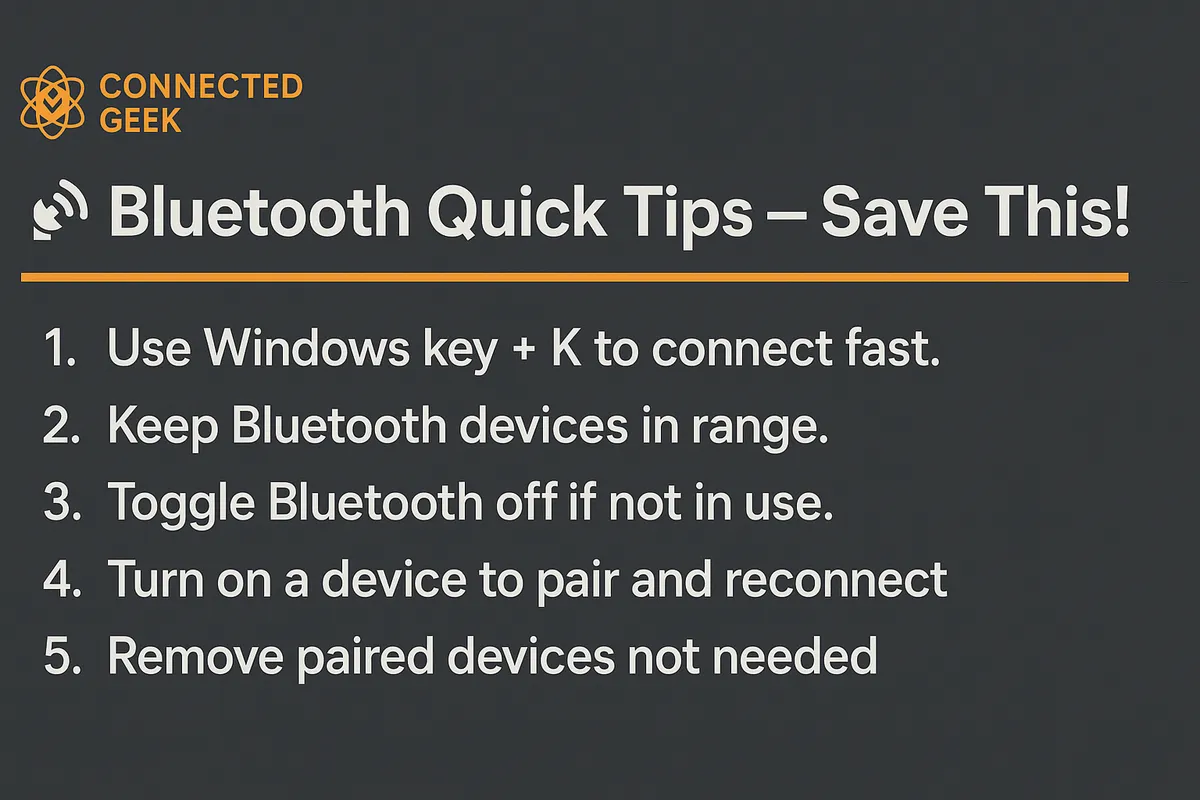
Windows 11 Bluetooth Complete Guide: Your Wireless Hub Cheat Sheet
Windows 11, Wireless, Bluetooth, Productivity
The Ultimate Windows 11 Wireless Hub Cheat Sheet (Grand Finale Edition)
Welcome to the grand finale of your Windows 11 wireless journey! This is your complete, no‑nonsense, feel‑good cheat sheet to turning your PC into a joyful wireless hub. From headphones and phones to TVs and printers, we’re celebrating every cable you no longer need. Keep this guide handy and get ready to glide through your wireless world like a pro.
1. Swift Pair: Instant Bluetooth Magic
Let’s start with a little Windows 11 party trick: Swift Pair. When you put supported Bluetooth devices (like many modern mice, keyboards, or earbuds) into pairing mode near your PC, Windows 11 often shows a cheerful pop‑up in the bottom‑right corner saying it found a device. Instead of diving into menus, just click the button to pair right from that pop‑up. It feels instant, effortless, and downright satisfying—like the OS is reading your mind and rolling out the red carpet for your gadgets.
2. Check Battery Levels in Seconds
Never let dead headphones crash your vibe again. Head to Settings → Bluetooth & devices, and you’ll see connected devices that report battery levels, such as earbuds, styluses, and some mice or keyboards. It’s like a tiny control tower for your gear, letting you top up batteries before a big call, a gaming session, or a movie night. A two‑second check here can save you from a very awkward “Can you still hear me?” moment later.
3. Remove Old Devices and Declutter Your List
If your Bluetooth list looks like a graveyard of old earbuds and borrowed speakers, it’s time for a victory cleanup. In Settings → Bluetooth & devices, find anything you no longer use, click it, and choose Remove device. This makes pairing faster, cuts down confusion, and keeps your wireless life feeling fresh and organized. Think of it as spring‑cleaning for your connection list—small effort, big satisfaction.
4. Send Files via the Bluetooth Tray Icon
When you want to beam a file to your phone or another PC, you don’t need cables or cloud links. In the system tray, click the Bluetooth icon (you may need to expand the hidden icons arrow), then choose Send a file. Pick the paired device, choose your file, and send it off. It’s wonderfully old‑school and wonderfully handy—perfect for quick photos, documents, or that song you promised to share, all without hunting for a USB cable.
5. Switch Audio Output from the Taskbar in a Click
Windows 11 makes audio switching feel delightfully smooth. Click the speaker icon on the taskbar, then hit the little arrow next to the volume slider. You’ll see a list of speakers, headsets, and Bluetooth earbuds. One click and your audio hops from laptop speakers to your wireless headphones. It’s a tiny move that feels like a power play—great for jumping from a private call to a shared video without missing a beat.
6. Fix Bluetooth Glitches Fast: Toggle and Re‑Pair
Even the best wireless setups have the occasional wobble, but you can usually fix things in under a minute. First, open Settings → Bluetooth & devices and turn Bluetooth off, wait a few seconds, then turn it back on. If that doesn’t do the trick, remove the misbehaving device and pair it again like it’s brand new. It’s simple, it’s quick, and it’s surprisingly effective—like a refreshing reboot for your wireless world.
7. Phone Link for Android: Your Phone, Supercharged on PC
Ready for a crowd‑pleaser? Phone Link turns your Android phone and Windows 11 PC into a dream team. Open the Phone Link app on your PC, follow the prompts, and install the companion app on your phone. Once linked, you can see texts, notifications, photos, and even make calls right from your computer. No frantic phone‑grabbing during meetings—everything flows through your PC, and your productivity gets a standing ovation.
8. Wireless Printer Setup Without the Headache
Printing wirelessly can feel like a small miracle when it all just works. Make sure your printer is connected to the same Wi‑Fi network as your PC, then go to Settings → Bluetooth & devices → Printers & scanners and choose Add device. Windows 11 will scan for printers and usually handles drivers automatically. Within moments, you’re hitting Print from the couch, the kitchen, or your standing desk, with no USB cable in sight—pure everyday magic.
9. Cast to TV with Win+K (Miracast)
Movie night, presentation, or photo slideshow? Press Win + K to open the cast panel and connect to a Miracast‑compatible TV or wireless display. Once connected, your screen appears on the big display without a single cable. It’s perfect for sharing content with a room full of people and gives your PC a show‑stopping, big‑screen upgrade in just a few keypresses.
10. Add a Second Monitor with Win+P
Whether your second display is wired or wireless, Win + P is your victory shortcut. Press it to choose how you want to use the extra screen: Duplicate for mirroring, Extend for extra workspace, or Second screen only when you want to focus on the external display. It’s a quick, confident way to reshape your desktop for work, play, or a polished presentation in seconds.
11. Nearby Sharing: Effortless Local File Beaming
For sharing files with nearby Windows 11 PCs, Nearby Sharing feels like a delightful shortcut through the air. Turn it on via Settings → System → Nearby sharing, then right‑click a file and choose Share. Pick a nearby device, and the transfer happens over Wi‑Fi or Bluetooth. No email, no USB drive—just quick, local sharing that makes teamwork and family tech support feel smooth and modern.
12. Mobile Hotspot: Turn Your PC into a Wi‑Fi Hero
When you have a solid Ethernet or cellular connection on your PC and other devices are struggling, flip on Mobile Hotspot and become the hero of the room. Go to Settings → Network & internet → Mobile hotspot, choose which connection to share, and set a network name and password. Suddenly your laptop is a mini router, generously sharing connectivity with phones, tablets, and other PCs—perfect for travel, outages, or impromptu coworking sessions.
13. Airplane Mode: One Switch to Silence the Airwaves
Finally, when it’s time to board a plane, save battery, or simply unplug from the noise, Airplane Mode is your all‑in‑one switch. Open Quick Settings from the taskbar and tap the Airplane mode button. Wi‑Fi, Bluetooth, and other radios go quiet in an instant. You can then selectively turn Wi‑Fi or Bluetooth back on if allowed, staying compliant while still enjoying your wireless gear. It’s calm, controlled, and wonderfully convenient.
Your Windows 11 Wireless Finale
You’ve just toured the full Windows 11 wireless toolkit—from Swift Pair and Bluetooth fixes to casting, sharing, printing, and hotspot magic. With these shortcuts and settings, your PC transforms into a confident, cable‑free command center. Keep exploring, keep connecting, and enjoy the freedom of a desktop that dances effortlessly with every device around it. Your wireless finale is here—and you’re absolutely ready for the encore.
