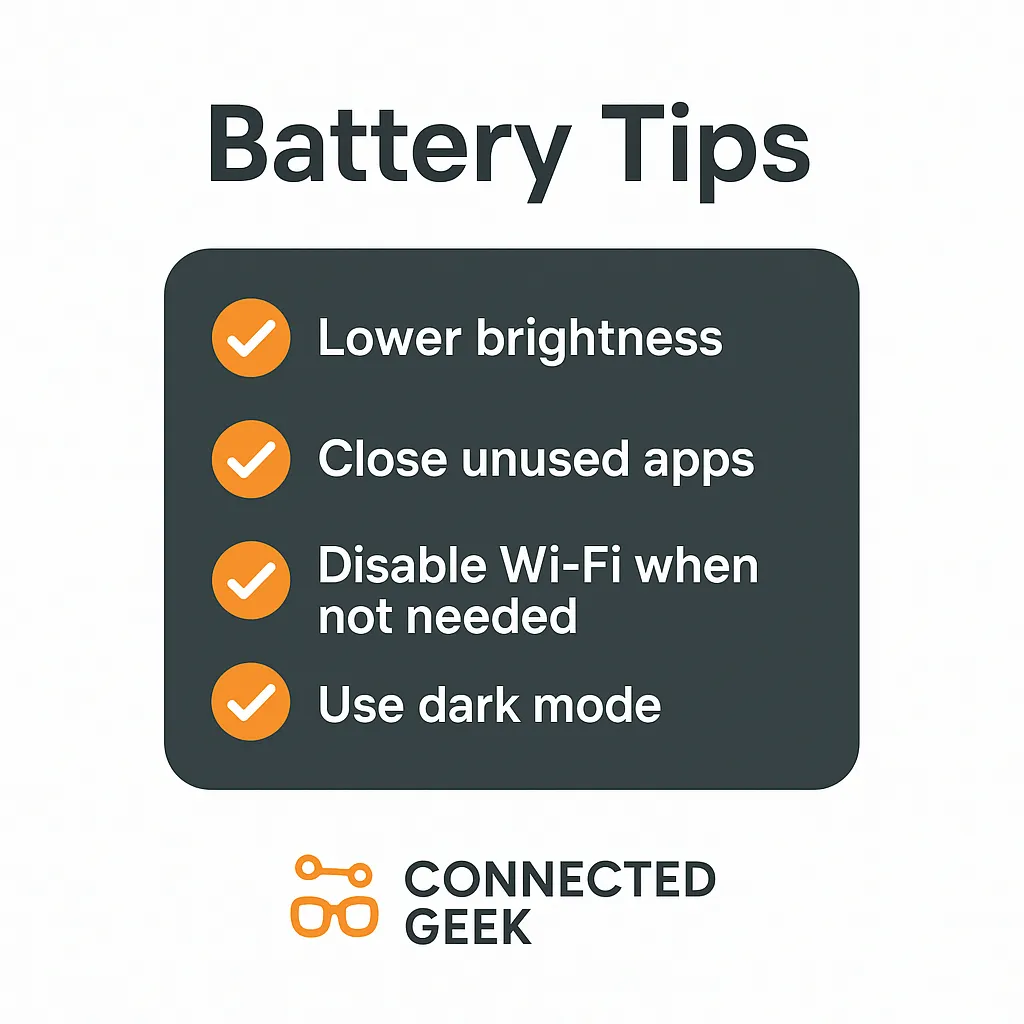
Windows 11 Battery Tips: 5 Quick Wins That Make a Real Difference
Windows 11, Battery Life, Quick Tips
5 Quick Windows 11 Battery Tips That Make a Big Difference
You do not need a new laptop to squeeze more life out of your Windows 11 battery. With a few small tweaks that take seconds to apply, you can gain extra hours of use, cut down on “low battery” anxiety, and keep your device running smoothly when you are away from a charger. These five quick tips focus on the biggest wins first, so you feel the benefit right away.
1. Lower Screen Brightness – Your Biggest Battery Win
Your display is almost always the single biggest battery drain, which means lowering brightness is the fastest, most powerful change you can make. Reduce it just a bit and you will usually not notice visually, but your battery absolutely will. Think of it as turning down a light dimmer: still comfortable, just not wasting energy.
Here is the quickest way to adjust it:
- Press Windows key + A to open Quick Settings.
- Use the Brightness slider to lower the level until it is still comfortable but clearly dimmer than before.
For an even more consistent boost, set brightness to adapt automatically:
- Go to Settings > System > Display.
- Look for options like Change brightness automatically or Use adaptive brightness (if available) and turn them on.
Start by aiming for around 30–50% brightness when indoors. It is a quick, one‑time adjustment that quietly pays off every time you use your laptop.
2. Enable Battery Saver for Automatic Throttling
When you are unplugged, Windows 11’s Battery saver mode is your built‑in helper. It automatically reduces background activity, limits some visual effects, and slightly slows performance to stretch your battery further. The best part: once you set it up, it quietly kicks in on its own when your battery drops to a certain level.
Turn it on manually for an instant boost:
- Press Windows key + A to open Quick Settings.
- Click the Battery saver button (you may need to click the little pencil icon to add it if you do not see it).
To have Battery saver help you automatically every day:
- Open Settings and go to System > Power & battery.
- Under Battery saver, choose Turn battery saver on automatically at and pick a percentage, such as 40%.
With this set, your laptop will intelligently switch to a more efficient mode before things get critical, giving you extra breathing room without constant micromanaging.
3. Close Unused Apps and Browser Tabs
It is easy to let apps and tabs pile up, but every extra program uses memory, processor power, and battery. The good news is that a quick cleanup can make your laptop feel snappier and last longer on a single charge. You do not need to shut everything down—just trim what you are not actively using right now.
Try this simple routine when you unplug:
- Look at your taskbar and close apps you do not need by right‑clicking their icons and choosing Close window.
- In your browser (Edge, Chrome, etc.), close any tabs you are done with. Aim to keep only the essentials open while on battery.
If you want to see what is quietly eating power in the background, you can check Task Manager:
- Press Ctrl + Shift + Esc to open Task Manager.
- On the Processes tab, sort by Power usage or CPU, then right‑click apps you do not need and choose End task.
Doing this once or twice a day, especially before long meetings or travel, keeps your system focused on what you actually care about and gives your battery an easy win.
4. Turn Off Wi‑Fi and Bluetooth When You Do Not Need Them
Wireless radios constantly search, connect, and communicate in the background. If you are working offline, watching a downloaded video, or typing notes, switching off Wi‑Fi and Bluetooth can quietly extend your battery life. It is a small habit that adds up, especially on flights, commutes, or days full of meetings.
Here is the fastest way to toggle them:
- Press Windows key + A to open Quick Settings.
- Click the Wi‑Fi button to turn it off when you are offline, and click again to turn it back on later.
- Do the same with the Bluetooth button if you are not using wireless headphones, mice, or keyboards.
For an even simpler one‑click approach, you can use Airplane mode in Quick Settings when you truly do not need any wireless connections. Just remember to turn it off again when you are ready to reconnect. This tiny routine quickly becomes second nature and gives your battery a helpful break.
5. Switch to Dark Mode (Especially on OLED Screens)
Dark mode is not just a style choice—it can genuinely help your battery, particularly on laptops with OLED displays. On OLED screens, dark pixels use significantly less power than bright ones, so a darker interface means less energy used every minute you are working. Even on standard LCD screens, many people find dark mode easier on the eyes during long sessions.
Turning on dark mode in Windows 11 only takes a moment:
- Open Settings and go to Personalization > Colors.
- Under Choose your mode, select Dark.
For extra savings, also switch your main apps and browser to dark themes where available. Most modern apps, including Edge, Chrome, Office, and many others, can follow the system theme automatically. Once you set it, you get a calmer, darker workspace and a bit more battery time with zero ongoing effort.
Put It All Together for Longer‑Lasting Power
None of these tips require special tools, and each one takes less than a minute to set up. Start by lowering your screen brightness, then enable Battery saver so Windows 11 automatically helps you. Add a quick habit of closing unused apps and tabs, toggling Wi‑Fi and Bluetooth off when they are not needed, and using dark mode—especially if you have an OLED screen. Together, these small, quick wins can easily add up to an extra hour or more of battery life, giving you one less thing to worry about during your day.
