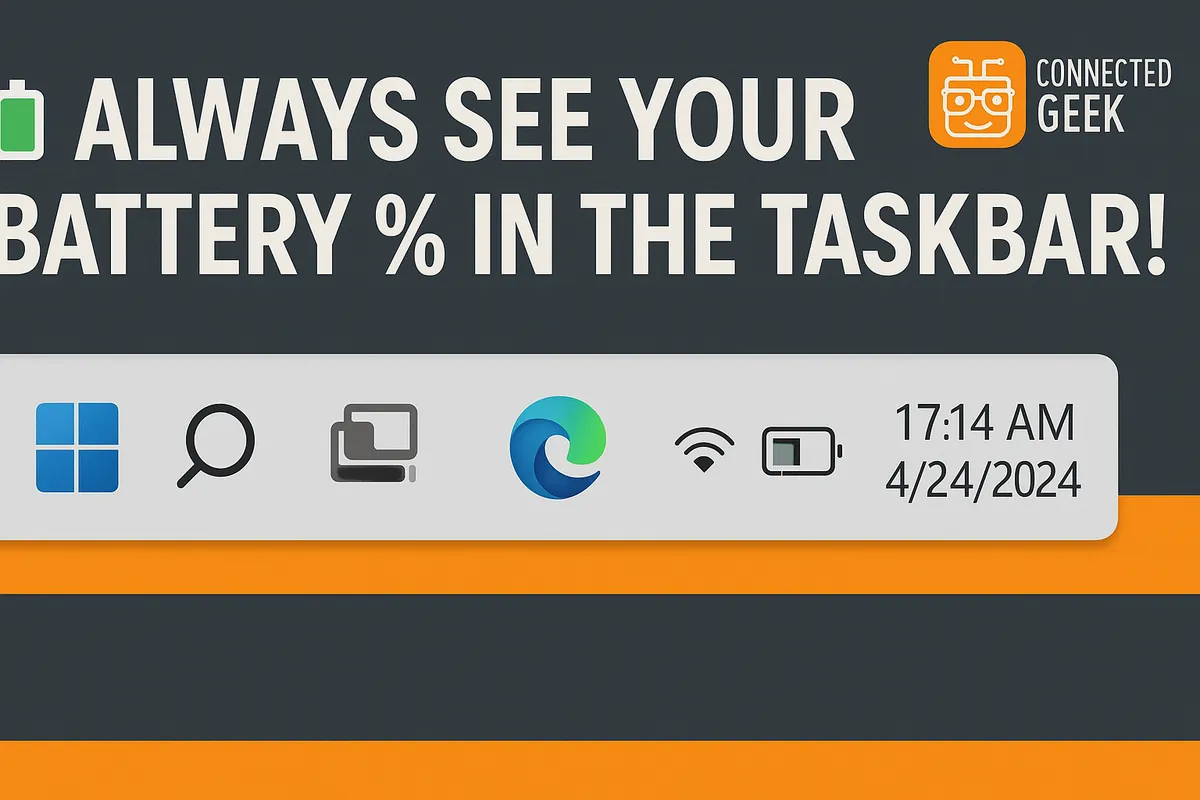
How to See Your Battery Percentage in Windows 11 at All Times
Windows 11, Battery Life, Power Management
How to Check Battery Percentage and Health in Windows 11
Knowing exactly how much battery you have left on your Windows 11 laptop helps you plan your day, avoid sudden shutdowns, and spot problems early. Windows 11 gives you several simple ways to see your current battery percentage, understand what is using the most power, and even check long‑term battery health. This guide walks you through each method in clear, practical steps so you can keep your device running reliably for longer.
1. Quick check: Hover over the taskbar battery icon
The fastest way to see your battery percentage in Windows 11 is straight from the taskbar. Look at the bottom‑right corner of your screen, in the system tray area near the clock and Wi‑Fi icon. You should see a small battery icon there whenever you are using a laptop or tablet on Windows 11.
Move your mouse pointer over this battery icon and pause for a moment without clicking. A small tooltip will appear showing your current battery percentage. When you are running on battery power, Windows will often also show an estimate of the time remaining, such as “2 hours 15 minutes remaining.” This estimate is based on your recent usage, so it may change throughout the day as you open or close apps, but it is a useful quick guide to how long you can stay unplugged.
If you plug in your charger, hovering over the icon will instead show that the device is charging and give an approximate time until the battery is full. This is handy when you want to know whether you have enough time to top up before heading out with your laptop. Use this hover method anytime you want a fast snapshot without opening any menus or settings.
2. Use Settings → System → Power & Battery for full details
For more than just a quick glance, Windows 11 has a dedicated battery section inside the Settings app. This area shows your current percentage, recent battery usage, and power‑related options in one place. To open it, click the Start button, then select Settings (the gear icon), or press Windows key + I on your keyboard to jump there directly.
In Settings, select System from the left‑hand menu, then click Power & battery. Here you will see your current battery percentage at the top of the Battery section. Below that, Windows 11 displays a graph or list of your recent battery usage, usually over the last 24 hours or 7 days, depending on what you choose from the dropdown menu. This view helps you spot patterns, such as whether your battery drops quickly during certain times of day or when you are using specific apps or features like video calls or games.
While you are in this section, it is worth reviewing your power settings too. You can adjust screen brightness, sleep timing, and power mode to balance performance and battery life. For example, choosing a more energy‑efficient power mode can significantly extend how long your battery lasts between charges, especially on older laptops or when traveling.
3. Check battery usage by app to find what drains the most
If your battery seems to be running down faster than expected, it is important to know which apps are responsible. Windows 11 makes this fairly straightforward by breaking down battery usage by app in the same Power & battery settings page. This lets you see which programs are using the most power and decide whether to close, limit, or uninstall them if needed.
From Settings → System → Power & battery, scroll down to the Battery usage section. Here you can choose a time period, such as the last 24 hours or the last 7 days. Below the usage chart, you will find a list of apps with a percentage beside each one, showing how much of your battery they have used during that period. Some apps may also show whether they were running in the foreground or background when they consumed that power.
Pay attention to any apps that appear near the top of the list with a high percentage, especially if you do not use them very often. Web browsers with many open tabs, streaming apps, and games are common battery drains. You can reduce their impact by closing them when you are not actively using them, disabling background activity where possible, or switching to lighter alternatives. Over time, regularly checking this list helps you build better habits and keep your battery lasting longer each day.
4. Generate a detailed battery health report with powercfg /batteryreport
While percentage and usage views are helpful for day‑to‑day monitoring, they do not tell you how healthy your battery is overall. Laptop batteries naturally wear out over time, holding less charge than when they were new. Windows 11 includes a built‑in tool that can generate a detailed battery health report so you can see this long‑term picture clearly. You access it through the Command Prompt using a simple command: powercfg /batteryreport.
To use it, press the Start button, type cmd, then right‑click Command Prompt and choose Run as administrator. In the Command Prompt window that opens, type powercfg /batteryreport and press Enter. After a moment, you should see a message saying that a battery report has been saved, usually to a file named battery-report.html in your user folder (for example, C:\Users\YourName).
Open File Explorer, navigate to that folder, and double‑click the report file to open it in your web browser. The report includes several useful sections, such as your battery’s design capacity (what it could hold when new) and its current full charge capacity (what it can hold now). Comparing these two numbers shows how much your battery has degraded. The report also lists recent usage sessions, charge cycles, and estimates of battery life at full charge and at design capacity. This information is especially helpful if you are deciding whether it is time to replace your battery or adjust your charging habits to slow further wear.
Putting it all together for better battery life
By combining these tools, you can stay on top of both your current battery level and its long‑term health. Use the taskbar hover method for quick checks throughout the day, rely on the Power & battery settings page for a fuller picture of usage and power options, review battery usage by app to catch energy‑hungry programs, and run powercfg /batteryreport occasionally to understand how your battery is aging. Together, these steps give you practical control over how your Windows 11 device uses power, helping you avoid surprises and get the most out of every charge.
