Organize with Virtual Desktops in Windows 11
Windows 11, Productivity, Virtual Desktops
How to Use Virtual Desktops in Windows 11 to Organize Your Digital Life
If your Windows 11 desktop constantly feels cluttered with work apps, browser tabs, and the occasional game launcher, virtual desktops can be a simple, friendly way to restore order. They let you create separate spaces for work, personal tasks, and gaming, all on the same PC, without needing extra monitors or complicated setups.
What Virtual Desktops Are (And Why They’re So Useful)
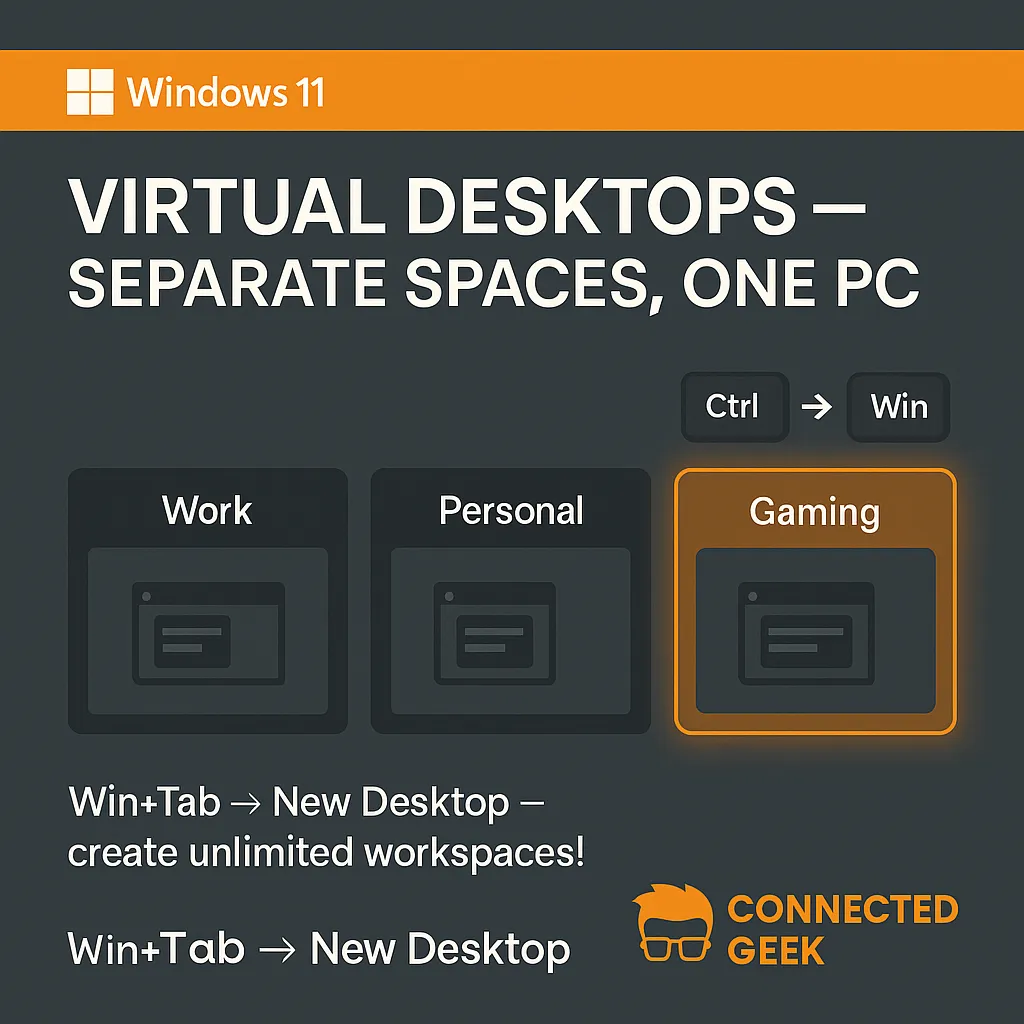
A virtual desktop is like having multiple separate desktops on one computer. Each desktop can hold its own set of open windows and apps. You might have one desktop dedicated to work, another for personal browsing and media, and a third for gaming or creative projects. Instead of piling everything into one chaotic screen, you neatly divide your digital life into focused zones.
This separation is especially helpful if you work from home or share your PC for different purposes throughout the day. You can keep your work desktop filled with email, documents, and communication tools; your personal desktop for shopping, streaming, and social media; and a dedicated gaming desktop where only your games and related apps live. Switching between them is quick, and it helps your brain switch context just as smoothly.
How to Create a New Virtual Desktop in Windows 11
Windows 11 gives you two easy ways to create a new desktop. The first uses the Task View interface:
- Press Win + Tab to open Task View.
- At the top, click New desktop.
That’s it—Windows creates a fresh desktop where you can open different apps without disturbing your current setup. If you prefer keyboard shortcuts, you can skip Task View altogether and press Win + Ctrl + D. This instantly creates a new virtual desktop and switches you to it, which is perfect when you quickly want a clean space for a meeting or a focused task.
How to Switch Between Virtual Desktops (Fast and Smooth)
Once you have multiple desktops, moving between them should feel effortless. Again, you can use Task View by pressing Win + Tab and clicking the desktop you want. However, the quickest way is with another handy shortcut: Win + Ctrl + → or Win + Ctrl + ←.
Press Win + Ctrl + → to move to the desktop on the right, and Win + Ctrl + ← to move to the one on the left. With a little practice, you can glide between your work, personal, and gaming spaces in seconds, almost like flipping through pages in a notebook. It feels natural very quickly and keeps your workflow pleasantly organized.
How to Close a Virtual Desktop Safely
When you are done with a particular desktop—maybe that temporary meeting space or a finished gaming session—you can close it without losing your open apps. Windows simply moves those windows to another existing desktop, so nothing disappears unexpectedly.
The quickest way to close the desktop you are currently using is to press Win + Ctrl + F4. That closes the active virtual desktop and automatically switches you to the next one. You can also close desktops from Task View by pressing Win + Tab and clicking the small X in the corner of the desktop you want to remove.
Final Thoughts
Virtual desktops in Windows 11 are a friendly, low-effort way to bring calm to a busy computer. By separating work, personal, and gaming spaces, you reduce clutter, stay focused, and make your PC feel more tailored to your day. With just a few shortcuts—Win + Ctrl + D to create, Win + Ctrl + → / ← to switch, and Win + Ctrl + F4 to close—you will quickly feel like a power user, without needing any technical background at all.
SEO Title: How to Use Virtual Desktops in Windows 11 for Work, Personal, and Gaming
Meta Description: Learn what virtual desktops are in Windows 11, why they are useful for separating work, personal, and gaming spaces, and how to create, switch, and close them using simple keyboard shortcuts.
