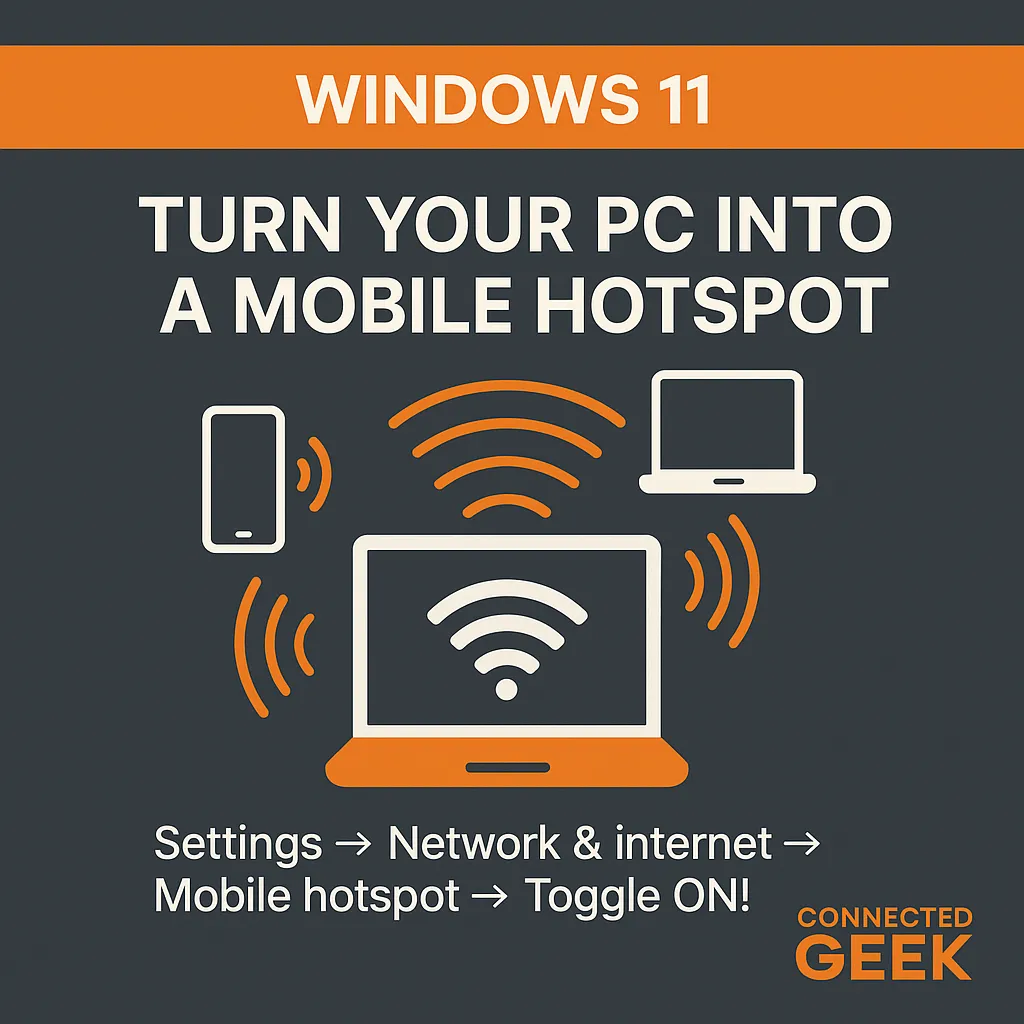
Turn Your Windows 11 PC into a Mobile Hotspot
Windows 11, Mobile Hotspot, Wi‑Fi Sharing
How to Turn Your Windows 11 PC into a Handy Mobile Hotspot
Need to get a phone, tablet, or another laptop online in a pinch? Your Windows 11 PC can act as a friendly little Wi‑Fi router, sharing its internet connection with nearby devices in just a few clicks.
Step 1: Open the Mobile Hotspot Settings in Windows 11
To get started, head straight into the Windows 11 Settings app. Click the Start button, then select Settings, or press Windows + I on your keyboard for a quick shortcut. In the left‑hand menu, choose Network & internet. This is where Windows keeps all of your connection options in one place.
In the main panel, look for the Mobile hotspot option. Click it to open the hotspot settings page. This is the control center for turning your PC into a Wi‑Fi access point and adjusting how it behaves.
Step 2: Toggle the Mobile Hotspot On
At the top of the Mobile hotspot page, you’ll see a simple switch labeled something like “Mobile hotspot” with an Off/On toggle. To start sharing your connection, just click the toggle so it flips to On. Within a moment, your PC will begin broadcasting a Wi‑Fi network that nearby devices can detect and join, just like your home router’s network.
Share Internet with up to 8 Devices at Once
Windows 11’s mobile hotspot feature is surprisingly generous. You can share your PC’s internet connection with up to eight devices at the same time. That means your phone, tablet, work laptop, a friend’s phone, and even a smart TV can all hop on, as long as they’re within range and know the password.
Of course, the more devices you connect, the more your bandwidth is divided, so things may slow down a bit on a weaker connection. Still, for everyday tasks like messaging, browsing, and topping up apps, sharing with several devices works smoothly in most situations.
Ideal Ways to Use a Windows 11 Mobile Hotspot
One of the best uses for a Windows 11 hotspot is turning a wired Ethernet connection into wireless access. Maybe you’re in a hotel room or office where only your laptop can plug into the wall. By enabling Mobile hotspot, you instantly create a small Wi‑Fi network so your phone and tablet can enjoy that stable wired connection too.
It’s also perfect for quickly topping up other devices when they’re low on data. If your phone’s mobile plan is nearly used up, but your PC is connected to a fast home broadband line, simply switch on the hotspot and let your phone use the PC’s connection to download updates, sync photos, or stream a movie without burning through mobile data.
How to Find Your Hotspot Name and Password
To actually connect your other gadgets, you’ll need the hotspot’s network name and password. You can see both right on the Mobile hotspot settings page. Under the main toggle, look for sections labeled “Properties” or “Network name” and “Network password.” Windows will show you the current Wi‑Fi name your PC is broadcasting, along with the secure password devices must enter to join.
If you’d like something easier to remember, you can usually click the Edit button in this section to customize the hotspot name and password. Choose a friendly name you’ll recognize and a strong, unique password. Then, when you look for Wi‑Fi on your phone or tablet, simply select that network name, enter the password, and you’re online through your Windows 11 PC.
SEO Metadata
Meta Title: How to Turn Your Windows 11 PC into a Mobile Hotspot (Step‑by‑Step Guide)
Meta Description: Learn how to turn a Windows 11 PC into a mobile hotspot, share internet with up to 8 devices, use a wired Ethernet connection wirelessly, and quickly find your hotspot name and password.
