Boost Productivity with Snap Groups in Windows 11
Windows 11, Productivity Tips
Snap Groups in Windows 11: Your Shortcut to a Saved Workspace
If you often juggle multiple windows while working, studying, or gaming, Windows 11 has a friendly little helper you might not be fully using yet: Snap Groups. They quietly remember how you arranged your apps, so you can jump back into a task with a single click instead of rebuilding your workspace from scratch every time.
What Are Snap Groups in Windows 11?
Snap Groups are an extension of Windows 11’s Snap layouts feature. When you snap several apps side by side on your screen, Windows does something very thoughtful in the background: it remembers those snapped apps as a single group. Instead of treating each window separately, it recognizes them as one organized unit, called a Snap Group.
Imagine you are working on a report: you might have Word on one side, a browser tab with research on the other, and maybe Spotify tucked into a corner. Once you snap these windows into a layout, Windows 11 quietly saves that combination. That way, if you switch to another app or minimize everything, you do not lose the carefully arranged setup you created. The system keeps track of this group so you can bring it back quickly whenever you need it again.
How to Access and Restore a Snap Group from the Taskbar
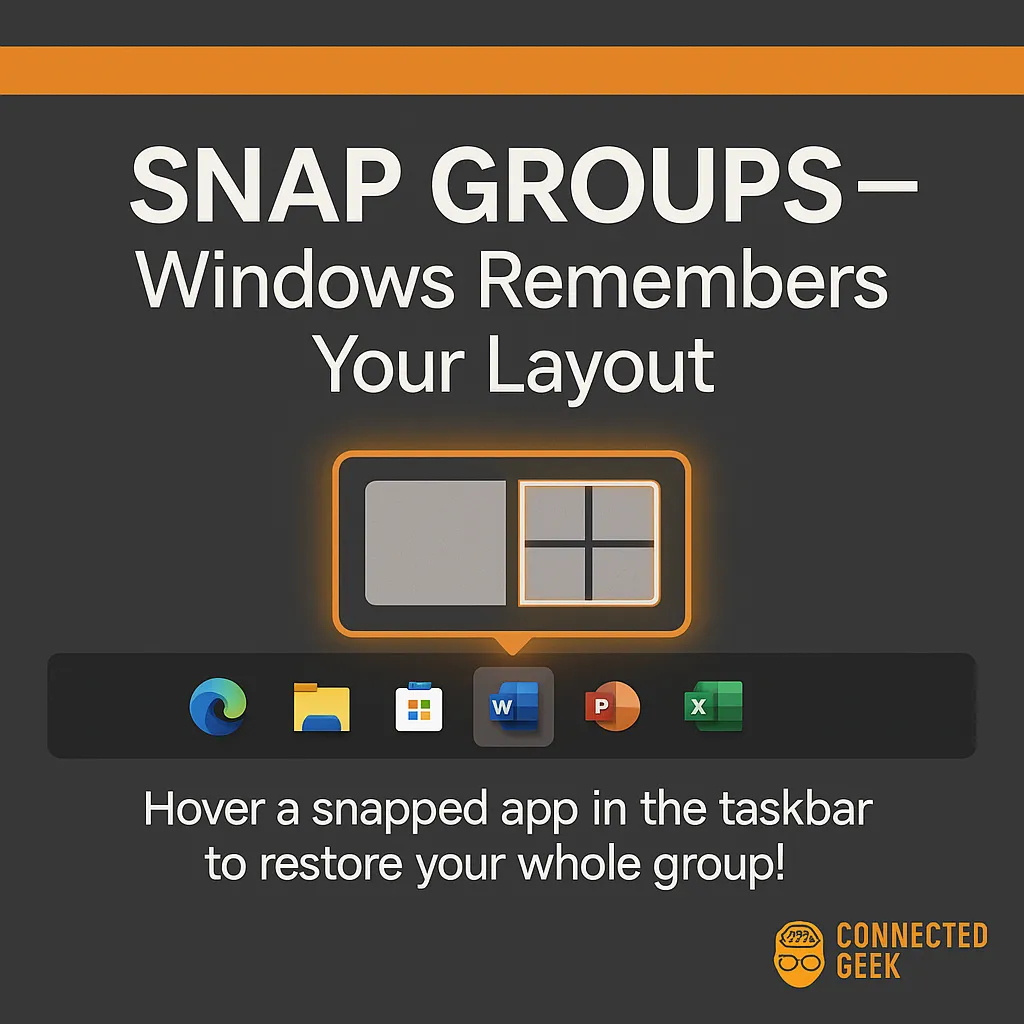
The nicest part about Snap Groups is how easy they are to use once you know where to look. After you have snapped a few apps into a layout, they will appear together on your taskbar as a remembered group. To bring that entire layout back, you do not need to reopen or resize each window individually. Instead, you can restore the whole arrangement in one smooth step.
Here is how it works: hover your mouse over the icon of any app that is part of the Snap Group on the taskbar. When you do this, you will see a small pop‑up above the icon. One thumbnail will show that single app window on its own, and another thumbnail will show the full Snap Group layout, including all the apps you had snapped together. Click the Snap Group thumbnail, and Windows 11 instantly restores the entire layout just the way you left it. It feels a bit like unpausing your workday rather than starting over.
Why Snap Groups Feel Like Saving Your Workspace
Snap Groups are essentially a lightweight way to “save” your workspace without any complicated setup. Instead of manually remembering which apps you had open and where they were positioned, Windows does that mental work for you. The next time you are ready to return to a task, your apps are waiting in the exact configuration you prefer, just one hover and click away on the taskbar.
This is especially helpful if you switch contexts a lot during the day. Maybe you have a “work” Snap Group with email, a project management tool, and a document, and a separate “study” Snap Group with a PDF reader, notes app, and browser. Being able to toggle between these setups makes your PC feel more organized and less chaotic. You spend less time rearranging windows and more time actually doing what you sat down to do.
In short, Snap Groups turn your screen layout into something you can easily return to, almost like bookmarking your workspace. Once you start using them, it is hard to go back to dragging and resizing everything by hand every time you get interrupted.
Final Thoughts
Snap Groups might seem like a small feature, but they add a surprisingly friendly layer of convenience to Windows 11. By remembering groups of snapped apps as a unit and letting you restore them from a simple hover on the taskbar, they make your digital workspace feel stable, familiar, and ready whenever you are. If you have not tried them yet, set up a layout you use often and see how much smoother your day feels when your workspace is effectively “saved” for you.
