How to Show File Extensions in Windows 11 File Explorer
Windows 11, File Explorer, File Extensions, ConnectedGeek
Can’t Tell a PDF from a ZIP? Turn On File Extensions in Windows 11
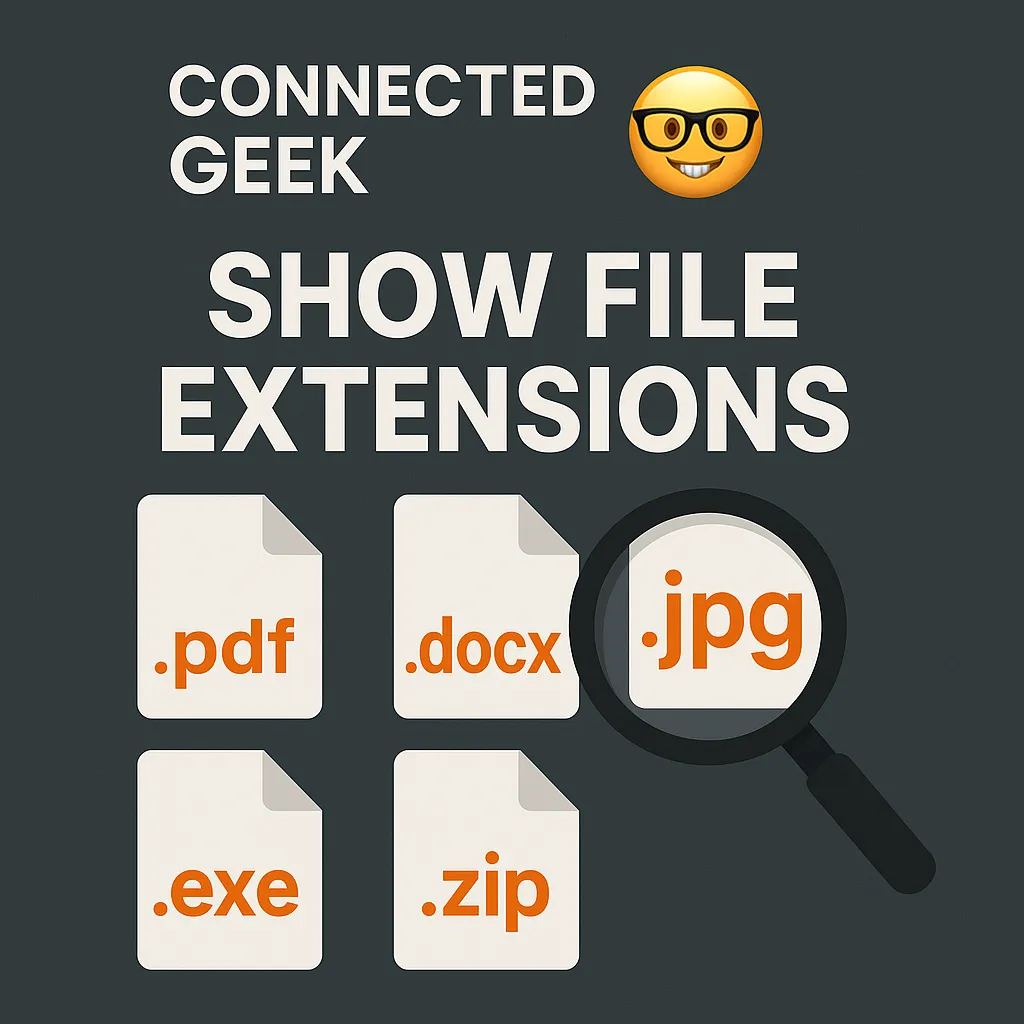
If you’ve ever stared at a list of files in Windows 11 and thought, “Is this the photo or the document?” you’re not alone. By default, Windows hides file extensions, which means you don’t see whether something is a .pdf, .docx, .jpg, or .exe. The good news? With one quick tweak in File Explorer, you can make every file proudly show its format—no more mystery files, and a lot more control for you.
What Are File Extensions, Anyway?
A file extension is the short bit of text at the end of a file name, after the dot. For example, in report.docx, .docx tells Windows it’s a Word document. In holiday.jpg, .jpg means it’s an image. Extensions help Windows 11 decide which app to use when you open something—and they help you instantly understand what you’re looking at. Once you start paying attention to them, you’ll wonder how you ever lived without seeing them.
How to Show File Extensions in Windows 11 File Explorer
Turning on file extensions in Windows 11 is simple and only takes a few seconds. Here’s the exact path:
- Open File Explorer (you can click the folder icon on the taskbar or press Windows + E).
- At the top, click the View menu.
- Hover over or click Show.
- In the submenu, tick File name extensions.
That’s it. As soon as you select View → Show → File name extensions, every file in that File Explorer window—and in every other one you open—will show its full name, including the extension. You’ll immediately see whether something is a .pdf, .docx, .jpg, or .exe.
Why Bother? Everyday Benefits of Showing Extensions
Turning on file extensions might feel like a tiny tweak, but it makes daily life in Windows 11 smoother and safer:
- No more guessing: Know instantly if invoice is a .pdf you can share or a .xlsx spreadsheet you still need to edit.
- Safer downloads: It’s easier to spot suspicious files. Something named holiday-photo.jpg.exe stands out as dangerous when you can see the real .exe extension.
- Better organization: When you’re sorting folders, you can quickly separate .docx reports from .pdf exports or .jpg images.
“Real Geeks Always Have This On”
Among tech enthusiasts, there’s a running joke: real geeks always have file extensions on. It’s funny, but there’s truth behind it. When you can see exactly what kind of file you’re dealing with, you’re using Windows 11 more consciously and more confidently. You don’t have to be a programmer to enjoy that feeling—you just need to flip that one setting in File Explorer and you’re instantly a bit more “ConnectedGeek” in your everyday computer life.
Make It Your New Default
Showing file extensions is one of those small Windows 11 tweaks that pays off every single day. With View → Show → File name extensions enabled, every file clearly displays its format—whether it’s a .pdf, .docx, .jpg, or .exe. No more mystery icons, fewer accidental clicks, and a friendlier, more transparent File Explorer experience. Turn it on once, and enjoy that extra bit of clarity every time you open a folder.
