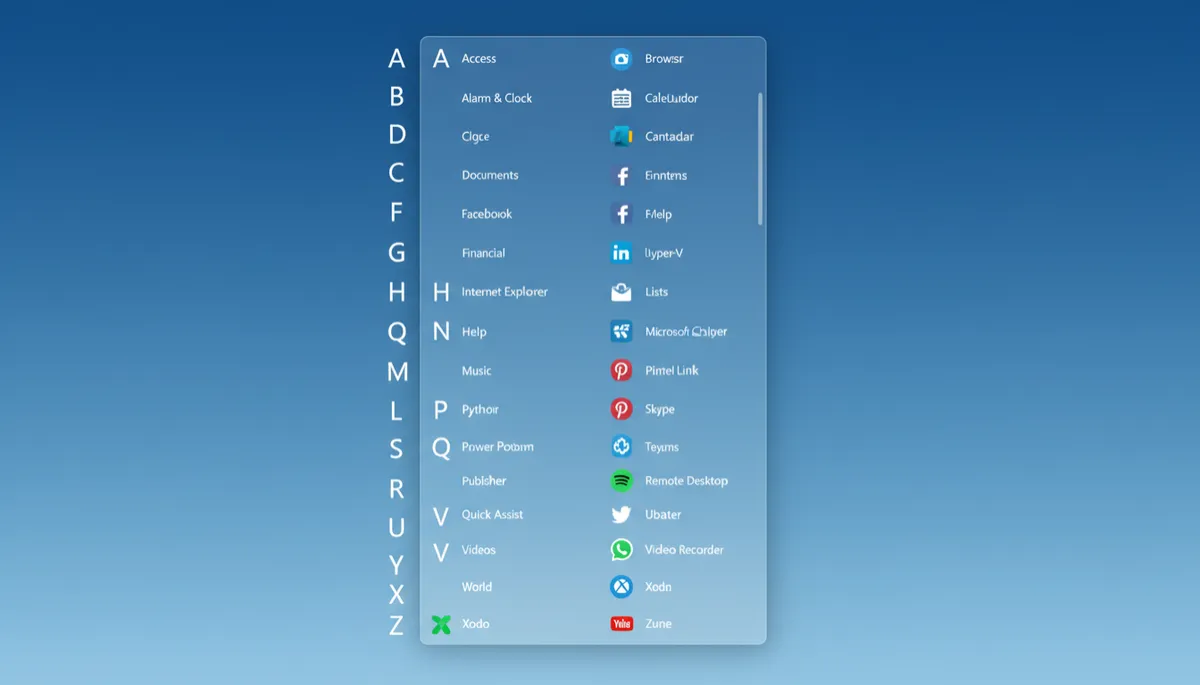
How to Show All Apps in the Windows 11 Start Menu
How to Show All Apps in the Windows 11 Start Menu
The Windows 11 Start Menu shows pinned apps by default. Here is how to see every installed app in one alphabetical list — and get the most out of it.
Open All Apps
Press the Win key to open Start, then click All apps in the top-right corner. The view switches to a scrollable alphabetical list of every app installed on your PC.
Jump to a Letter
Click any letter heading in the list — for example, click G — and a letter grid appears. Click the letter you want to jump straight to apps starting with that letter. Much faster than scrolling.
Right-Click Options
Right-clicking any app in the All apps list gives you options to:
- Pin to Start — add it to your pinned grid
- Pin to taskbar — add it to your taskbar
- Uninstall — remove it from your PC
- Open file location — find where the app is installed
Make All Apps the Default View
Go to Settings → Personalization → Start and under Layout, select More apps. This makes the All apps list the first thing you see when you open Start.
Search from Here
Even in All apps view, you can just start typing and Windows Search activates instantly — so you never have to scroll to find something specific.
