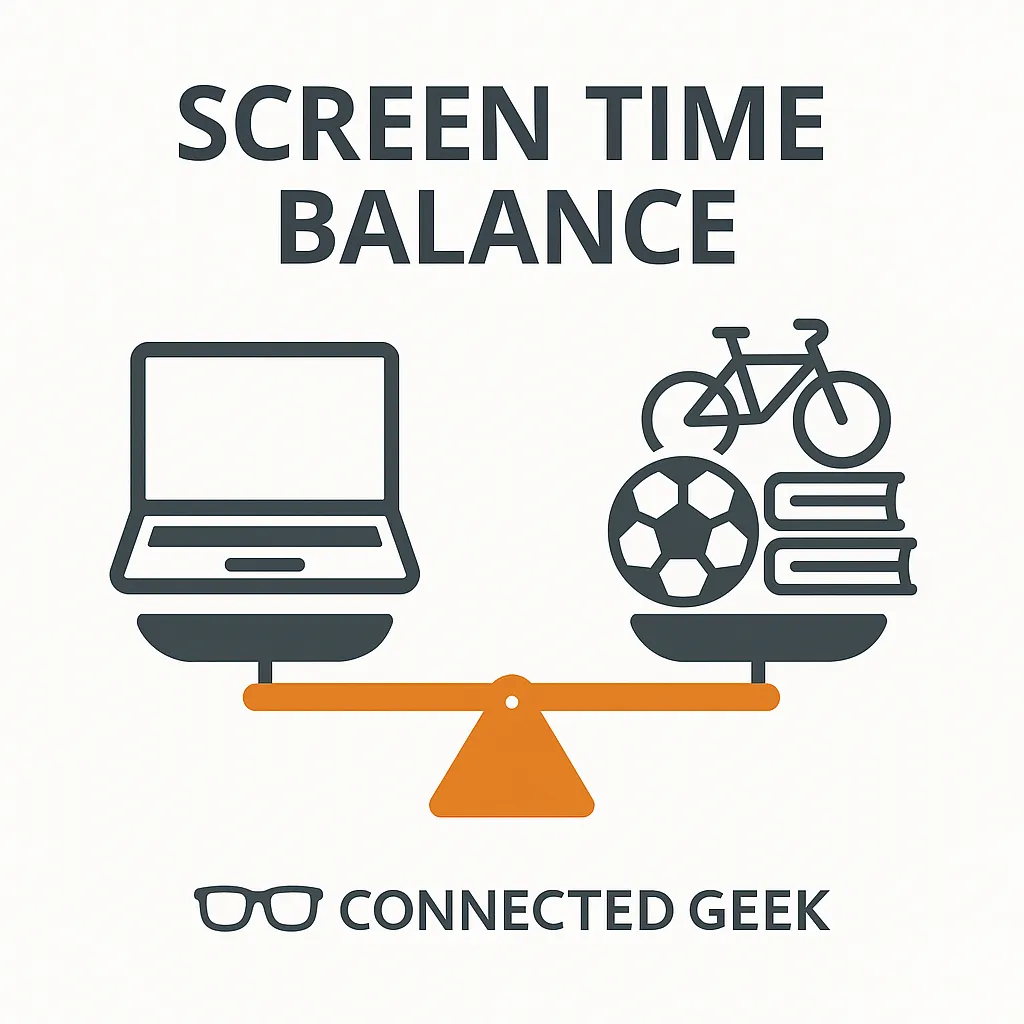
Screen Time Balance for Families: Practical Tips That Actually Work
Parenting, Digital Wellbeing, Windows 11
Screen Time Balance Tips for Families Using Windows 11
Screens are part of everyday life for most families, especially when school, work, and entertainment all run through devices. Instead of aiming for perfection, many parents simply want a healthier balance. Windows 11, paired with thoughtful household routines, can help you shape screen time in a way that fits your family’s values and real-world schedules—without guilt or power struggles.
Start With Clear, Realistic Daily Limits
One of the simplest ways to reduce screen-time arguments is to decide in advance what “enough” looks like on a typical day. Rather than reaching for a perfect number, think about your child’s age, homework load, activities, and downtime needs. For some families, that might mean one hour of games on school nights and more flexibility on weekends. For others, it could be a total daily limit that covers games, browsing, and streaming on the computer.
Windows 11 works with Microsoft Family Safety to turn those decisions into predictable routines. After creating a child account, you can use Family Safety to set daily screen time limits for Windows devices and even for specific apps or games. When the time is up, the device gently locks or the app becomes unavailable unless you approve more time. This reduces the need for constant reminders or negotiations and shifts the focus from “Because I said so” to “This is the plan we agreed on.”
It can help to involve older kids in setting these limits. Ask what feels reasonable, share your concerns, and look at the schedule together. When children feel heard, they are often more willing to work within boundaries, even if they would prefer more time.
Create Gentle Tech‑Free Zones at Home
Limits are not only about hours; they are also about where and when devices are used. Tech‑free zones give everyone a chance to disconnect without making screens “bad” or forbidden. Common choices include the dinner table, bedrooms, and sometimes the car during short trips so conversations can flow more naturally.
With Windows 11 laptops and tablets, this might mean agreeing that devices stay in shared spaces during certain times, or that they charge overnight in the living room instead of beside the bed. You can align Family Safety schedules with these zones—for example, setting devices to shut down games during dinner hours or after a chosen bedtime. Framing these rules as “family rest time” or “family connection time” rather than punishment keeps the tone positive and respectful.
Model the Screen Habits You Hope to See
Children learn a lot from what they see the adults around them doing. If a parent is constantly checking email or scrolling during meals, it sends a different message than any rule posted on the fridge. That does not mean parents must be perfect or never relax online. Instead, it is about being open and intentional: “I am going to finish this work message, then I will put my laptop away,” or “I am choosing to read a book instead of browsing tonight because my eyes need a break.”
You might even use Windows 11’s own tools for yourself—such as focus sessions, notifications settings, or screen time summaries—to show that managing screen use is a lifelong skill, not just a rule for kids. When children see adults pausing notifications during dinner or closing the laptop at a set time, it normalizes balance rather than restriction.
Use Earned Screen Time as a Positive Reward
For many families, screen time is a powerful motivator. Used thoughtfully, it can become a positive reward rather than a constant bargaining chip. Instead of threatening to take it away, you might frame extra screen time as something that can be earned for helpful behaviors: finishing homework, completing chores, practicing an instrument, or showing kindness to siblings over the week.
Microsoft Family Safety makes this practical. If your child has used up their daily limit on Windows 11, they can send a request for more time. You then have the option to approve extra minutes or an additional hour as a reward. This keeps you in control while still allowing flexibility. It can also reduce arguments, because the system clearly shows how much bonus time is being added instead of leaving it vague or negotiable in the moment.
Of course, every child responds differently. Some families prefer not to tie screen time to behavior at all, while others find it helpful. It is worth experimenting and adjusting your approach as you see what supports your child’s motivation and emotional wellbeing.
Balance Active and Passive Screen Time
Not all screen time has the same impact. A child using Windows 11 to write a story, code a simple game, or work on a school project is engaging very differently than when they are simply scrolling through videos. Many families find it helpful to distinguish between active screen time—creating, learning, problem‑solving—and passive screen time, such as endless feeds or autoplay shows that are easy to lose hours in without noticing.
You might decide that active screen time “counts differently” toward daily limits. For example, you could allow extra minutes when a child is using a drawing app, exploring a language‑learning program, or collaborating on homework. Family Safety’s per‑app limits can support this by giving more generous time to educational tools and tighter limits to games or social apps. The goal is not to shame passive use—everyone unwinds sometimes—but to encourage a healthier mix and help children notice how different activities make them feel afterward.
Keep the Conversation Going
Finding the right balance with screens is an ongoing process, not a one‑time decision. As your children grow, school demands change, and new apps appear, your approach will naturally evolve. Windows 11 and Microsoft Family Safety give you practical tools—schedules, limits, and reports—but the heart of a healthy digital life is still open conversation and mutual respect.
Checking in regularly—“How are you feeling about your screen time lately?” or “Is there anything you wish we did differently with devices?”—invites your child to be part of the solution. With clear boundaries, tech‑free spaces, positive rewards, and a focus on active use, your family can use Windows 11 in ways that support learning, connection, and rest, rather than letting screens quietly take over.
