Right-Click in Windows 11: Your Context Menu Swiss Army Knife
Windows 11, Productivity, ConnectedGeek
The Windows 11 Right-Click Context Menu: Your Everyday Swiss Army Knife
If you use Windows 11 every day, there is one simple trick that can make you feel instantly more in control of your PC: master the right-click. That small click opens the context menu, a compact toolbox that lets you manage files and folders in File Explorer without hunting through ribbons, menus, or hidden options. At ConnectedGeek, we like to say the right-click is your digital Swiss Army knife.
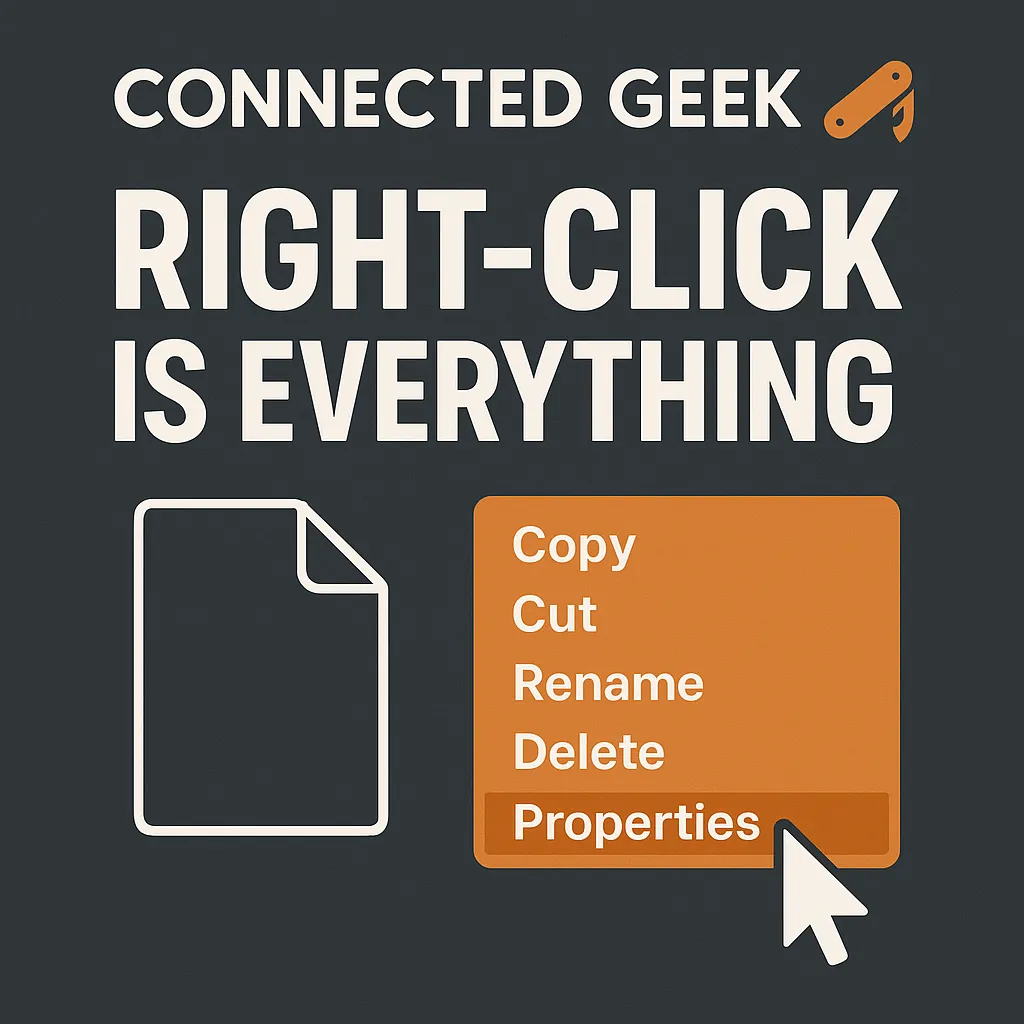
In Windows 11, the context menu has a fresh, streamlined look, but it is still packed with power. Whenever you right-click a file, folder, or even an empty space in a window, Windows 11 shows you smart options based on what you clicked. That means you get quick access to everyday actions like Copy, Cut, Rename, Delete, and Properties right where your mouse already is. No need to move to the top of the screen or open extra windows first.
Right-Click in File Explorer: Where the Magic Starts
Open File Explorer, find any document, picture, or folder, then right-click it. You will see the modern Windows 11 context menu with a short list of icons and commands. Those little icons across the top are shortcuts for the tasks you use most. Hover over them and you will see tooltips for Copy, Cut, Rename, Share, and Delete. Below that, you will find text options, and if you ever need more, you can click “Show more options” to reveal the classic, longer menu from older versions of Windows.
Copy: Duplicating Files the Easy Way
The Copy command is your go-to when you want to duplicate something without changing the original. Right-click a file, choose the Copy icon or the Copy option, then right-click in the destination folder and select Paste. Windows 11 quietly handles the rest. This is perfect for backing up important documents, placing photos in multiple albums, or sharing files while keeping your own version safe and untouched.
Cut: Move Files Without Leaving Clutter Behind
When you want to move a file instead of copying it, use Cut. Right-click the file, choose Cut, then right-click the new location and select Paste. The file jumps to its new home and disappears from the original folder. This is a friendly way to tidy up messy downloads, reorganize project folders, or shift large videos to another drive without leaving duplicates scattered around your PC.
Rename: Keep Your Files Clearly Labeled
Clear names make files much easier to find later. With right-click Rename, you can fix vague names like “Document1” in seconds. Right-click the file, choose Rename, type a new, meaningful name, and press Enter. In Windows 11, you can even select several files, right-click, and rename them in a sequence, which is handy for photo collections or class notes that you want to keep neatly ordered.
Delete: Clean Up Without Fear
We all accumulate digital clutter. The Delete option in the context menu helps you clear it away. Right-click a file or folder, choose Delete, and it moves to the Recycle Bin, giving you a safety net in case you change your mind. Only when you empty the Recycle Bin is it truly gone. This gentle two-step approach makes it easier to stay organized without worrying about permanent mistakes every time you right-click something out of your life.
Properties: The Story Behind Every File
The Properties entry might be the most underrated part of the Windows 11 context menu. Right-click a file and select Properties to see its size, type, location, and when it was created or modified. You can also view security details, check if a file is read-only, or see how much space a folder really uses. When storage starts to feel tight, Properties turns into a friendly detective, helping you decide what to keep and what to archive.
Make Right-Click Your Daily Habit
The more you right-click in Windows 11, the more natural it feels. Whether you are cleaning up your desktop, organizing photos in File Explorer, or managing work documents, the context menu keeps your favorite tools just one click away. ConnectedGeek encourages everyday users to experiment: right-click different items, explore the options, and notice how much faster common tasks become. Once you get used to it, you will wonder how you ever managed without this compact, powerful Swiss Army knife at your fingertips.
