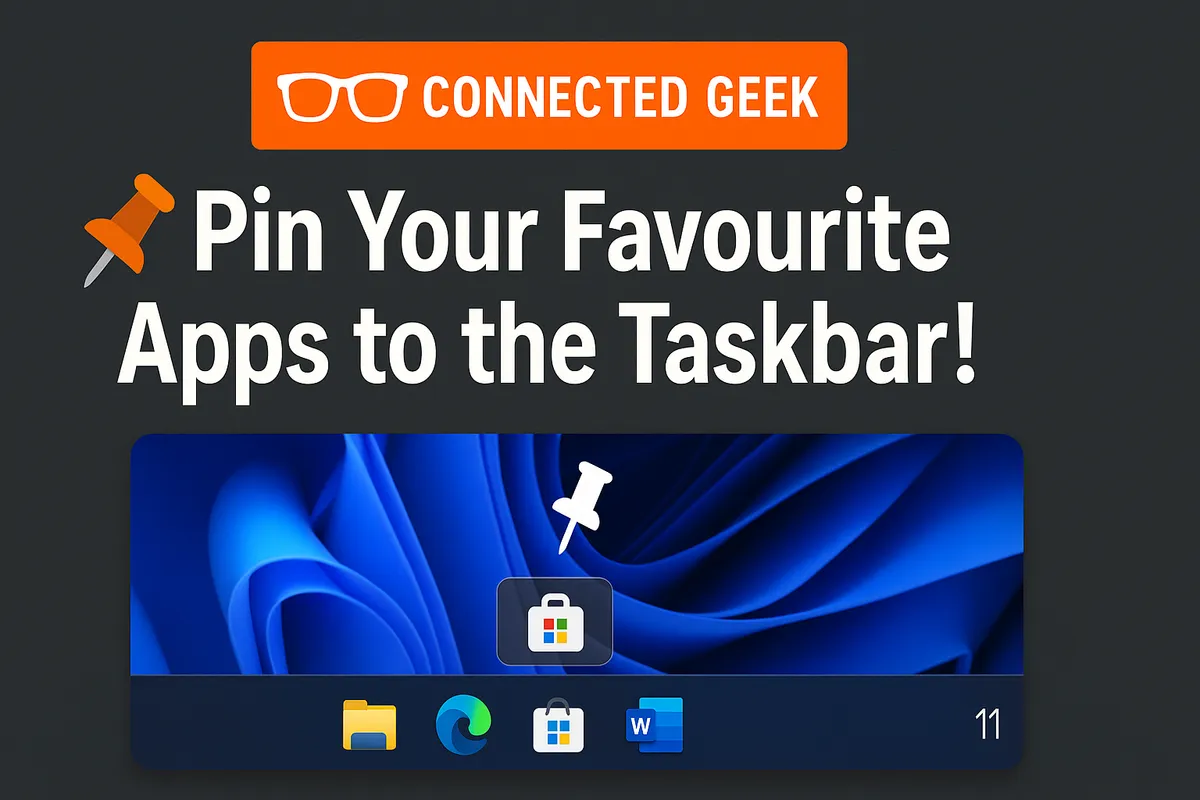
Pin Apps to Your Windows 11 Taskbar for One-Click Access
Windows 11, Productivity, Taskbar Tips
How to Turn the Windows 11 Taskbar into Your Personal Productivity Launchpad
The Windows 11 Taskbar is more than just a row of icons at the bottom of your screen. Used well, it becomes your personal launchpad, keeping your favorite apps, files, and actions just one click away. With a few simple tweaks, you can stop hunting through the Start menu and desktop clutter, and start working faster and more comfortably every day.
Pinning Apps to the Taskbar with a Quick Right-Click
The easiest way to make the Taskbar work for you is to pin your most-used apps to it. Once pinned, those apps are always visible and ready to launch, no matter what you are doing on your PC. The good news is that pinning an app is as simple as a right-click and takes only a second or two.
To pin an app that is already open, hover over its icon on the Taskbar, right-click it, and choose Pin to taskbar. From that moment on, the app stays on your Taskbar even after you close it, ready for next time. This is perfect for everyday tools like your browser, email client, or note-taking app that you open multiple times a day.
You can also pin apps directly from the Start menu. Click Start, find the app in the list or search for it, then right-click the app’s icon and select Pin to taskbar. This is handy for apps you do not currently have open but know you will use often, such as a graphics editor, messaging app, or your favorite music player.
Drag to Reorder: Arrange Icons to Match How You Work
Once you have pinned a few apps, the next step is to put them in an order that feels natural to you. Windows 11 makes this wonderfully simple: you can just drag icons to rearrange them. There is no complicated settings panel to dig through, and you can change your layout anytime in seconds.
Click and hold an app icon on the Taskbar, then drag it left or right to a new spot. When you see a small gap appear between icons, release the mouse button, and the app will snap into its new home. You might group communication apps together, keep creative tools side by side, or place your most-used app right in the center for easy access. The key is to create a layout that matches the way your brain works, so your cursor naturally goes to the right place without effort.
Right-Click Jump Lists: Recent Files and Quick Actions in One Place
Pinning apps is only the beginning. Many pinned apps offer jump lists when you right-click their Taskbar icons. These are context menus that show recent files, frequent locations, and handy shortcuts, so you can jump straight into what you were doing without opening the app first and digging around inside it.
For example, right-clicking a pinned browser might show your most visited sites or tasks like opening a new window or a private window. Right-clicking File Explorer often reveals recent folders and quick links, letting you open last week’s project folder in a single click. Office apps frequently list your recent documents, so you can open the report you were editing yesterday directly from the Taskbar, skipping the extra steps of opening the app, waiting, and browsing through file menus.
These jump lists are where the Taskbar really starts to feel like a productivity hub. Make it a habit to right-click your pinned apps to see what options they offer. You may discover shortcuts you did not know existed, like starting a new email, composing a note, or joining a meeting with one click. Over time, those saved clicks add up to smoother, more relaxed work sessions.
Unpin What You Don’t Need: Keep the Taskbar Clutter-Free
A powerful Taskbar is not a crowded one. If you pin every app you have ever installed, you will end up scrolling your eyes across a long line of icons, which adds friction instead of removing it. The trick is to be a little selective and unpin apps you do not genuinely use often, keeping the Taskbar focused and calm.
To unpin an app, simply right-click its icon on the Taskbar and choose Unpin from taskbar. The app itself is not removed from your computer; it just no longer occupies permanent space on the Taskbar. You can still find it through the Start menu or search whenever you need it. Think of unpinning as tidying your desk: you are not throwing anything away, just putting it in a drawer until it is needed again.
A helpful routine is to review your Taskbar every few weeks. Ask yourself which icons you have not clicked in a while. If an app has been sitting there unused, unpin it and make room for something more important. A lean, purposeful Taskbar is easier on the eyes and quicker to navigate, which makes your whole Windows experience feel lighter and more intentional.
The Taskbar as Your Personal Launchpad for Maximum Productivity
When you combine pinning, reordering, jump lists, and regular decluttering, the Windows 11 Taskbar transforms from a simple strip of icons into a genuine launchpad tailored to you. Instead of interrupting your flow to search for apps and files, you always know exactly where to click next. That sense of familiarity and predictability is surprisingly powerful for staying focused and relaxed while you work or study.
You might start your day by clicking your pinned email app to check messages, then right-click your browser icon to open a specific site from its jump list. Later, you could right-click Word or Excel on the Taskbar to reopen a recent document, or drag an app icon closer to the center because you suddenly find yourself using it more often. Each of these tiny optimizations only takes a moment, but together they shape a smoother, more personal workspace that quietly supports your habits instead of getting in the way.
The best part is that you do not need to be a tech expert to get these benefits. Right-click to pin, drag to reorder, right-click again to explore jump lists, and unpin what you no longer need. With those simple actions, your Windows 11 Taskbar becomes a friendly, familiar command center that keeps your most important tools just one comfortable click away.
