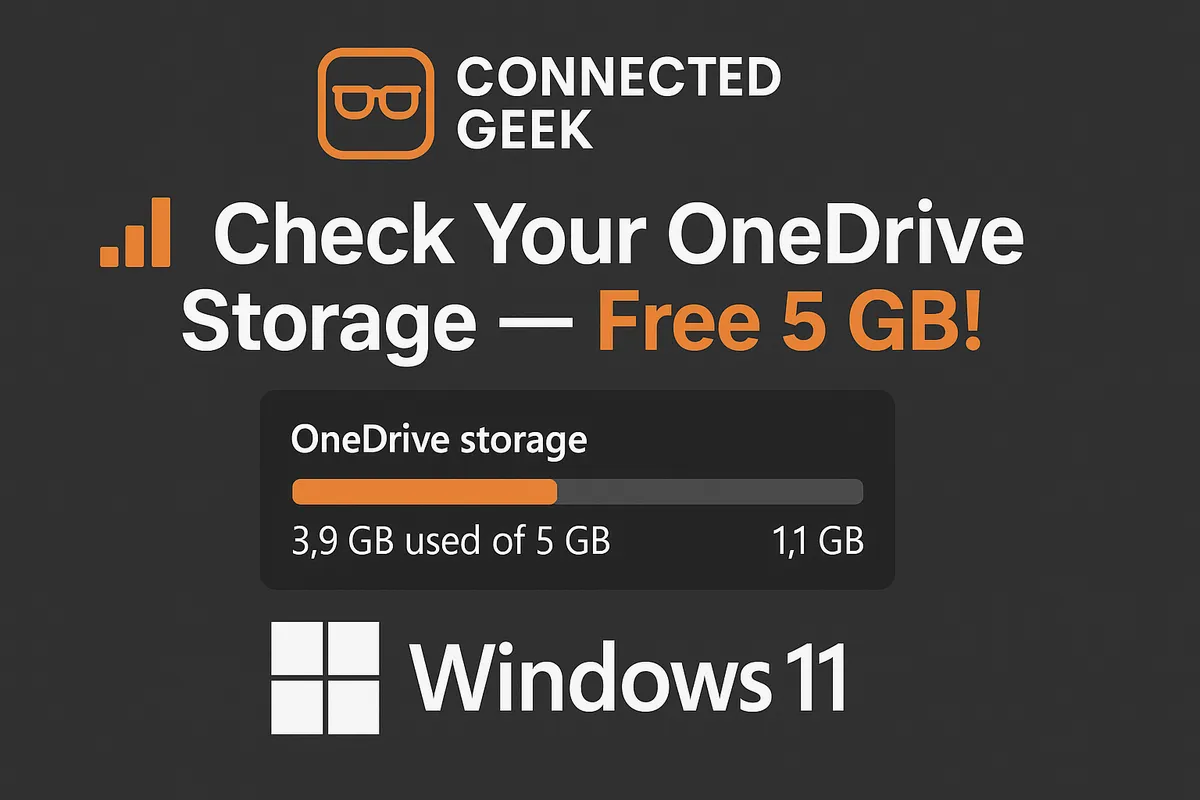
How Much OneDrive Storage Do You Have? Tiers, Tips, and Upgrades
Cloud Storage, OneDrive, Microsoft 365
OneDrive Storage Tiers Explained: What To Do When You’re Running Low
Running out of OneDrive space can be frustrating, especially when you just want your files to sync and your backups to “just work.” The good news is that with a few simple checks and a clear understanding of OneDrive’s storage tiers, you can get back to a calm, organized cloud in no time—often without spending much, and sometimes without spending anything at all.
Step 1: How To Check Your Current OneDrive Storage Usage
Before you decide whether to clean up files or upgrade your plan, you need to know exactly how much space you’re using and how much is left. On Windows 11, you can see this in just a few clicks from the desktop, without opening a browser or digging through menus.
- On your taskbar, look for the OneDrive cloud icon (usually near the clock in the bottom-right corner). If you don’t see it, click the small up arrow to show hidden icons.
- Click the OneDrive icon once to open the OneDrive menu.
- In the top-right of that menu, click the gear icon (⚙) to open Settings.
- In the Settings window, select the Account tab.
- Under your account name, you’ll see your used vs. available storage—for example, “4.7 GB of 5 GB used” or “650 GB of 1 TB used.”
This quick check tells you whether you’re just getting close to your limit or already over it. If OneDrive is full, it may pause syncing, meaning new photos, documents, or desktop backups won’t upload until you free up space or upgrade your storage.
Step 2: Understand OneDrive’s Three Main Storage Tiers
Once you know how much space you’re using, the next step is to understand what’s available to you. For everyday Windows 11 users, families, and small businesses, OneDrive storage usually falls into three main tiers:
1. Free OneDrive: 5 GB With Every Microsoft Account
Every Microsoft account automatically includes 5 GB of free OneDrive storage. This is enough for a modest set of documents and a handful of photos, but it fills up quickly if you:
- Turn on automatic photo backup from your phone
- Sync your Desktop, Documents, and Pictures folders from Windows 11
- Store large video files, ZIP archives, or backups
The free tier is perfect if you just need a safe place for a few important files, but if OneDrive is central to your daily work or family life, you’ll likely outgrow 5 GB sooner rather than later.
2. Microsoft 365 Personal: 1 TB for One User (Plus Office Apps)
The next step up is Microsoft 365 Personal, which includes 1 TB (1,000 GB) of OneDrive storage for a single user. On top of the storage, you also get the full suite of Microsoft Office apps—Word, Excel, PowerPoint, Outlook, and more—on multiple devices, plus modern extras like AI-powered Copilot in supported regions and advanced security features ( microsoft.com ).
For an individual who uses Office and wants plenty of space for documents, photos, and personal backups, this tier offers strong value. In practical terms, 1 TB is enough for:
- Tens of thousands of Office documents and PDFs
- A large photo library (often years’ worth for many people)
- Some video files and light backups, without constantly hitting your limit
3. Microsoft 365 Family: 6 TB Shared Across Up to 6 Users
If you’re managing storage for a household or a small family-run business, Microsoft 365 Family is often the sweet spot. This plan provides 6 TB of total OneDrive storage, shared across up to six users. Each person gets 1 TB of their own private space, tied to their individual Microsoft account, along with the full Office apps and security features.
That means you don’t have to mix your work files with your partner’s photos or your teenager’s school projects. Everyone has their own sign-in, their own OneDrive, and their own 1 TB to use as they like—perfect for keeping things organized and private while still sharing a single subscription.
Step 3: What To Do When You’re Running Low on the Free 5 GB
Hitting the 5 GB limit on the free OneDrive tier is extremely common, especially if you’ve turned on folder backup or auto-upload from your phone. The good news is that you have several practical options, from smart cleanup to upgrading for much more space and extra tools. Let’s walk through them in a sensible order so you can choose what fits your situation and budget.
Option 1: Upgrade to Microsoft 365 for Exceptional Everyday Value
If you’ve already outgrown 5 GB and you rely on OneDrive for important files, upgrading is often the most stress-free solution. Instead of constantly deleting files to make room, you move to a tier that actually matches how you use your devices.
- For individuals: Microsoft 365 Personal gives you 1 TB of space plus the full Office apps. If you were already considering Office for work, school, or a side business, the extra OneDrive storage is effectively a bonus that makes the subscription much easier to justify.
- For families or small teams: Microsoft 365 Family gives 1 TB per person (up to 6 people). For a household that shares documents, photos, and schoolwork—or a small business where each member needs their own storage—this is typically the best balance of cost and convenience.
Think of it like moving from a tiny storage locker to a full-sized room. Yes, there’s a cost, but you free yourself from constantly squeezing and rearranging boxes. For many people, the time and peace of mind saved easily outweigh the subscription fee—especially when you factor in the Office apps and security features that come with Microsoft 365 ( unanswered.io ).
Option 2: Clean Up Old or Duplicate Files at OneDrive.com
If you’re not ready to upgrade—or you simply want to tidy up before you do—cleaning out old files is a quick, zero-cost way to reclaim space. The easiest place to do this is on the web, where you can see your storage usage at a glance and sort by size.
- Visit onedrive.com and sign in with your Microsoft account.
- Use the My files view and sort by Size (largest first) to quickly spot space hogs like old videos, ISO files, or big ZIP archives.
- Delete anything you no longer need—especially duplicate backups, outdated installers, or old shared files that are no longer relevant.
- Don’t forget to empty the Recycle bin in OneDrive on the web; files there still count toward your storage until permanently removed.
A focused 10–15 minute cleanup session can often free hundreds of megabytes—or even gigabytes—especially if you’ve been using OneDrive for years without deleting much. This is an easy win before you decide on a new plan.
Option 3: Use Files On-Demand To Keep Large Files Cloud-Only
Not all storage problems are about the cloud limit—sometimes your local disk is the one that’s full. OneDrive’s Files On-Demand feature helps with both: it lets you keep files safely in the cloud while only downloading them to your PC when you actually open them. This keeps your local drive light, and it also makes it easier to see what’s truly in use versus what just needs to stay archived online.
With Files On-Demand turned on, you’ll see different status icons next to your files in File Explorer:
- A cloud icon means the file is online-only. It takes up space in OneDrive, but not on your PC. When you open it, OneDrive downloads it on demand.
- A green checkmark in a circle means the file is locally available but can be made online-only again if you need to free disk space.
- A solid green circle with a white checkmark means the file is always available on this device and won’t be removed from your local storage.
To free up local space while keeping files safe in OneDrive, right-click a file or folder in File Explorer and choose Free up space. This makes it cloud-only. You can still see and open it when you’re online, but it no longer occupies room on your PC’s drive.
Option 4: Move Video Archives and Large Backups to an External Drive
Even with a paid plan, some types of files are simply better suited to offline storage. High‑resolution videos, virtual machine images, full system backups, and years of raw footage can consume hundreds of gigabytes on their own. Storing them in OneDrive can be convenient, but it’s rarely the most cost‑effective approach if you rarely access them.
A practical strategy is to treat OneDrive as your active workspace and safety net, while moving deep archives and bulky backups to an external hard drive or SSD. Here’s a simple approach:
- Connect an external drive and create clearly labeled folders (for example, Video Archive 2020–2024 or Old System Backups).
- Move rarely used, very large files from your OneDrive folders to the external drive. Confirm the copies are complete before deleting them from OneDrive.
- Once you’ve verified everything, delete the originals from OneDrive and empty the OneDrive Recycle bin to reclaim space.
External drives are relatively inexpensive per terabyte, making them a great partner to cloud storage. You keep your everyday files in OneDrive for easy access and automatic backup, while your “deep storage” lives safely on hardware you control.
Why Microsoft 365 Family Is a Standout Value for Households and Small Teams
For many everyday Windows 11 users, the question isn’t just “How do I get more space?” but “How do I get more space without overpaying?” This is where Microsoft 365 Family shines, especially when shared between several people.
Because the Family plan includes 1 TB for each of up to 6 users, it effectively bundles six separate 1 TB OneDrive accounts into a single subscription. Each person gets:
- Their own private 1 TB OneDrive storage
- Full access to Microsoft 365 apps (Word, Excel, PowerPoint, Outlook, and more)
- Shared benefits like advanced security features and AI‑powered tools where available
When you share the cost across multiple family members or small‑business colleagues, the per‑person cost drops dramatically. Compared to buying separate personal subscriptions—or juggling multiple free 5 GB accounts with constant cleanup—the Family plan offers:
- More total storage (up to 6 TB)
- Less administrative hassle (one subscription to manage, six happy users)
- Better long‑term value per terabyte of cloud storage
Putting It All Together: A Simple Action Plan
When OneDrive tells you you’re nearly out of space, it doesn’t have to be a headache. Here’s a straightforward plan you can follow today:
- Check your storage: Click the OneDrive taskbar icon → gear → Settings → Account tab to see used vs. available storage.
- Do a quick cleanup: Visit onedrive.com, sort by size, and delete old or duplicate files, then empty the Recycle bin.
- Optimize with Files On-Demand: Make rarely used files cloud-only to reduce clutter on your PC while keeping them safely stored in OneDrive.
- Offload deep archives: Move large video collections and bulky backups to an external drive so they don’t eat into your OneDrive quota.
- Choose the right tier: If you’re still tight on space, consider upgrading: Microsoft 365 Personal for solo users who want 1 TB and Office, or Microsoft 365 Family for households and small teams that want 1 TB each at a low per‑person cost.
With these steps, OneDrive becomes less of a storage headache and more of a reliable, quiet assistant in the background—keeping your files safe, your devices in sync, and your digital life organized. A few thoughtful choices today can save you from frantic “out of space” warnings tomorrow, and let you focus on the work, memories, and projects that actually matter.
