OneDrive Status Icons Explained: Know Your Files at a Glance
Windows 11, OneDrive, File Management
Understanding OneDrive Status Icons in Windows 11 File Explorer
OneDrive is deeply built into Windows 11, quietly working in the background to keep your files backed up and available across devices. The small icons next to your files and folders in File Explorer may look simple, but they actually tell you a lot about where your files live, whether they are safe, and how they will behave when you open, move, or delete them. Once you understand these symbols, you can tell at a glance how secure and accessible your files are.
Why OneDrive Status Icons Matter
In Windows 11, OneDrive uses a feature called Files On-Demand. Instead of forcing you to keep every file physically stored on your computer, it lets you see all your cloud files in File Explorer and only downloads what you actually use. This keeps your device from filling up while still giving you that familiar folder view. The trade-off is that not every file behaves the same way, and that is exactly what the icons are there to explain.
Think of the icons as a quick status report. They answer questions like:
- Is this file stored only in the cloud or also on this device?
- Will this file open when I am offline, such as on a plane or without Wi‑Fi?
- Is this file currently being uploaded or downloaded?
- Is there a problem I need to fix so my files stay backed up?
Once you know what each symbol means, you can make confident decisions about storage, backups, and everyday file use without guessing or worrying. Let us look at each icon in turn and translate it into plain language.
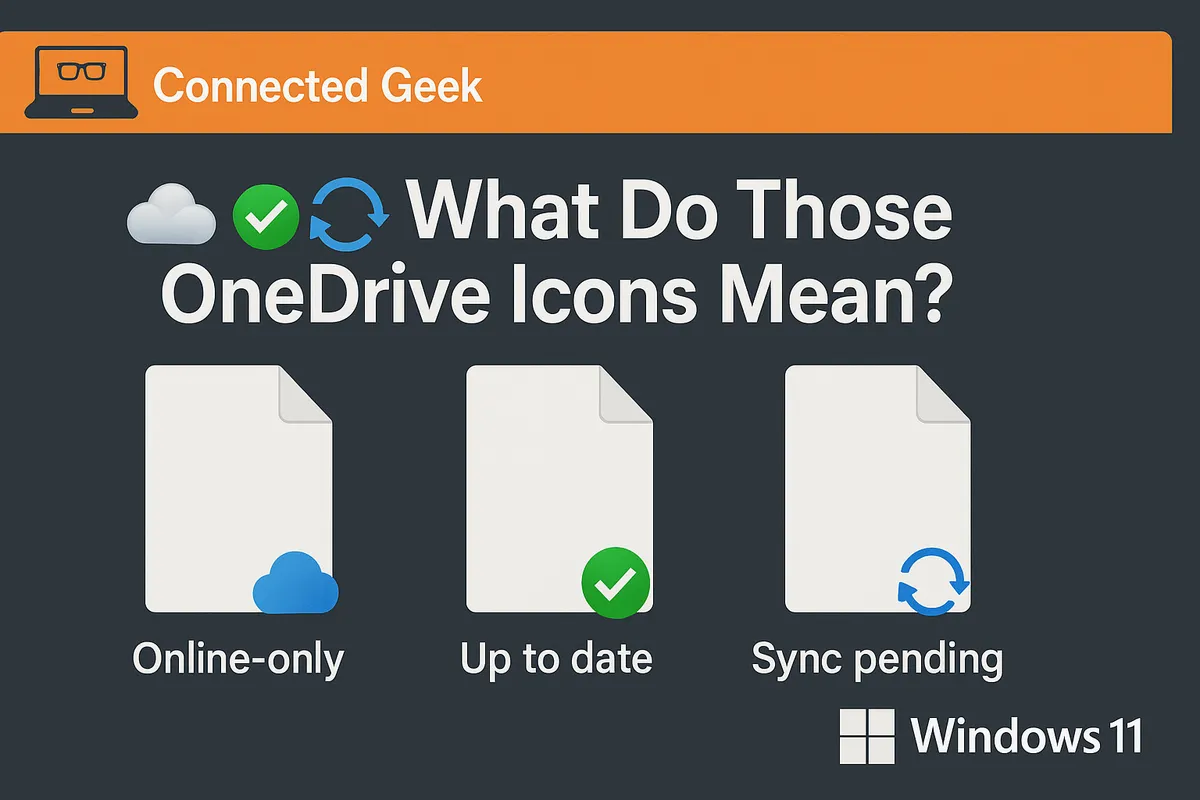
1. Blue Cloud Icon: Online-Only Files That Use 0 Bytes of Local Storage
The blue cloud icon means a file or folder is online only. It exists in your OneDrive cloud storage, but not as a full copy on your device. In practical terms, this means the file:
- Takes up 0 bytes of local disk space on your computer.
- Will download temporarily when you open it, so you can view or edit it.
- Requires an internet connection to open, because the content lives in the cloud.
You will still see the file name, type, and size in File Explorer, just like any other file. But until you open it, your device only stores a tiny placeholder, not the full content. This is ideal for large files you do not use often, such as archived projects, old photos, or rarely opened documents. They remain safely stored in OneDrive but do not clutter your limited local storage.
When you double-click an online-only file, Windows quickly downloads it and opens it in the usual app. After you are done, OneDrive may keep it on your device for a while, or later convert it back to an online-only file if space is needed. You do not have to manage this yourself; the icon will always show you the current state.
2. Green Circle with White Tick: Available Locally and Ready Offline
The green circle with a white tick indicates that the file is available locally. In other words, a full copy of the file is stored on your device and it is in sync with OneDrive. This status tells you several important things:
- The file uses disk space on your computer, just like a normal file stored on your hard drive or SSD.
- You can open and edit it offline without an internet connection, for example while travelling or in a low-signal area.
- When you go back online, any changes you made are synced back to OneDrive.
This status often appears after you open an online-only file. Once downloaded, OneDrive marks it as available on this device with the green tick. You did not have to change any settings; Windows simply recognized that you used the file and kept a local copy for convenience.
Over time, if your device starts to run low on space, OneDrive may automatically convert some of these locally available files back to online-only files (blue cloud) to free up room. That is where the next type of icon becomes useful: files you pin so they are never removed from your device.
3. Green Circle with Solid White Tick: “Always Available” Pinned Files
The green circle with a solid white tick is your strongest guarantee that a file will be there when you need it. This icon means the file is marked as Always available on this device, sometimes called a pinned file. You set this manually by right-clicking a file or folder and choosing “Always keep on this device”.
- The file is downloaded and stored locally, just like with the regular green tick.
- It will always remain on your device unless you explicitly change the setting or delete it yourself.
- OneDrive’s Files On-Demand feature will not automatically remove it to free up space.
This is perfect for important items you rely on regularly: active work documents, key reference materials, or anything you might need in a meeting or while travelling. By pinning them, you are telling OneDrive, “Never treat this as just a cloud placeholder. I want it here, all the time.”
If you ever want to undo this and allow OneDrive to manage the file more flexibly, right-click it again and select “Free up space”. That will convert it back to an online-only file with the blue cloud icon, removing the local copy while keeping it safely in the cloud. The key is that you are in control: pin the files that matter most, and let OneDrive handle the rest.
4. Blue Circular Arrows: Files That Are Currently Syncing
When you see blue circular arrows on a file or folder, it means OneDrive is currently syncing it. The arrows may appear to be rotating, indicating that data is being uploaded or downloaded between your device and the cloud. This status is temporary; it only lasts while OneDrive is processing changes. It can mean a few different things:
- You just created or saved a new file, and OneDrive is uploading it to the cloud so it is backed up and available on other devices.
- You opened an online-only file, and OneDrive is downloading it so you can use it locally.
- Someone else changed a shared file, and OneDrive is updating your copy to match the latest version.
Most of the time, syncing is quick and almost invisible. For very large files, or when your internet connection is slow, you might see the arrows for longer. If you ever wonder how far along things are, click the OneDrive icon in the taskbar notification area (usually near the clock). A small window will show which files are in progress, how much data is left, and whether everything is up to date.
Seeing the arrows is actually reassuring: it means OneDrive is actively protecting your changes by copying them to the cloud. When the arrows disappear and you see a green tick or blue cloud again, you know the sync is complete and your file is safely stored.
5. Red Circle with X: Sync Errors That Need Your Attention
The one icon you do not want to ignore is the red circle with an X. This symbol means there is a sync error with that file or folder. Something has stopped OneDrive from backing it up or updating it correctly, and it needs your attention. Until you fix the problem, the file might not be fully saved in the cloud or shared correctly across devices.
Common causes include:
- A poor or missing internet connection that prevents OneDrive from contacting the cloud.
- A file name problem, such as using characters that OneDrive does not allow or a path that is too long.
- Running out of OneDrive storage space in the cloud or on your device.
- A file being locked by another app or by another user at the same time.
This extra step is important. The red X does not just mean “something went wrong”; it means “this file may not be fully protected yet.” By checking the taskbar icon, you can see exactly what is happening and resolve it with confidence. Once the issue is fixed, OneDrive will resume syncing, the red X will disappear, and the icon will change back to the appropriate status (usually a green tick or blue cloud).
How to Change a File’s Status on Purpose
Knowing what the icons mean is the first step. The second step is learning how to control them. In Windows 11 File Explorer, you can easily switch between online-only, locally available, and always-available states with a right-click. This gives you direct control over how much space OneDrive uses and which files you can depend on offline.
- To make a file online only (blue cloud), right-click it and choose “Free up space”. The local copy is removed, but the file remains safely in OneDrive.
- To make a file available locally (green tick), simply open it, or right-click and choose “Always keep on this device” or a similar option depending on your version. OneDrive will download it and keep it on your device for now.
- To make a file always available (solid white tick in green circle), right-click it and select “Always keep on this device”. This pins the file so Files On-Demand will not remove it automatically.
Putting It All Together: Reading Your File Safety at a Glance
Once you are familiar with these five key icons, your OneDrive folders in Windows 11 start to feel much more understandable and predictable. Each symbol quickly answers a different question about your files:
- Blue cloud – This file is online only, uses 0 bytes of local storage, and will download temporarily when you open it.
- Green circle with white tick – This file is available locally, downloaded and synced, uses disk space, and works offline.
- Green circle with solid white tick – This file is Always available / pinned. You manually marked it “Always keep on this device”, and Files On-Demand will not remove it automatically.
- Blue circular arrows – This file is currently syncing, being uploaded or downloaded. It is best to wait before moving or renaming it until the arrows disappear.
- Red circle with X – There is a sync error that needs attention. Click the OneDrive taskbar icon to see the specific error and follow the suggested fix.
With this understanding, you no longer have to guess whether your files are safe, backed up, or available offline. The icons spell it out for you. You can choose which files stay on your device, which ones live mainly in the cloud, and how you respond when something goes wrong. That clarity turns OneDrive from a mysterious background service into a tool you can trust and manage with ease.
Final Insight: File Safety at a Glance
In everyday use, you do not want to think about backup strategies or storage limits every time you save a document. OneDrive’s status icons are designed exactly for that reason: they give you instant, visual feedback about where your files are and how safe they are. When you can read those small symbols with confidence, you gain quiet control over your digital life on Windows 11.
Ultimately, understanding the blue clouds, green ticks, blue arrows, and red Xs means you always know your file safety at a glance.
