OneDrive Quick Tips Cheat Sheet for Windows 11 Users
Windows 11, OneDrive, Productivity Tips
OneDrive for Windows 11: A Quick-Start Cheat Sheet of Must-Know Tips
OneDrive is built into Windows 11, but most people barely scratch the surface of what it can do. Use these fast, practical tips to protect your files, free up space, and make sharing painless—without digging through complicated menus.
1. Turn On Auto-Backup for Desktop, Documents, and Pictures
If your PC died right now, would your most important files survive? Auto-backup makes sure the answer is yes by syncing your key folders straight to OneDrive in the background.
- Click the OneDrive cloud icon in the taskbar notification area.
- Open Settings, then look for a section like Sync and backup or Manage backup.
- Turn on backup for Desktop, Documents, and Pictures.
From now on, anything you save to those folders is quietly copied to the cloud. Switch PCs, sign in to OneDrive, and your familiar Desktop and files follow you automatically. No USB drives, no “I left it on my other computer” drama.
2. Use Files On-Demand to Save Local Disk Space
Running low on storage? Files On-Demand lets you see all your OneDrive files in File Explorer without actually storing everything on your hard drive. Think of it as a window into the cloud, not a full copy of the closet.
- Right-click the OneDrive icon and open Settings.
- Under storage or sync options, enable Files On-Demand.
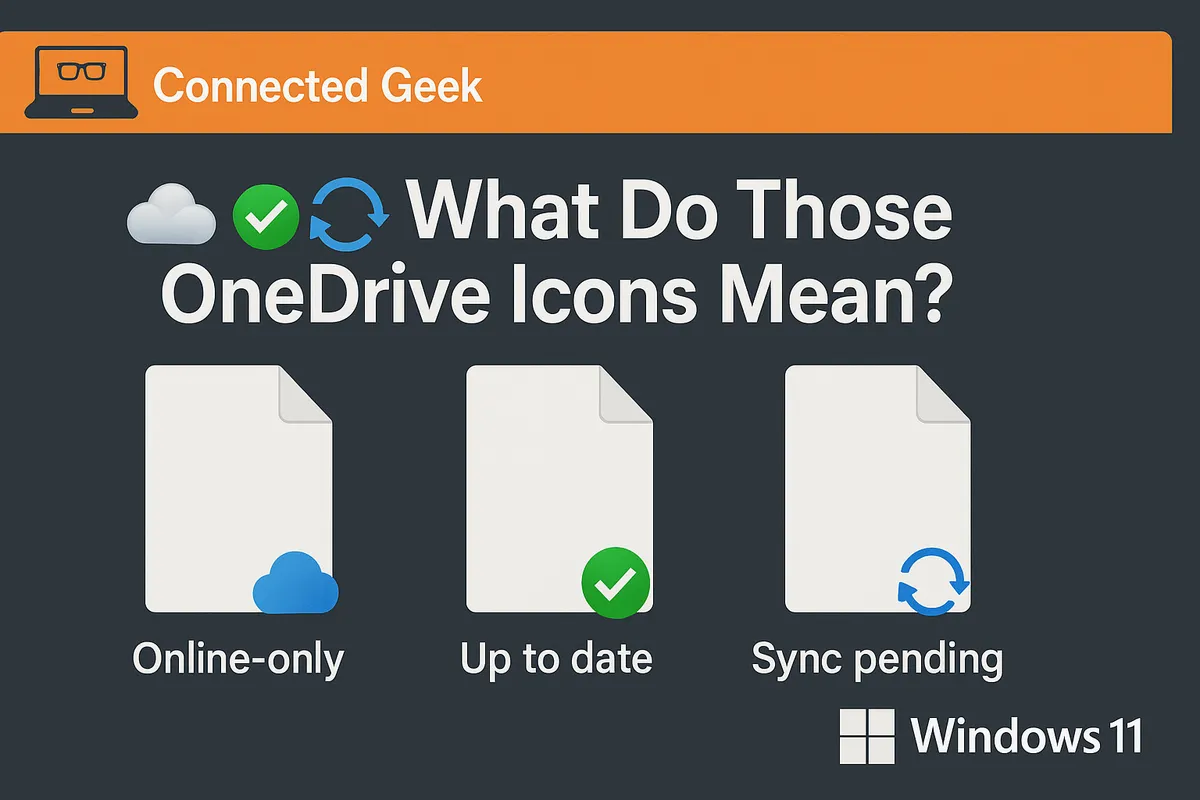
In File Explorer, you will see status icons:
- A cloud icon means online-only (takes zero local space, downloads when opened).
- A green checkmark in a white circle means available on this device.
- A solid green circle with a white checkmark means always keep on this device.
3. Lock Down Sensitive Files with Personal Vault
Some files should not be one click away for anyone who touches your keyboard. That is where Personal Vault comes in—a secure area inside OneDrive with an extra layer of protection.
- In OneDrive (File Explorer or web), open the Personal Vault folder.
- Set up identity verification, such as a code, app prompt, or biometrics depending on your device.
Store passports, tax records, contracts, or anything you would not leave lying around. The vault locks automatically after a short period of inactivity, so even if you step away, your most sensitive documents are not exposed.
4. Use Version History to Rescue Old Saves
Overwrote a report? Deleted half a spreadsheet by mistake? OneDrive’s version history can roll your file back to an earlier state, like an undo button that goes back days or weeks instead of seconds.
- In File Explorer, right-click the OneDrive file you want to fix.
- Choose Version history.
- Browse previous versions, preview them if available, and restore the one you need.
5. Share Links Instead of Email Attachments
Stop clogging inboxes with giant attachments and endless “final_v7_really_final.docx” versions. Share a link to your OneDrive file instead so everyone works from the same live copy.
- Right-click the file or folder in OneDrive and select Share.
- Choose whether people can view or edit.
- Copy the link and paste it into email, chat, or your project tool.
Need to cut someone off later? Open the sharing settings again and change or remove their access without touching the file itself.
6. Pause Sync During Video Calls to Avoid Glitches
Nothing tanks a meeting faster than choppy audio because your PC is busy syncing a huge folder. When you are about to jump on a call, temporarily pause OneDrive sync to keep your bandwidth focused where it matters.
- Click the OneDrive cloud icon on the taskbar.
- Select Pause syncing and pick a time frame (for example, 2 hours).
When your call is over, resume syncing so your latest changes still make it to the cloud. It is a tiny habit that can make your Teams, Zoom, or Meet calls feel instantly smoother.
7. Use the Mobile App to Scan and Save Documents
Turn your phone into a pocket scanner and send paperwork straight to your Windows 11 PC via OneDrive. No separate scanner, no emailing yourself photos.
- Install the OneDrive app on your iOS or Android device and sign in with the same account you use on your PC.
- Tap the Scan button, point your camera at a receipt, contract, or whiteboard, and capture.
- Save it as a PDF or image directly into your OneDrive folders.
Within seconds, the scanned file appears in OneDrive on your Windows 11 machine, ready to rename, share, or file away. Perfect for expenses, signed forms, and notes from in-person meetings.
Wrap-Up: Make OneDrive Work for You, Not the Other Way Around
You do not need to be an IT pro to get serious value from OneDrive on Windows 11. Turn on auto-backup so your core folders are always safe, lean on Files On-Demand to reclaim space, lock down sensitive items in Personal Vault, and remember that version history can rescue your work when mistakes happen. Share links instead of attachments to stay organized, pause sync before important calls, and use the mobile app to scan documents straight into your digital filing system. Pick two or three of these tips to set up today, and OneDrive will quietly make your daily workflow faster, safer, and a lot less stressful.
