Use Your Phone as a Document Scanner with OneDrive
Windows 11, OneDrive, Mobile Productivity
Turn Your Phone into a Pro Document Scanner with the OneDrive Mobile App
If you already use OneDrive on your Windows 11 PC, you’re sitting on a surprisingly powerful document scanner and might not even know it. The OneDrive mobile app can replace that clunky desktop scanner and most standalone scanning apps, giving you clean, searchable PDFs that show up on your computer almost instantly. It’s simple, it’s practical, and it’s honestly a little impressive how much it does for you automatically.
How to Access the OneDrive Scanner in a Few Quick Taps
Let’s start with the basics: finding the scanner. Microsoft tucked it right into the OneDrive mobile app, so you don’t need to install anything extra. Whether you’re on Android or iOS, the steps are almost identical and take just a few seconds once you know where to look.
- Open the OneDrive app on your phone. Sign in with the same Microsoft account you use on your Windows 11 PC so everything stays in sync automatically.
- Tap the camera icon. You’ll usually find it near the bottom of the screen, often labelled or paired with options like “Scan” or “Take a photo.” This is your entry point into the built-in scanner.
- Tap “Scan.” You may see options like “Take a photo” and “Upload.” Choose Scan to tell OneDrive you’re capturing a document, not just snapping a casual picture.
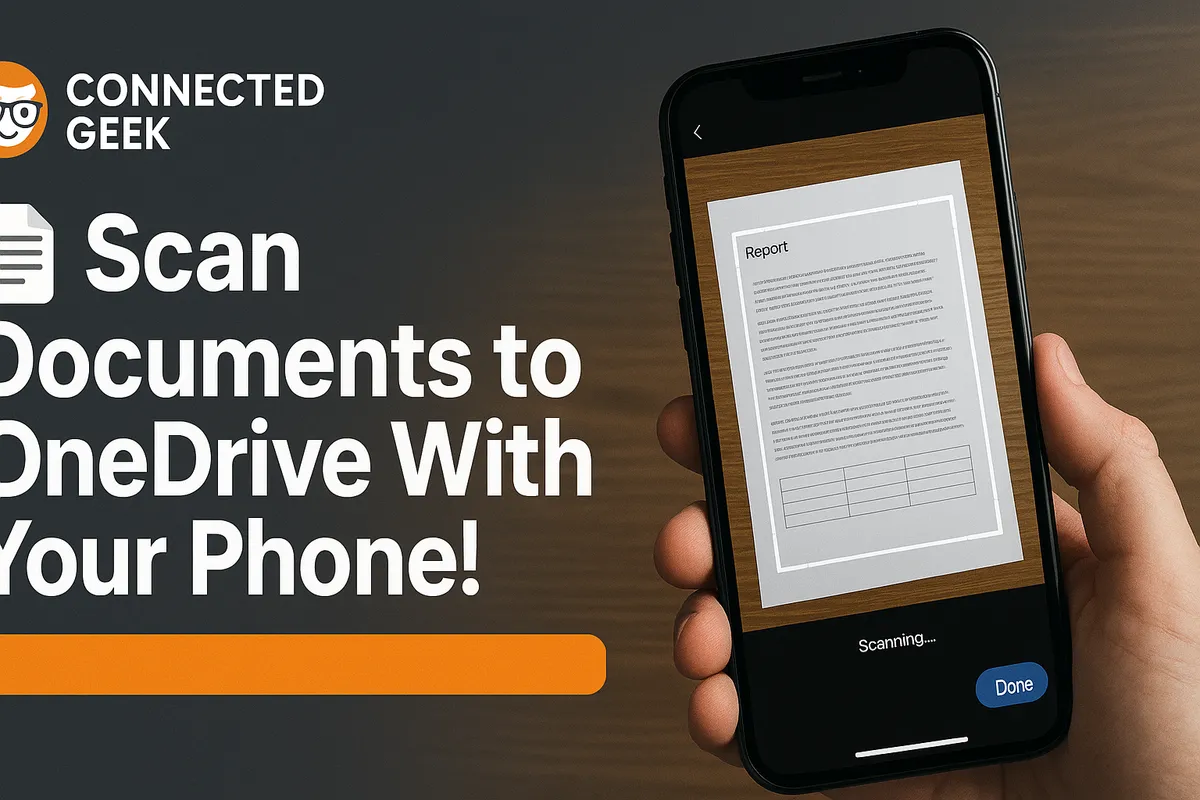
That’s it—you’re in the scanner. From here, you simply point your phone at whatever you want to capture: a contract, a receipt, a whiteboard, a business card, or even a printed handout. The app quietly does a lot of heavy lifting in the background so your scan looks like something that came from a dedicated office scanner, not a shaky phone photo.
What the OneDrive Scanner Does for You Automatically
This is where the OneDrive scanner really earns its keep. Instead of handing you a raw, crooked photo, it quietly cleans everything up so the result looks like a proper document scan. You don’t have to fiddle with editing tools unless you want to; the app’s default behavior is already surprisingly polished and very practical for everyday Windows 11 users.
- Edge detection: As you hover your phone over a page, OneDrive detects the document’s edges and outlines them. It understands where the paper ends and the table, desk, or background begins, so you don’t end up with a scan that includes half your coffee cup or your laptop keyboard.
- Auto-cropping: Once you take the picture, the app automatically crops the image to just the document area. You can still tweak the corners manually if needed, but most of the time the automatic crop is accurate enough that you can just accept it and move on.
- Contrast enhancement: The scanner boosts contrast so text looks darker and the background looks lighter. Faded print, light pencil, or slightly shadowed pages often come out much clearer than they looked in real life. This is especially handy for receipts, which are notoriously faint and flimsy.
- Straightening skewed pages: If you didn’t hold your phone perfectly level—because who does?—OneDrive straightens the document so lines look horizontal and vertical instead of slanted. You end up with a neatly aligned page that feels like it came from a flatbed scanner, even if you snapped it at a slight angle in bad lighting.
- Saving directly to OneDrive as PDF or image: When you’re done, you choose whether to save as a PDF or an image (such as JPG). Either way, the file goes straight into your OneDrive storage—no extra upload step, no emailing it to yourself, and no hunting through your phone’s photo gallery later. It’s quietly organized for you in the cloud, ready for your Windows 11 PC.
The net effect is that you spend more time actually using your documents and less time wrestling with them. Snap, check the preview, tap save, and your scan is already waiting for you on your computer by the time you sit down.
Meet the Four Scan Modes: Document, Whiteboard, Business Card, and Photo
OneDrive doesn’t treat every scan the same way, and that’s a good thing. Different situations need different tweaks, so the app offers four scan modes. They’re easy to switch between, and each one is tuned for a specific kind of content. Once you know what each mode does, you can pick the one that makes your life easiest in that moment.
1. Document Mode (The Default Workhorse)
Document mode is what you’ll use most of the time. It’s the default setting, designed for anything printed or written on paper: letters, contracts, forms, invoices, school handouts, and so on. It focuses on making text crisp and readable, with a clean, professional look that feels very “office ready.”
- Ideal for: Printed pages, typed documents, and handwritten notes you want to archive.
- Typical output: A high-contrast, straightened page that looks like a PDF from a traditional scanner.
For most everyday Windows 11 users, simply leaving the scanner on Document mode will cover 80–90% of your needs, from saving medical forms to capturing printed instructions or mailing labels.
2. Whiteboard Mode (Make Marker Writing Pop)
Whiteboard mode is designed for those quick brainstorming sessions, team meetings, or class lectures where the important ideas live on a whiteboard or flip chart. If you’ve ever tried to photograph a whiteboard and ended up with glare, faint marker lines, or a grayish mess, this mode feels like a small miracle.
- Ideal for: Whiteboards, glass boards, flip charts, and wall-mounted notes.
- What it does: Enhances marker writing, boosts contrast, and cleans up the background so the writing stands out clearly. It also helps correct perspective if you’re standing off to the side of the board.
The result is a readable snapshot of your meeting that you can share with colleagues or file away in your OneDrive “Meeting Notes” folder, instead of relying on blurry phone photos or half-remembered bullet points.
3. Business Card Mode (Instant Contact Capture)
Business Card mode is built for those small rectangles that still manage to pile up after conferences, client visits, or networking events. Instead of stuffing cards into your wallet or desk drawer, you can scan them and let OneDrive help you extract the important details automatically.
- Ideal for: Business cards of all shapes and designs.
- What it does: Detects the card, cleans up the image, and auto-extracts contact information such as the person’s name, phone number, email address, and company. You can then save or use this information more easily, instead of typing everything in by hand.
It’s a small but genuinely helpful touch that turns a static card into usable data. For anyone who meets clients or partners regularly, this mode alone can justify using OneDrive’s scanner instead of a random photo app.
4. Photo Mode (For Artwork and Pictures)
Finally, Photo mode is for those moments when you’re capturing something more visual than textual: artwork, printed photos, posters, or anything where color and detail matter more than razor-sharp black text. Instead of flattening everything into a stark black-and-white document, OneDrive treats it like a proper photograph while still cleaning it up nicely.
- Ideal for: Drawings, paintings, printed photos, posters, flyers, and visual notes.
- What it does: Preserves color and detail, while still cropping and straightening the image so it looks intentional and tidy rather than like a casual snapshot.
It’s a comfortable middle ground: you get the convenience of scanning directly to OneDrive, but without sacrificing the character of the original artwork or photo.
Why OneDrive’s Scanner Beats Standalone Scanner Apps for Windows 11 Users
There are plenty of scanner apps in the app stores, and some of them are quite good. But if you live in the Windows 11 and Microsoft 365 world, OneDrive’s scanner has a few very practical advantages that are hard to ignore. It’s not just about scanning; it’s about what happens after you scan, and how smoothly everything fits into your everyday workflow.
Instant Access on Your Windows 11 PC
With standalone apps, you often end up emailing scans to yourself, sharing them through yet another cloud service, or digging through your phone’s storage to move files manually. It’s tedious, and it breaks your focus. OneDrive quietly removes all of that friction.
- As soon as you tap save, your scan uploads to OneDrive in the background.
- On your Windows 11 PC, it appears in your OneDrive folder like any other file—no extra steps, no cables, no “Where did I save that?” moments.
If you use File Explorer, Word, Excel, PowerPoint, or Outlook, your scanned files are simply there, ready to open, attach, or edit. That tight integration is where OneDrive really shines for everyday users who don’t want to juggle multiple apps just to keep a digital copy of a receipt or document.
Multi-Page PDFs Without the Hassle
Many dedicated scanner apps can create multi-page PDFs, but the process isn’t always intuitive. OneDrive handles this in a way that feels natural: you scan the first page, then simply keep adding more pages before you save. The app stitches them together into a single PDF that opens cleanly on your PC or in your browser.
- Great for: Contracts, multi-page letters, manuals, class notes, and any document set you want to keep together.
- Practical benefit: You avoid a mess of separate image files and instead get one tidy PDF you can name, share, and store.
On Windows 11, that single PDF behaves like any other file: you can open it in Microsoft Edge, annotate it in tools like Microsoft’s PDF viewer, or drop it into OneNote or other apps with zero fuss.
Built-In OCR: Make Your Scans Searchable
One of the most quietly impressive features in OneDrive’s scanning setup is OCR (Optical Character Recognition). In plain language, that means OneDrive can recognize the text in your scanned documents and treat it as searchable content, not just a frozen picture of words.
- Scan a contract, and later you can search for a client’s name in OneDrive and find that file, even if the name only exists inside the scanned pages.
- Scan a set of instructions, and you can search for a specific term months later instead of trying to remember what you named the file.
Not every standalone scanner app integrates this cleanly with your cloud storage, and some hide OCR behind subscriptions or extra steps. With OneDrive, it’s woven into the experience, which makes your growing library of scans feel more like a searchable digital filing cabinet than a pile of random images.
One App, Fewer Headaches
Another subtle advantage is simply this: using OneDrive as your scanner means one less app to manage. No extra logins, no separate backup system, no worrying about where your scans are hiding. Everything lives in the same place as your other files, protected by the same Microsoft account and security settings you already use on Windows 11.
For many people, that simplicity is more valuable than any flashy feature. You open OneDrive, tap the camera, tap Scan, and you’re done. The result drops right into your existing folders, where it belongs.
A Relatable Everyday Example: Scanning a Receipt Before You Leave the Restaurant
To see how all of this comes together, imagine a simple, real-world scenario: you’re at a restaurant for a business lunch, and you need to keep the receipt for expense reporting later. Normally, that tiny slip of paper would get folded into your wallet, lost in your bag, or washed in your jeans. Instead, you can handle it in under a minute before you even stand up from the table.
- The server drops off the receipt. You pull out your phone and open the OneDrive app.
- You tap the camera icon, then tap “Scan.” You leave it on the default Document mode, because a receipt is just another document.
- You hold the phone over the receipt. OneDrive detects the edges, auto-crops out the table surface, and adjusts the angle so the text is straight. It also enhances the contrast, making the faint thermal printing much easier to read than the original slip.
- You glance at the preview, maybe tweak the crop if needed, then save it as a PDF directly to your OneDrive in a folder like “Expenses” or “Receipts 2026.”
- By the time you’ve put your phone away and stepped outside, that receipt is already waiting in your OneDrive folder on your Windows 11 PC at home or at the office.
Later, when you’re filling out your expense report on your computer, you open File Explorer, head to your OneDrive “Expenses” folder, and there it is. Thanks to OCR, you can even search for the restaurant’s name or the amount if you forget where you filed it. No digging through pockets, no stacks of crumpled paper, and no last-minute panic before your reimbursement is due. It’s a small change, but it feels genuinely satisfying every time you do it.
Practical Tips for Getting the Best Scans with OneDrive
While the OneDrive scanner handles a lot automatically, a few simple habits can make your scans look even more professional. None of these are complicated, but together they make the experience smoother and the results consistently better.
- Use good lighting when you can. Natural light or a well-lit room helps the app detect edges and text more accurately. You don’t need studio lighting; just avoid deep shadows or bright glare directly on the page or whiteboard.
- Place documents on a contrasting background. A white sheet on a dark desk, or a receipt on a colored folder, makes it easier for OneDrive to see where the document ends. The edge detection works without this, but it’s even more reliable with contrast.
- Hold your phone steady for a second. The scanner is forgiving, but a brief pause before you tap the shutter helps avoid blur, especially in lower light or with very small text like receipts and fine print on contracts.
- Pick the right mode for the job. Use Document for most pages, Whiteboard for meetings, Business Card for contacts, and Photo for colorful or artistic content. It takes only a tap to switch modes, and the results are noticeably better when you match the mode to what you’re scanning.
- Name your files clearly when you save. Even though OCR makes content searchable, a good file name like “2026-06-04_Lunch_Receipt” or “Client_Contract_Q2” makes your OneDrive feel organized and easy to navigate in Windows 11.
Bringing It All Together
The OneDrive mobile app’s scanner isn’t just a handy extra; it’s a genuinely capable replacement for most traditional scanners and many standalone scanning apps, especially for everyday Windows 11 users. With a few taps—open OneDrive, tap the camera icon, tap Scan—you get edge detection, auto-cropping, contrast enhancement, and skew correction, all quietly working behind the scenes to make your documents look clean and professional.
The four scan modes—Document, Whiteboard, Business Card, and Photo—cover almost every situation you’re likely to run into, from meeting notes and business cards to artwork and receipts. And because your scans save directly to OneDrive as PDFs or images, they’re instantly available on your Windows 11 PC, neatly organized and searchable thanks to built-in OCR text recognition.
Whether you’re scanning a receipt before you leave the restaurant, capturing a whiteboard after a brainstorming session, or archiving a stack of old paperwork, the experience feels refreshingly straightforward. It’s one of those features that quietly upgrades your daily routine: no extra apps, no cables, no drama—just a phone, a tap on the camera icon, and a scan that’s waiting for you on your PC when you need it.
