OneDrive in File Explorer: Understanding the Sync Icons in Windows 11
Windows 11, OneDrive, File Explorer, Cloud Storage, ConnectedGeek
OneDrive in Windows 11: Your Cloud Storage, Built Right into File Explorer
If you use Windows 11 every day, you already have a powerful cloud storage tool at your fingertips. OneDrive is built right into File Explorer, which means your files can quietly sync in the background while you just work, browse, and save like normal. No extra apps, no confusing setup—everything lives where you already manage your folders.
Where to Find OneDrive in File Explorer
Open File Explorer in Windows 11 and look at the left panel. Alongside familiar locations like This PC and Downloads, you will see OneDrive. This is your personal cloud storage space, fully integrated with the system. Any folder or file you place here can sync with the cloud and be available across your devices when you sign in with the same Microsoft account.
Because OneDrive is part of File Explorer, you do not have to change how you work. You can drag and drop, copy, paste, rename, or delete files just like you always have. The only real difference is that now your files can be backed up to the cloud automatically, giving you extra peace of mind and easier sharing options.
Understanding OneDrive Sync Icons at a Glance
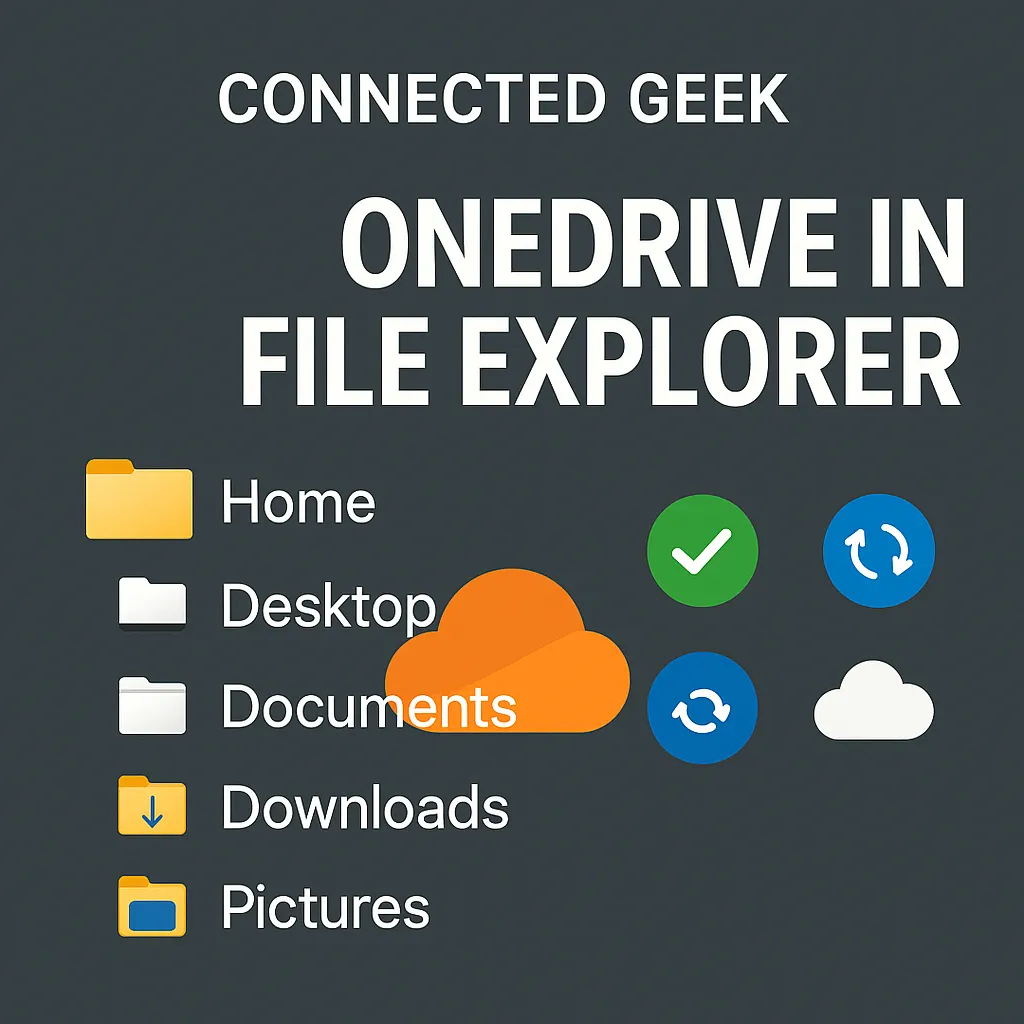
When you look at your OneDrive folders in File Explorer, you will notice small sync icons next to many file names. These tiny symbols tell you exactly what is happening with each file, so you always know whether something is safely stored in the cloud or only on your device. Once you recognize them, they become an easy, friendly status dashboard right inside Windows 11.
Green checkmark: Synced and ready
A file with a green checkmark icon means it is fully synced. The latest version of that file is stored both on your device and in OneDrive cloud storage. You can open it instantly, even if your internet drops, and any changes you make will be uploaded the next time you are online. For everyday documents, photos, and school or work files, this is the ideal state: safe in the cloud, convenient on your PC.
Syncing icon: Changes in progress
If you see a sync icon (usually a pair of circular arrows) on a file or folder, that means OneDrive is currently syncing. Maybe you just saved an update, moved the file, or created something new. Windows 11 is quietly working in the background to upload or download the latest version so everything matches between your PC and the cloud. You can keep working while this happens; the icon will change once the process is finished.
Cloud icon: Cloud-only to save space
A simple cloud icon means that file is cloud-only. It lives safely in OneDrive, but is not currently stored on your device’s local drive. This is great for saving space, especially on laptops with smaller SSDs. When you double-click a cloud-only file, Windows 11 will quickly download it so you can open and edit it like normal. After you are done, OneDrive may move it back to cloud-only if you are using storage-saving settings.
How to Keep Files Available Offline: “Always keep on this device”
Sometimes you know you will need certain files even when you are away from Wi‑Fi—maybe for a trip, a meeting, or working from a café with spotty internet. OneDrive makes this easy. In File Explorer, simply right-click any file or folder in your OneDrive, then choose “Always keep on this device”. Windows 11 will download that content and keep a copy stored locally for reliable offline access.
After you do this, you will usually see the green checkmark icon, showing that the file is both synced to OneDrive and saved on your PC. If you ever want to free up space again, right-click and select the option to clear the local copy, allowing OneDrive to manage it as cloud-only. It is a flexible, friendly way to balance convenience and storage.
Make the Most of OneDrive in Windows 11
With OneDrive built right into File Explorer, Windows 11 turns everyday file management into simple, smart cloud storage. Keep an eye on the sync icons, use “Always keep on this device” for must-have files, and enjoy knowing your documents are backed up and ready wherever you sign in. For more easy Windows tips, guides, and friendly how‑tos, keep an eye on ConnectedGeek—your companion for getting the most out of your PC.
