Protect Files with OneDrive AutoSave in Office Apps
Productivity, Microsoft Office, OneDrive
OneDrive AutoSave: The Easiest Way to Protect Your Word, Excel, and PowerPoint Files
If you have ever lost a document because your PC crashed or the power suddenly went out, you know how painful it can be. The good news is that OneDrive AutoSave, built right into Word, Excel, and PowerPoint, can practically eliminate that worry. With a couple of simple steps, your files can save themselves in real time to the cloud, so your hard work is always protected.
Start with One Simple Step: Save to Your OneDrive Folder
The magic of AutoSave begins the moment you choose to store your Office files in OneDrive. Whenever you create or open a document in Word, a workbook in Excel, or a presentation in PowerPoint, just save it to your OneDrive folder instead of a local folder like Documents or Desktop. You can do this by selecting File > Save As, choosing OneDrive from the list of locations, and picking or creating the folder you want to use there.
Once a file is stored in OneDrive, Office recognises it as a cloud file. That is the key requirement for AutoSave to switch on. You do not need any complicated setup or special version of your document. If it lives in your OneDrive folder, you are already most of the way to automatic protection.
Real-Time Saving: Every Change Goes Straight to the Cloud
With your file in OneDrive, AutoSave can do its best work. When AutoSave is turned on, every change you make is saved to the cloud in real time. Type a sentence, fix a typo, add a chart, or move a slide: it all gets stored automatically, often in less than a second. There is no need to press Ctrl + S or click the Save icon over and over again.
This real-time saving does more than just keep the latest version safe. It also means you can move between devices smoothly. Because your document is constantly updated in OneDrive, you can close your laptop and later open the same file on another PC, a tablet, or even the web version of Office, and simply carry on where you left off.
Peace of Mind During Crashes and Power Cuts
Perhaps the biggest benefit of OneDrive AutoSave is the protection it offers when something goes wrong. If your PC freezes, Office closes unexpectedly, or the power suddenly cuts out, your changes are already stored safely in the cloud. You do not have to rely on unsaved recovery files or hope that you pressed Save recently enough.
When you restart your device and reopen Word, Excel, or PowerPoint, your document is usually exactly as you left it, right down to the last few keystrokes. That level of protection can be a huge relief, especially when you are working on something important like a report, a budget, or a client presentation with a tight deadline.
Finding and Using the AutoSave Toggle in Office Apps
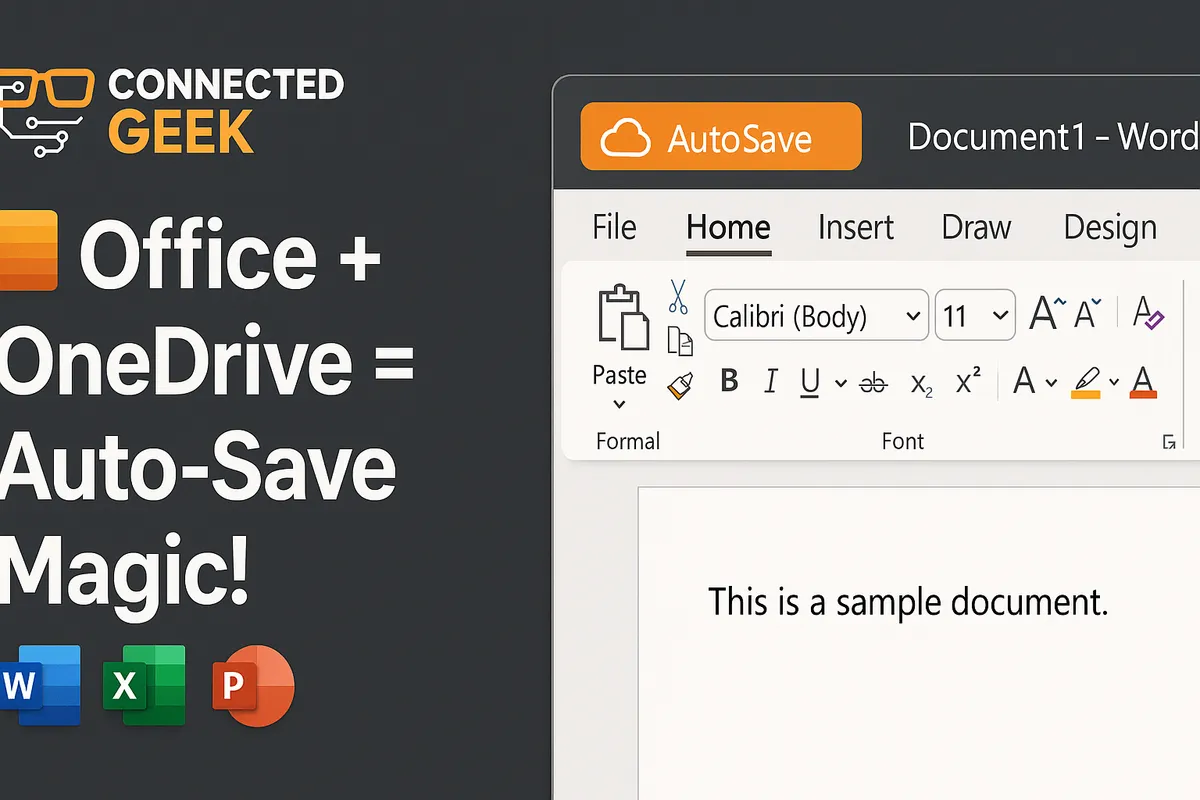
To make sure AutoSave is working for you, look at the very top-left corner of Word, Excel, or PowerPoint. You will see a small AutoSave toggle next to the file name and the quick access toolbar. When your file is saved in OneDrive and everything is set up correctly, this toggle can be switched to On. When it is on, the label usually shows “AutoSave On”, confirming that your changes are being stored in real time.
If the toggle is set to Off, you can simply click it to turn AutoSave on, provided the file is in OneDrive. If the switch is greyed out, that is a sign the file might still be stored on your local drive. In that case, choose File > Save As, move it into your OneDrive folder, and the toggle should become available. It only takes a moment, and from then on, AutoSave will be ready every time you open that file.
Make AutoSave Your Everyday Safety Net
By getting into the habit of saving new Word, Excel, and PowerPoint files straight to OneDrive and checking that AutoSave toggle in the top-left corner, you give yourself an everyday safety net. Your work is saved in real time, protected from crashes and power cuts, and always ready for you on any device. It is a small change in how you save, but it delivers a big boost in peace of mind and productivity.
