OneDrive AutoSave with Microsoft Office: Never Lose Work Again
Windows 11, OneDrive, Microsoft Office, Productivity
OneDrive AutoSave in Windows 11: The Stress‑Free Way to Work in Word, Excel, and PowerPoint
If you’ve ever lost hours of work because you forgot to click Save, OneDrive AutoSave in Windows 11 is about to become your new favorite feature. It quietly watches over your Word, Excel, and PowerPoint files, saving every change in near real-time so you can focus on your ideas instead of your Save button. Let’s explore how it works, what it protects you from, and why it makes collaboration and version history feel almost magical.
How OneDrive AutoSave Works in Office on Windows 11
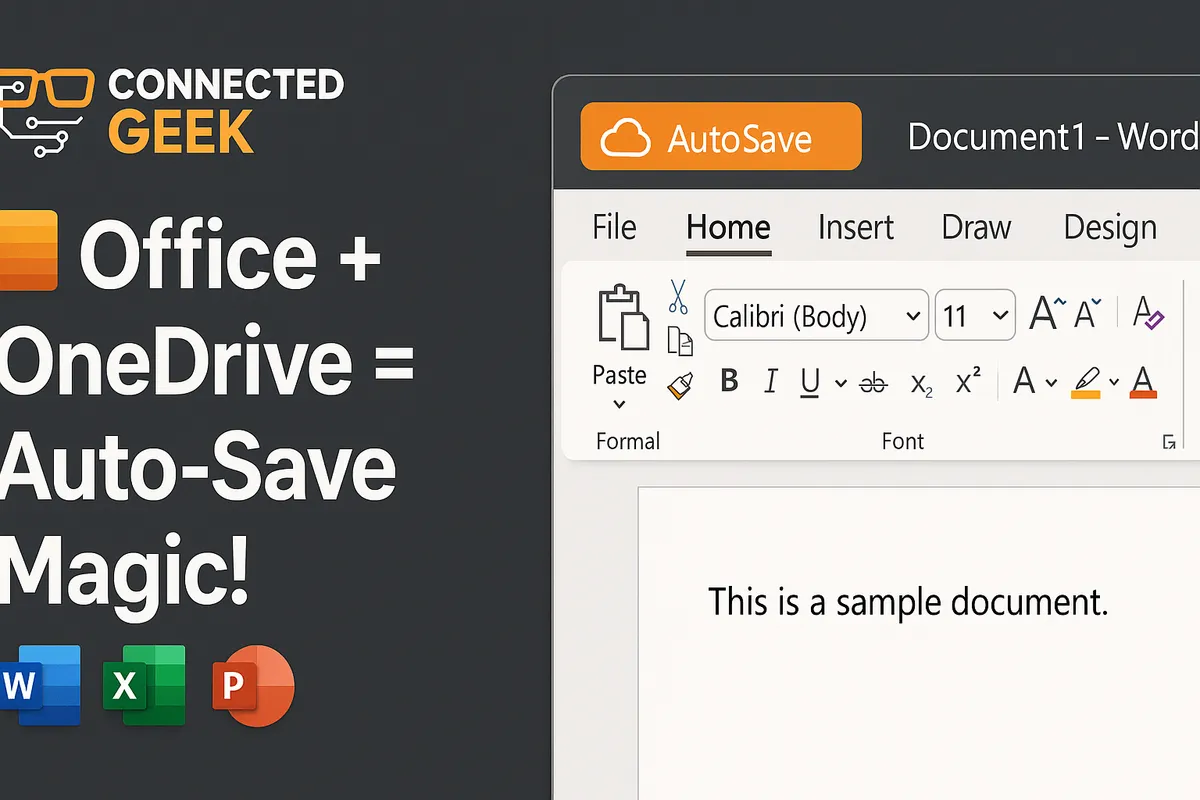
At its core, AutoSave is wonderfully simple: when you save a Word, Excel, or PowerPoint file to a OneDrive folder, Office automatically turns on an AutoSave toggle in the top-left of the app window. From that moment on, every change you make is saved automatically, in near real-time, straight to the cloud. No more hammering Ctrl + S every five minutes “just in case.”
Here’s the basic flow:
- You open Word, Excel, or PowerPoint on Windows 11 and create a new document, workbook, or presentation as usual.
- When you choose File > Save (or press Ctrl + S) for the first time, you pick a location in OneDrive—either your personal OneDrive, your work or school OneDrive, or a shared library in Microsoft 365.
- As soon as the file lands in a OneDrive folder, the AutoSave switch in the top-left corner of the Office ribbon flips on. You’ll see it sitting to the left of the Quick Access Toolbar, proudly showing “On.”
- From then on, every edit you make—every word you type, every cell you change, every slide you tweak—is automatically saved to OneDrive in the background, usually within a second or two.
You don’t need to remember to click Save. You don’t need to worry about whether the latest version is on your PC or in the cloud. AutoSave just quietly does its job while you do yours. It’s like having a super-fast, super-reliable assistant constantly hitting Save for you, without ever interrupting your flow.
What AutoSave Protects You From (a.k.a. Goodbye, “Did I Save?” Panic)
AutoSave shines brightest in those moments when things go wrong. We’ve all been there: you’re deep in a report or presentation, everything’s going smoothly, and then—disaster. The lights flicker, the app freezes, or Windows decides it’s update o’clock. That sinking feeling in your stomach? AutoSave is designed to make that a thing of the past.
Power Cuts and Sudden Shutdowns
Imagine you’re working on a long Word document—maybe a report, an essay, or meeting minutes. You’re in the zone, typing away, when the power suddenly goes out or your laptop battery gives up. In the old days, you’d restart your computer, reopen Word, and pray that at least some of your work was recovered from a temporary file. Not fun, and definitely not reliable.
With AutoSave and OneDrive, your changes are being saved every few seconds as you type. When the power comes back and you sign into Windows 11 again, you just reopen the file from OneDrive. In most cases, everything you wrote right up until the moment the power cut will still be there, waiting for you. It feels like time-travel for your documents—in the best possible way.
App Crashes and Freezes
Even modern apps have bad days. Maybe Excel locks up under a huge data set, or PowerPoint crashes while you’re rearranging slides. Without AutoSave, that kind of glitch can wipe out your most recent changes and send you hunting through recovery options, hoping something can be salvaged.
When AutoSave is on, those “oh no” moments become minor speed bumps instead of full-blown disasters. Because your edits are constantly synced to OneDrive, there’s usually nothing to recover—your latest version is already safely stored. You simply reopen the file from your OneDrive folder, and you’re right back where you left off, with your work intact and your stress level dramatically lower.
Accidental PC Restarts and Forced Updates
Maybe you clicked Restart instead of Shut Down. Maybe Windows 11 needed to install updates and you didn’t realize you had unsaved work open. In the past, that could mean losing the last half hour of edits because you didn’t manually save before the restart kicked in. With AutoSave, your files are constantly written to OneDrive, so a restart is far less dramatic. You log back in, open your files from OneDrive, and continue as if nothing happened. No drama, no frantic searching for “Recovered” versions.
The Classic “Did I Save Before I Left?” Panic
This one might be the biggest everyday win. You’re halfway home, or settling onto the sofa, when your brain suddenly whispers, “Wait… did you save that file?” Instantly, your heart rate jumps and you picture hours of work vanishing into thin air. With AutoSave, that mental spiral simply doesn’t need to happen. If the AutoSave toggle was on and your file was in OneDrive, every change you made was saved as you went along. You can grab your phone, open the Office app or OneDrive app, and check the document from anywhere. Chances are, it’s sitting there in its latest form, quietly proving that yes—you did save, because AutoSave did it for you.
Real-Time Collaboration: No More “final_final_v3.docx”
AutoSave isn’t only about safety; it’s also the engine behind some of Office’s most exciting collaboration features. When your document, workbook, or presentation lives in OneDrive and AutoSave is on, multiple people can work on the same file at the same time. No more emailing attachments back and forth. No more merging edits. No more mysterious file names like “Report_final_FINAL_v3_really_final_this_time.docx.”
Everyone Works in One Shared Copy
Here’s how it feels in practice. You save a Word document to OneDrive and click Share in the top-right corner. You invite your colleagues, and they open the same file—either in the desktop app, the browser, or even on a mobile device. Because AutoSave is constantly syncing changes to OneDrive, everyone is effectively looking at one live version of the file, not separate copies scattered across inboxes and desktops.
As each person types, their changes appear for everyone else, almost instantly. It’s like being in a shared digital workspace where the file is always up to date for everyone, all the time. Whether you’re refining a proposal, polishing a slide deck, or crunching numbers in Excel, collaboration becomes smoother and faster because you’re all literally on the same page—or sheet, or slide.
Colour‑Coded Cursors and Real-Time Presence
One of the most delightful touches is how Office shows who’s doing what. When others are editing your file, you’ll see colour‑coded cursors and flags with their names. In Word, for example, you might see a green cursor where your colleague is adding a paragraph, while another teammate’s edits appear under a blue highlight. In Excel, coloured borders can show which cell someone else is working in. In PowerPoint, you’ll see indicators when someone is editing a particular slide.
This real-time presence does two powerful things. First, it prevents accidental conflicts—if you see someone else editing a section, you can move to another part of the document instead of overwriting their work. Second, it makes collaboration feel alive. You’re not just sending files into the void; you’re working together, side by side, even if you’re in different cities or time zones.
Goodbye, File Name Chaos
That infamous “final_final_v3_revised(2).pptx” era? AutoSave and OneDrive collaboration quietly retire it. Because everyone is editing the same cloud file, you don’t need to create separate versions for every round of feedback. There’s one main file name, one shared location, and one continuously updated document. You can still keep track of changes and older versions (we’ll get to that in a moment), but you no longer have to juggle a confusing list of filenames just to know which copy is the “real” one.
AutoSave + Version History: Up to 500 Versions of Pure Peace of Mind
AutoSave is fantastic for keeping your current work safe, but what about earlier drafts? What if you make a big change and then decide you liked the old version better? Or a teammate accidentally deletes a section you really needed? That’s where version history steps in—and together with AutoSave, it gives you remarkably complete control over your documents.
What Version History Does for You
When your files live in OneDrive and AutoSave is enabled, OneDrive quietly keeps a running record of changes behind the scenes. It doesn’t just overwrite the file endlessly; instead, it stores up to 500 previous versions of that document, workbook, or presentation. That means you can look back through earlier states of the file and, if you want, restore any of them with just a few clicks.
In everyday terms, version history is your document’s time machine. You can:
- Compare today’s version with last week’s to see what changed.
- Recover content that was deleted or heavily edited by mistake.
- Restore an entire earlier version if a project takes a new direction and you want to go back.
How AutoSave Feeds Version History
AutoSave and version history work together beautifully. Every time AutoSave pushes your latest changes up to OneDrive, OneDrive decides when to capture those changes as a new version. You don’t have to think about it; there’s no “Create Version” button you need to remember. As you and your colleagues edit, OneDrive quietly builds a timeline of significant snapshots in the background, up to that generous limit of around 500 versions per file.
The result? You get all the convenience of continuous saving and the safety net of multiple historical versions, without any extra work on your part. Your file isn’t just saved; it’s archived in layers, ready for you to revisit whenever you like.
Practical Everyday Scenarios Where Version History Saves the Day
To really appreciate this, imagine a few realistic situations:
- You spend the morning rewriting a report in Word, then your manager says, “Actually, the old structure worked better.” Instead of manually undoing hours of work, you open version history, pick yesterday’s version, and restore it in seconds.
- In Excel, someone accidentally deletes a sheet of key data. Because AutoSave was on and the file is in OneDrive, you can open an earlier version where the sheet still exists and either restore that version or copy the sheet back into the current file.
- Your PowerPoint deck goes through multiple rounds of feedback. Later, you want to reuse an older slide design you discarded. Version history lets you jump back to a previous iteration, grab that slide, and bring it into your current presentation.
Bringing It All Together: A Safer, Smarter Way to Work in Windows 11
When you put all the pieces together, OneDrive AutoSave with Microsoft Office in Windows 11 delivers a powerful, everyday upgrade to how you work:
- AutoSave turns on automatically when you save Word, Excel, or PowerPoint files to OneDrive, capturing your changes in near real-time and freeing you from constant manual saving.
- It protects you from power cuts, app crashes, surprise restarts, and that awful “did I save?” moment on your commute home.
- It unlocks real-time collaboration with colour‑coded cursors and a single shared copy of each file, putting an end to version chaos and endless email chains.
- And paired with version history—with up to 500 stored versions—it gives you a deep archive of your document’s evolution, ready to restore whenever you need it.
The best part is how effortless it all feels. You don’t have to be a tech expert. You just save your files to OneDrive, glance at the AutoSave toggle in the top-left of Word, Excel, or PowerPoint, and then get on with your work. Behind the scenes, Windows 11, Office, and OneDrive team up to keep your ideas safe, your collaboration smooth, and your document history rich and recoverable.
If you’re still working from files buried in your local Documents folder, this is your sign to make the switch. Move that important report, budget, or presentation into OneDrive, watch the AutoSave toggle come to life, and enjoy the relief of knowing your work is protected every single second. Once you’ve experienced that always‑saved, always‑up‑to‑date feeling, you’ll never want to go back.
