Microsoft Store Wishlist: Save Apps for Later in Windows 11
Windows 11, Microsoft Store, Productivity
How to Make the Most of the Microsoft Store Wishlist in Windows 11
If you’ve ever spotted an interesting app in the Microsoft Store, thought “I’ll come back to this later,” and then promptly forgotten its name, the Wishlist in Windows 11 is going to feel like a breath of fresh air. It’s a simple feature, but used well, it can help you stay organized, plan purchases, and even coordinate tools across a team. Let’s walk through how it works and how you can put it to good use every day.
Adding Apps to Your Microsoft Store Wishlist (The Heart Icon)
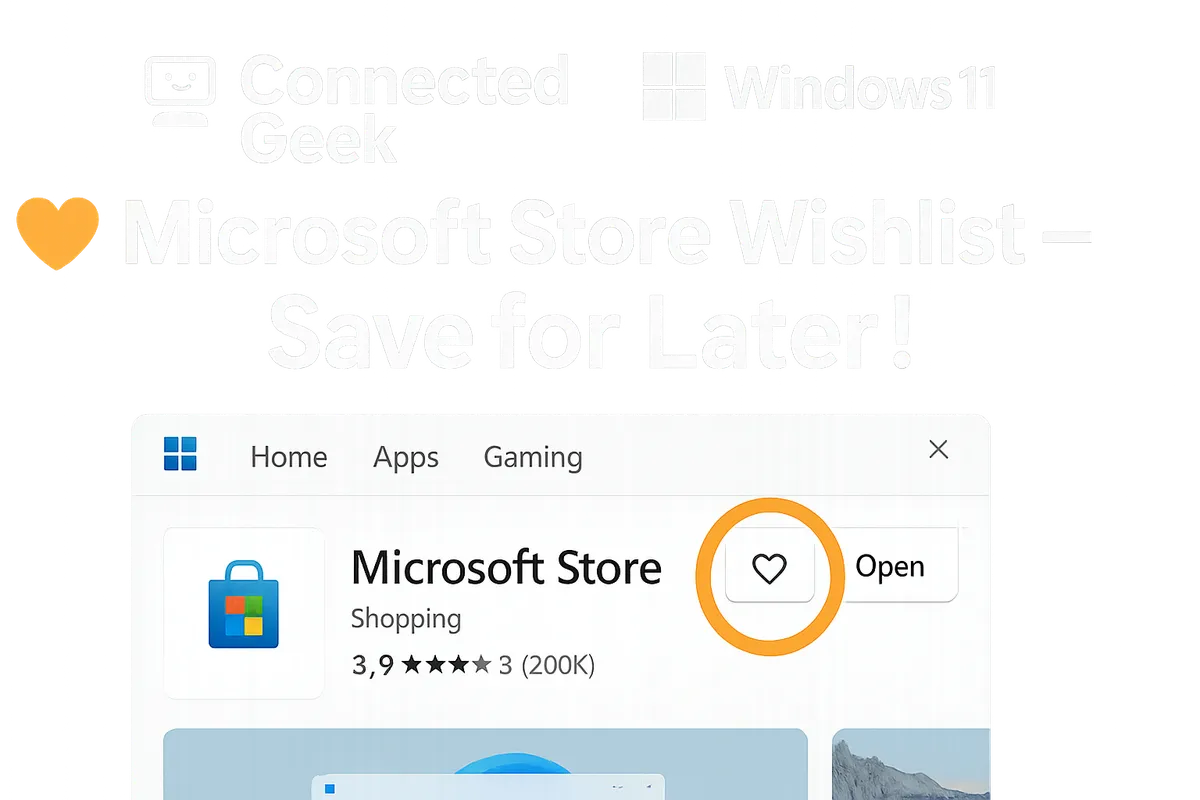
In Windows 11, adding an app to your Microsoft Store Wishlist is delightfully straightforward. Whenever you open an app’s page in the Store—whether it’s a productivity tool, a game, or a utility—look for the small heart icon. You’ll usually see it near the app’s title or close to the “Get” or “Install” button.
To add the app to your Wishlist, simply click the heart icon on that app page. The heart will fill in, confirming that the app is now saved. That’s it—no extra menus, no complicated setup. You can repeat this for any app that catches your eye as you browse, turning your Wishlist into a neat collection of things you might want to try or buy later.
This is especially handy when you’re in “research mode.” Instead of installing everything at once or scribbling down app names somewhere you’ll misplace, you can quickly tap the heart and move on, knowing the app will be easy to find when you’re ready to evaluate it properly.
Where to Find Your Wishlist: Library → Wishlist
Once you’ve added a few apps, you’ll naturally want to see the full list. Accessing your Wishlist is just as simple as adding to it. Open the Microsoft Store in Windows 11, and look at the left-hand navigation panel. There, you’ll find an option labeled Library. Click that to open your personal hub of apps and content linked to your Microsoft account.
Inside the Library, you’ll see a section or tab called Wishlist. Select Library → Wishlist, and you’ll be taken to a dedicated page showing all the apps you’ve saved with that heart icon. From here, you can open each app page, compare details, read reviews, or go ahead and install or purchase the ones you’ve decided to use.
Think of this area as your personal “holding pen” for interesting apps. Instead of cluttering your Start menu with installs you’re not sure about yet, you can keep them neatly in Wishlist until you’re ready to act.
Why the Wishlist Is So Useful in Everyday Life
The Microsoft Store Wishlist is more than just a bookmark list. Used thoughtfully, it becomes a small but powerful organization tool. Here are some friendly, practical ways it can help:
- Save apps to evaluate later: When you’re short on time, add potential apps to your Wishlist instead of trying them all at once. Later, when you have a quiet moment, open your Wishlist and methodically check each one, read reviews, and compare features without starting your search from scratch.
- Build a themed list: Maybe you’re planning a new hobby, like digital drawing, or trying to improve your productivity. You can create an informal “bundle” by hearting drawing apps, note-taking tools, timers, and focus apps, all in one place, ready for when you’re prepared to dive in.
- Plan purchases ahead of time: If you’re watching your budget, Wishlist is a great way to line up paid apps you might buy in the future. Add them to the list, then revisit during sales, at the end of the month, or when you’ve set aside funds for software.
- Share recommendations more easily: While the Wishlist itself is tied to your account, it makes it much easier to recommend apps to friends, family, or colleagues. When someone asks what you use for tasks like photo editing or project planning, you can simply open Library → Wishlist and read off the titles you’ve already vetted or want to try.
Over time, this turns your Wishlist into a curated collection that reflects how you actually work and play on your PC, rather than a random scattering of apps you half-remember from a late-night browsing session.
Syncing Across All Your Windows Devices
One of the nicest perks of the Microsoft Store Wishlist is that it syncs across all your Windows devices that use the same Microsoft account. Add an app to your Wishlist on your desktop at work, and you’ll see it when you open the Store on your laptop at home, or on another Windows 11 PC you use regularly.
This cross-device syncing means you’re not tied to one machine when you’re researching apps. You can browse during a break on one PC, heart anything interesting, and then later, from a different device, open Library → Wishlist and pick up exactly where you left off. It’s a small convenience that adds up, especially if you move between devices throughout your day.
Business Use Cases: Evaluating Tools as a Team
While the Wishlist is great for personal use, it’s also surprisingly helpful in a business setting, especially when you’re exploring new tools for your team. If you’re the person everyone turns to for app suggestions, the Wishlist can become your informal “shortlist” of candidates to test and discuss.
For example, imagine you’re evaluating project management apps or communication tools available through the Microsoft Store. You can browse during the week, add potential options via the heart icon, and then, during a planning meeting, open your Library → Wishlist on a shared screen. Together, the team can review the list, compare features, and decide which apps to pilot, without scrambling to remember names or repeat searches.
If your organization uses the same Microsoft account on several shared devices—such as meeting room PCs or test machines—the synced Wishlist also ensures everyone sees the same set of candidate apps. That makes it easier to coordinate who is trying what, and to keep your evaluation process consistent. Even if each person uses their own account, you can still agree on a list of app names from your Wishlist and share that list via email or chat for others to search and try on their own devices.
Over time, you might maintain a “team toolkit” Wishlist that includes approved apps for new hires, recommended utilities for specific roles, or tools you plan to adopt in the next quarter. It’s a friendly, low-maintenance way to keep everyone on the same page without needing a complex tracking system.
Bringing It All Together
The Microsoft Store Wishlist in Windows 11 is one of those quiet features that quickly becomes part of your routine once you start using it. By tapping the heart icon on any app page, then returning later to Library → Wishlist, you can keep your ideas organized, plan purchases sensibly, and share smarter recommendations with the people around you. And because your Wishlist syncs across all your Windows devices, it’s always right where you need it, whether you’re at your desk, on the sofa, or in a meeting room. If you haven’t tried it yet, open the Microsoft Store, find an app you’re curious about, and give that heart a click—you might be surprised how helpful this simple list can be.
