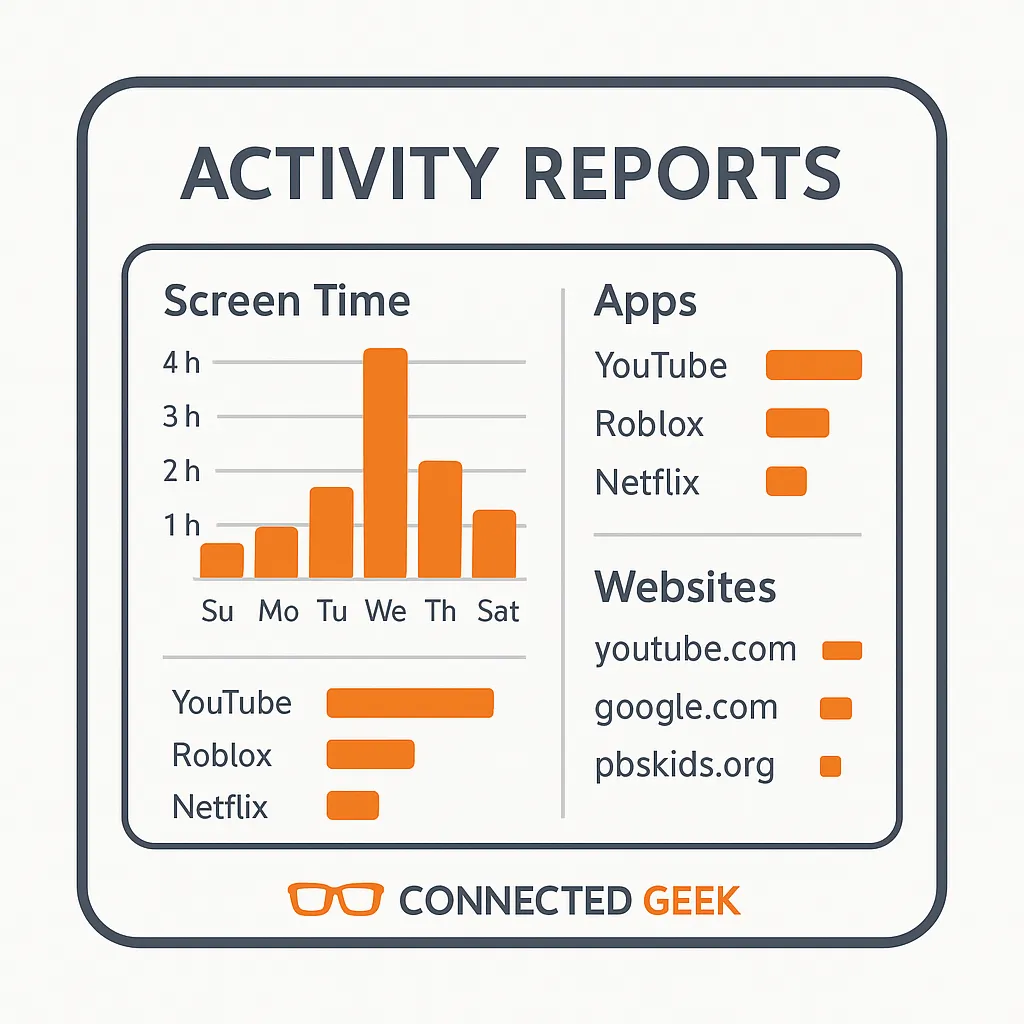
Microsoft Family Safety Activity Reports: See Exactly What Your Kids Are Doing Online
Parenting, Digital Safety, Microsoft Family Safety
A Parent’s Guide to Microsoft Family Safety Activity Reports
Microsoft Family Safety’s Activity Reports can feel a bit like peeking over your child’s shoulder. Used well, though, they’re less about spying and more about supporting healthy digital habits. Think of them as a conversation starter, not a report card. This guide walks you through where to find Activity Reports, what they show, how to read the weekly email, and how to use the information in a way that builds trust instead of tension—plus some important privacy considerations along the way.
Where to Find Microsoft Family Safety Activity Reports
You can view Activity Reports in two main places, depending on what’s easiest for you in the moment:
- On the web: Go to family.microsoft.com, sign in with your Microsoft account, choose your child, and then select Activity.
- In the Family Safety app: Open the app, tap your child’s name, then tap the Activity tab to see their recent digital activity.
Both places show you the same core information; the app is handy for quick check-ins, while the website can feel more comfortable if you prefer a larger screen and a little more space to explore the details together with your child.
What Activity Reports Actually Track
Microsoft Family Safety focuses on a few key areas that matter most for digital wellbeing. When Activity reporting is turned on for your child’s account, you’ll typically see:
- Screen time totals per app: How long your child spent in specific apps and games on their Windows devices, Xbox consoles, and, if set up, Android devices. This helps you spot patterns—like a game that quietly eats up three hours at a time.
- Websites visited: A list of sites your child has visited in Microsoft Edge, including blocked attempts if you use content filters. This can highlight interests (like coding or art) as well as sites that might not fit your family’s values.
- Search terms: The words and phrases your child typed into search engines in Microsoft Edge. These can reveal questions they might feel shy asking out loud, from homework help to big life topics.
- Device usage: Overall time spent on each device, such as “2 hours on Xbox” or “1.5 hours on Windows PC.” This gives context: an hour on a school laptop looks very different from an hour of late-night gaming.
Remember, Activity Reports don’t show everything your child does online. For example, some apps or non-Microsoft browsers may not be fully tracked. Treat the report as a strong snapshot, not an all-seeing camera.
How to Read the Weekly Summary Email Without Panic
If you’ve enabled email summaries, Microsoft sends you a weekly Activity Report email for each child. It’s designed to be a quick, at-a-glance overview so you don’t have to log in every day. When it lands in your inbox, try reading it with curiosity rather than alarm.
The email typically highlights:
- Top apps and games: A short list of where most of their time went, with total minutes or hours. Look for balance: is it all one game, or a mix of homework tools, videos, and play?
- Screen time trends: Some weeks may be heavier because of school projects, holidays, or bad weather. Notice patterns over several weeks rather than reacting sharply to one busy week.
- Web and search highlights: Recently visited sites and notable search terms. Use these as clues to what’s on your child’s mind, not as evidence for a cross-examination.
If something in the email worries you, take a breath before reacting. It can help to click through to the full Activity view for more context—what time of day were they online, and for how long? Did they bounce off a site quickly, or keep returning?
Using Activity Data to Start Helpful Conversations, Not Punishments
The real power of Activity Reports is in the conversations they spark. Children and teens are still learning how to manage time, attention, and curiosity online. Your role is to coach, not to catch them out.
A few practical ways to use the data constructively:
- Share the data together. Sit down with your child and open the Activity tab or show them the email. Say something like, “Let’s look at how we both spent time online this week and see if it matches what we want.”
- Ask open-ended questions. Instead of “Why were you on this game for three hours?” try “I see this game took up a big chunk of time—what do you like about it?” This invites conversation and helps you understand their world.
- Connect to family values. Use the report to revisit your family’s screen time guidelines: sleep, schoolwork, movement, and downtime. For example, “It looks like screens ran late a few nights. How did you feel the next morning?”
- Problem-solve together. If you notice overuse, invite your child into the solution: “We’re both seeing that YouTube is creeping into homework time. What could help—timers, breaks, or adjusting limits in Family Safety?”
Consequences still have a place, especially for repeated or risky behavior, but when Activity Reports are used only to punish, kids quickly learn to hide or switch devices. When they’re used to guide and teach, children are more likely to be honest and to come to you when something online feels uncomfortable.
Privacy Considerations and Respecting Your Child’s Space
Monitoring a child’s digital life always raises a fair question: How much is too much? Activity Reports are most effective when your child knows they’re turned on and understands why you’re using them.
- Be transparent. Tell your child that Microsoft Family Safety is set up and that you receive Activity Reports. Explain that your goal is safety, balance, and support—not catching them in trouble.
- Avoid oversharing their data. Treat the information in Activity Reports as private to your family. Avoid showing it to friends or relatives in a way that might embarrass your child or damage trust.
- Adjust as they grow. As kids become older teens, it’s healthy to gradually loosen monitoring and involve them in deciding what’s still appropriate. You might move from detailed oversight to spot checks, and eventually to conversations without tracking at all.
It’s also wise to review your own Microsoft account settings and understand how long data is kept and who can see it. Taking a moment to read Microsoft’s privacy documentation and explaining the basics to your child models good digital citizenship: we should all know who holds our data and why.
Turning Reports into a Tool for Connection
Used thoughtfully, Microsoft Family Safety Activity Reports can become a regular check-in ritual rather than a source of conflict. By knowing where to find them, understanding what they track, reading the weekly emails with context, and approaching the data with empathy, you can help your child build healthier digital habits—and keep the lines of communication wide open in the process.
