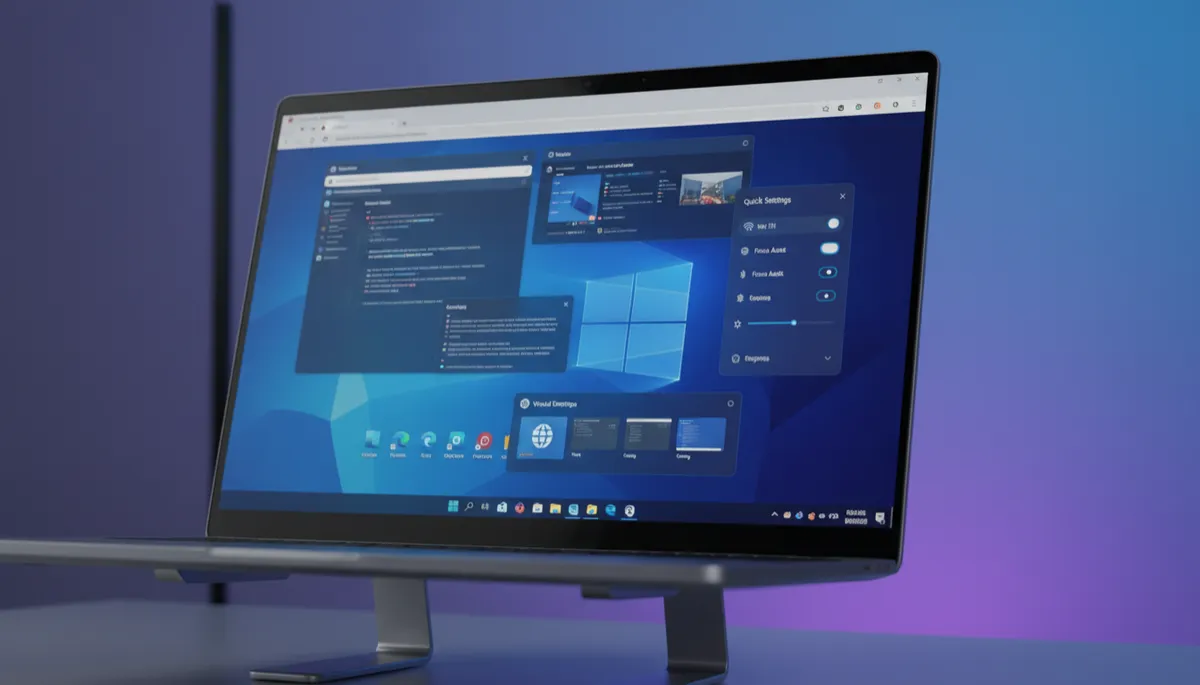
How to Pin Apps and Websites to the Windows 11 Taskbar
Pin an App to the Taskbar
There are two quick ways to pin any app:
- From the Start Menu: Click Start → right-click any app → Pin to taskbar
- From the Taskbar itself: Open the app → right-click its Taskbar icon → Pin to taskbar
Once pinned, the app stays on the Taskbar even when it's closed.
Rearrange Pinned Apps
Click and drag any pinned app left or right along the Taskbar to reorder them. Put your most-used apps closest to the center (or left, depending on your alignment setting).
Pin a Website to the Taskbar
- Open the website in Microsoft Edge
- Click the three-dot menu (⋯) in the top right
- Go to Apps → Install this site as an app (or Pin to taskbar if available)
- The site opens in its own window and appears on the Taskbar like a native app
This works great for web apps like Gmail, Google Calendar, or any tool you use daily in a browser.
Unpin an App
Right-click any pinned Taskbar icon → Unpin from taskbar. The icon disappears but the app is still installed — you can always re-pin it later.
Change Taskbar Alignment
If you prefer icons on the left (like older Windows versions): Settings → Personalization → Taskbar → Taskbar behaviors → Taskbar alignment → Left.
