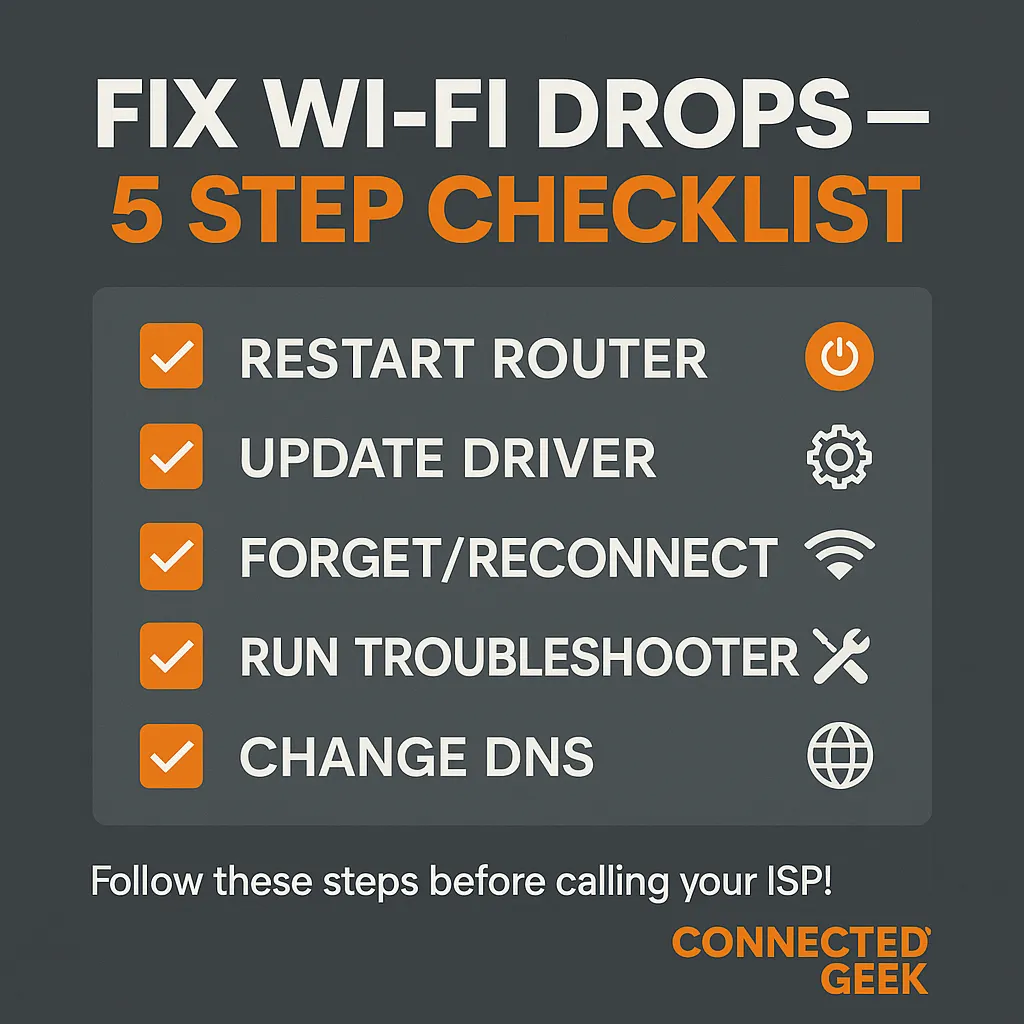
Fix Wi-Fi Disconnects on Windows 11 Easily
Windows 11, Wi‑Fi Troubleshooting
How to Fix a Wi‑Fi Connection That Keeps Dropping in Windows 11
If your Wi‑Fi keeps disconnecting on Windows 11, you’re not alone. The good news is that most dropouts come from a few common issues you can fix yourself in just a few minutes. Let’s walk through five friendly, practical fixes you can try right away—no deep tech knowledge required.
1. Restart Your Router and Give It a Fresh Start
It sounds simple, but restarting your router really does solve a lot of Wi‑Fi problems. Routers can get overloaded or stuck after running for a long time, which leads to random disconnections or slow speeds. A quick reboot clears temporary glitches and refreshes the connection with your internet provider.
To restart it safely, unplug the router’s power cable, wait at least 20–30 seconds, then plug it back in. Give it a couple of minutes to fully start up, then reconnect your Windows 11 PC to Wi‑Fi and see if the connection is now stable. If other devices in your home were also disconnecting, this step is especially important.
2. Update the Wi‑Fi Adapter Driver in Device Manager
Out‑of‑date or buggy Wi‑Fi drivers are a common cause of random disconnects in Windows 11. Updating your driver helps your wireless adapter communicate properly with the system and your router, often fixing stability issues in the process.
To update it, right‑click the Start button and choose Device Manager. Expand Network adapters, then right‑click your Wi‑Fi adapter (it may include words like “Wireless” or “Wi‑Fi”) and select Update driver. Choose Search automatically for drivers and let Windows look for a newer version. If an update is found, install it, restart your PC, and test your connection again.
3. Forget and Reconnect to Your Wi‑Fi Network
Sometimes Windows hangs on to old network settings or a corrupted Wi‑Fi profile, which can cause repeated dropouts or “Connected, no internet” messages. Forgetting the network and reconnecting forces Windows 11 to create a clean, fresh profile for that connection.
Click the network icon on the taskbar, then select Wi‑Fi and choose More Wi‑Fi settings. Under Manage known networks, find your Wi‑Fi name and click Forget. Next, click the Wi‑Fi icon again, select your network from the list, enter the password, and reconnect. Stay connected for a few minutes to see if the random drops stop happening.
4. Run the Network Troubleshooter in Settings
Windows 11 includes a built‑in network troubleshooter that can automatically detect and fix many common issues behind unstable Wi‑Fi. It’s a quick, low‑effort step that’s well worth trying when your connection keeps dropping for no clear reason.
Open Settings, go to System, then Troubleshoot, and choose Other troubleshooters. Find Network Adapter and click Run. Follow the on‑screen steps, select Wi‑Fi when asked which adapter to diagnose, and let Windows apply any suggested fixes. When it’s done, test your connection again by streaming a video or downloading a file.
5. Change DNS to 8.8.8.8 or 1.1.1.1 for More Reliable Browsing
If your Wi‑Fi says it’s connected but websites keep timing out or loading slowly, your DNS (the service that translates website names into IP addresses) might be the problem. Switching to well‑known public DNS servers like 8.8.8.8 (Google) or 1.1.1.1 (Cloudflare) can make your connection feel more stable and responsive.
In Windows 11, open Settings and go to Network & internet. Click Wi‑Fi, then your current network, and choose Hardware properties. Under IP settings, click Edit, switch to Manual, and enable IPv4. In the DNS fields, enter 8.8.8.8 as Preferred DNS and 8.8.4.4 or 1.1.1.1 as Alternate DNS. Save your changes and try browsing again.
Bringing Your Wi‑Fi Back to Stable
Wi‑Fi dropouts are frustrating, but they’re often fixable with a few calm, methodical steps. Start by restarting your router, then move on to updating your Wi‑Fi driver, forgetting and reconnecting to the network, running the network troubleshooter, and finally adjusting your DNS settings. With a bit of patience, you can usually get your Windows 11 connection back to being smooth and reliable.
Meta Title: Wi‑Fi Keeps Dropping on Windows 11? 5 Easy Fixes to Try Today
Meta Description: Wi‑Fi keeps disconnecting on your Windows 11 PC? Learn five simple fixes—restart your router, update Wi‑Fi drivers, reset the network, run the troubleshooter, and change DNS to 8.8.8.8 or 1.1.1.1.
