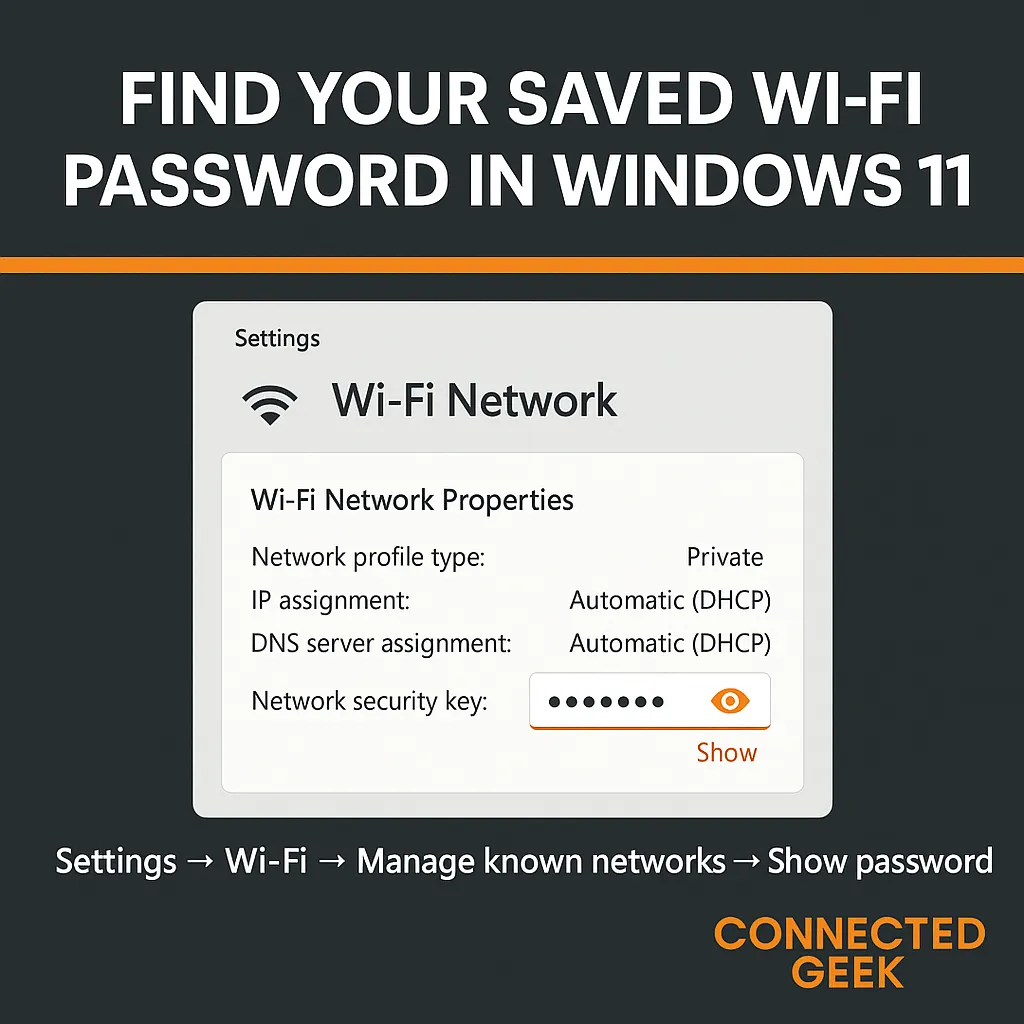
Find Saved Wi-Fi Passwords on Windows 11 Easily
Windows 11, Wi‑Fi, How-To
How to Find a Saved Wi‑Fi Password in Windows 11 (No Extra Tools Needed)
If you have ever wanted to connect a new phone, laptop, or smart device to your home network but could not remember the Wi‑Fi password, you are not alone. The good news is that if a Windows 11 PC is already connected to that network, you can reveal the saved password in just a few clicks—no third‑party apps or complicated commands required.
Why You Might Need to See Your Wi‑Fi Password
Wi‑Fi passwords are easy to set and even easier to forget. Maybe your router is tucked away in a cupboard, or the original sticker has faded. Perhaps you changed the password months ago and never wrote it down. Being able to view the saved password on a Windows 11 device is especially handy when you want to share the network with guests or connect new devices such as tablets, smart TVs, or game consoles without resetting anything.
Instead of hunting for old notes or logging into your router’s control panel, Windows 11 lets you quickly look up the password that is already stored on your PC. As long as the computer has connected to that Wi‑Fi network before, you can retrieve the details in a minute or two.
Step‑by‑Step: Find a Saved Wi‑Fi Password in Windows 11
Follow these friendly steps to reveal your Wi‑Fi password using only built‑in Windows 11 settings:
- Open Settings on your PC. You can click the Start button and choose the gear icon, or press Windows key + I on your keyboard for a quick shortcut.
- In the left‑hand menu, click Network & internet. This is where Windows gathers all your connection options.
- Select Wi‑Fi. You will see information about your current wireless connection and related settings.
- Click Manage known networks. This page lists all the Wi‑Fi networks your computer remembers, including ones you have connected to in the past.
- Find and click the name of the Wi‑Fi network whose password you want to see. If you are unsure, look for the network that shows as in range or matches what you see on your other devices.
- On the network’s page, choose Properties. Here you will see details like the network type and security settings.
- Look for the option labeled Show Wi‑Fi password, then click it. Windows may ask you to confirm your identity (for example, by entering your PC password or PIN). Once confirmed, the saved Wi‑Fi password will appear in plain text.
That is all there is to it. You now have the exact password your router is using, ready to type into another device or share with someone you trust.
Tips for Sharing and Storing Your Wi‑Fi Password Safely
Once you have revealed the password, it is tempting to leave it on a scrap of paper or send it in a random message—but that can lead to confusion or security issues later. A better approach is to save it somewhere secure and easy to find.
- Store the password in a trusted password manager so you can copy and paste it when needed.
- If you prefer pen and paper, write it clearly and keep it in a safe place, like a home file or notebook—not taped to your front door.
- Share the password only with people you trust, and avoid posting it in public chats or social media.
By taking a minute to store your Wi‑Fi password securely, you will save yourself from future headaches and keep your network a little safer, all while making it easy to connect new devices whenever you need.
SEO Metadata
Meta Title: How to Find a Saved Wi‑Fi Password in Windows 11 (No Third‑Party Tools)
Meta Description: Learn how to view a saved Wi‑Fi password in Windows 11 using only built‑in settings. Follow a simple step‑by‑step guide to share your network and connect new devices securely.
Focus Keywords: find saved Wi‑Fi password Windows 11, show Wi‑Fi password Windows 11, manage known networks Windows 11
