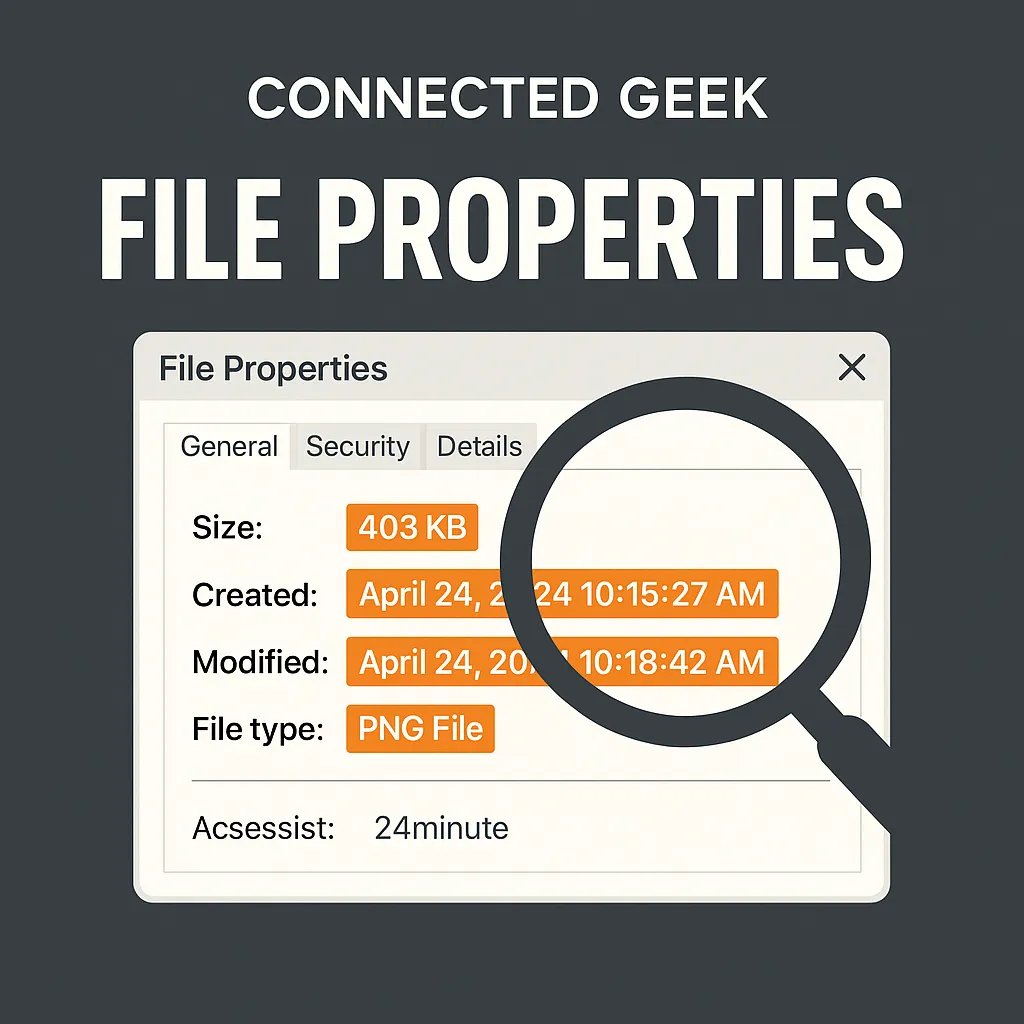
File Properties in Windows 11: What Right-Click Really Shows You
Windows 11, File Explorer, File Tips, ConnectedGeek
Unlock Hidden File Details in Windows 11 with One Right‑Click
Your Windows 11 PC is quietly keeping track of all kinds of useful information about your files. The good news? You do not need to be a tech expert to see it. With a simple right-click and one menu choice, you can reveal powerful details about any file you own. At ConnectedGeek, we love these small tricks that make everyday computing feel smarter and easier.
How to Open File Properties in Windows 11
Start in File Explorer, where you normally browse your documents, pictures, and downloads. Find any file you are curious about, then follow these steps:
- Right-click the file icon or its name.
- In the menu that appears, click Properties at the bottom.
That single click opens a small window packed with information. Let us walk through the most helpful details you will see and why they matter in everyday Windows 11 use.
See the Exact File Size (Not Just “MB” or “GB”)
Under the General tab, look for Size. File Explorer often rounds sizes, but here you get the exact file size in kilobytes, megabytes, or gigabytes, plus the precise number of bytes. This is especially handy when you are trying to email a file just under a size limit or compare two versions of a document to see which one is larger.
Creation Date vs. Last Modified Date
In the same window, you will notice three helpful timestamps. The creation date tells you when the file first appeared on this computer, which is great for tracking when you started a project or downloaded something. The last modified date shows the most recent time the file was changed, so you can quickly confirm whether you are opening the latest version of a report, photo edit, or school assignment. You may also see a last accessed date, which can help you spot files you have not used in a while and might be ready to archive or delete.
File Type and Location: Know What and Where It Is
Just below the name, Windows 11 lists the file type, such as “JPEG image,” “PDF file,” or “Microsoft Word document.” This helps you understand which app will open it and whether it is in the format you expect. Right under that, you will see the file’s location — the full folder path on your computer. If you ever wonder, “Where did I save this?” the Properties window gives you a clear answer, step by step, from the drive letter down to the exact folder.
Extra Power for Photos: Check Image Resolution
For photos and other images, the Properties window gets even more helpful. Click the Details tab, and look for the resolution section. Here you will see the exact width and height in pixels, such as 1920 × 1080. This makes it easy to know whether a picture is sharp enough to print, big enough for a desktop background, or suitable for social media. No extra apps required—just a right-click in File Explorer.
Check Version and Publisher for Programs and Apps
When you right-click an executable file (like a setup file or a program’s .exe) and open Properties, the Details tab becomes a quick safety and troubleshooting tool. You can see the exact version of the software, which is helpful when support asks, “What version are you running?” You will also see the publisher info, so you can confirm that the file really comes from Microsoft, Adobe, or another trusted company before you run it. If the publisher looks strange or is missing, you might want to think twice before opening that file.
Knowledge Is Power in Windows 11
A quick right-click and a trip to file properties can tell you almost everything you need to know about any file on your Windows 11 PC. From exact size and dates to image resolution and app version details, these hidden facts help you stay organized, make safer choices, and work more confidently. ConnectedGeek’s tip: the next time you are unsure about a file, do not guess—right-click, choose Properties, and let Windows show you the truth.
