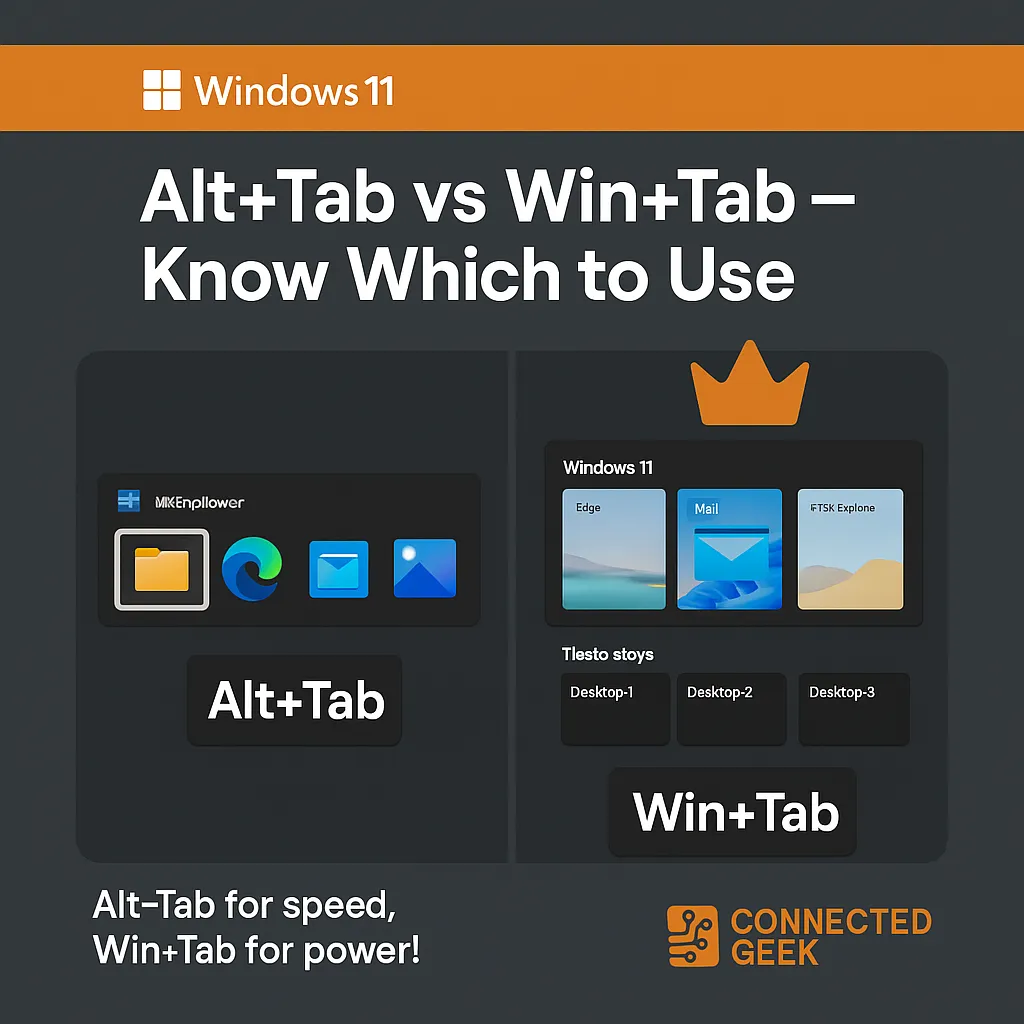
Alt+Tab vs Win+Tab: Windows 11 Shortcuts Explained
Windows 11, Keyboard Shortcuts
Alt+Tab vs Win+Tab in Windows 11: What’s the Difference?
If you use Windows 11 every day, learning a few simple keyboard shortcuts can make your PC feel faster and more organized. Two of the most useful are Alt+Tab and Win+Tab. They look similar at first, but they actually serve different purposes. Let’s walk through what each one does, when to use them, and a handy navigation trick many people miss.
Alt+Tab: The Quick Window Switcher for Your Current Desktop
Think of Alt+Tab as your speed dial for switching between apps on the desktop you are currently using. When you hold the Alt key and tap Tab, Windows 11 shows a small strip of thumbnails for all open windows on that one desktop. Keep tapping Tab (while still holding Alt) to move through them, and release Alt when the app you want is selected. You jump there instantly, without touching the mouse.
This makes Alt+Tab perfect for fast, frequent switching. Maybe you are writing an email and need to grab a sentence from a browser tab, or you are comparing two documents side by side. Alt+Tab lets you bounce between those windows in a second or two. It focuses on what is open right now on your current desktop, so it stays simple and clutter free.
Win+Tab: Task View for All Desktops, Windows, and Recent Files
Win+Tab (the Windows key plus Tab) opens something more powerful: Task View. Instead of just showing the windows on your current desktop, Task View spreads out every open window across all virtual desktops at the top of the screen. You will also see options to create new desktops, switch between them, and, in many setups, access recent files and activities linked to your Microsoft account.
Because of this, Win+Tab is best when you want a big picture view of your work. If you use multiple desktops, maybe one for work, one for personal tasks, and another for gaming or creative projects, Win+Tab is how you jump between them. It is also handy when you have many windows open and cannot remember exactly where something is. Instead of cycling blindly, you can calmly scan everything laid out in front of you.
When to Use Alt+Tab vs Win+Tab
A simple way to decide is to ask yourself: Do I just need to hop to another app, or do I need to see everything? Use Alt+Tab when you:
- Are staying on the same desktop and switching between a few familiar windows
- Want the fastest possible way to jump between two or three apps
- Prefer not to leave what you are doing just to glance at another window
On the other hand, reach for Win+Tab when you:
- Use multiple desktops and want to move between them
- Feel lost in a sea of windows and need an overview
- Want to close or rearrange several apps at once using the mouse or trackpad
Pro Tip: Use Alt+Tab with the Arrow Keys for Precise Navigation
Here is a small trick that makes Alt+Tab even nicer to use. Instead of rapidly tapping Tab and hoping you land on the right window, try this:
- Hold down Alt, then tap Tab once to open the switcher.
- Keep holding Alt, and now use the arrow keys to move left, right, up, or down through the grid of open windows.
- When the window you want is highlighted, simply release Alt to switch to it.
This gives you precise control while still keeping your hands on the keyboard. It is especially helpful when you have many apps open and they are arranged in multiple rows in the Alt+Tab view. With a little practice, you will find that combining Alt+Tab, Win+Tab, and the arrow keys makes Windows 11 feel smoother, more organized, and a lot more fun to use.
SEO Title: Alt+Tab vs Win+Tab in Windows 11: Keyboard Shortcuts Explained
Meta Description: Learn the difference between Alt+Tab and Win+Tab in Windows 11, when to use each shortcut, and a helpful tip for navigating Alt+Tab with the arrow keys for faster multitasking.
