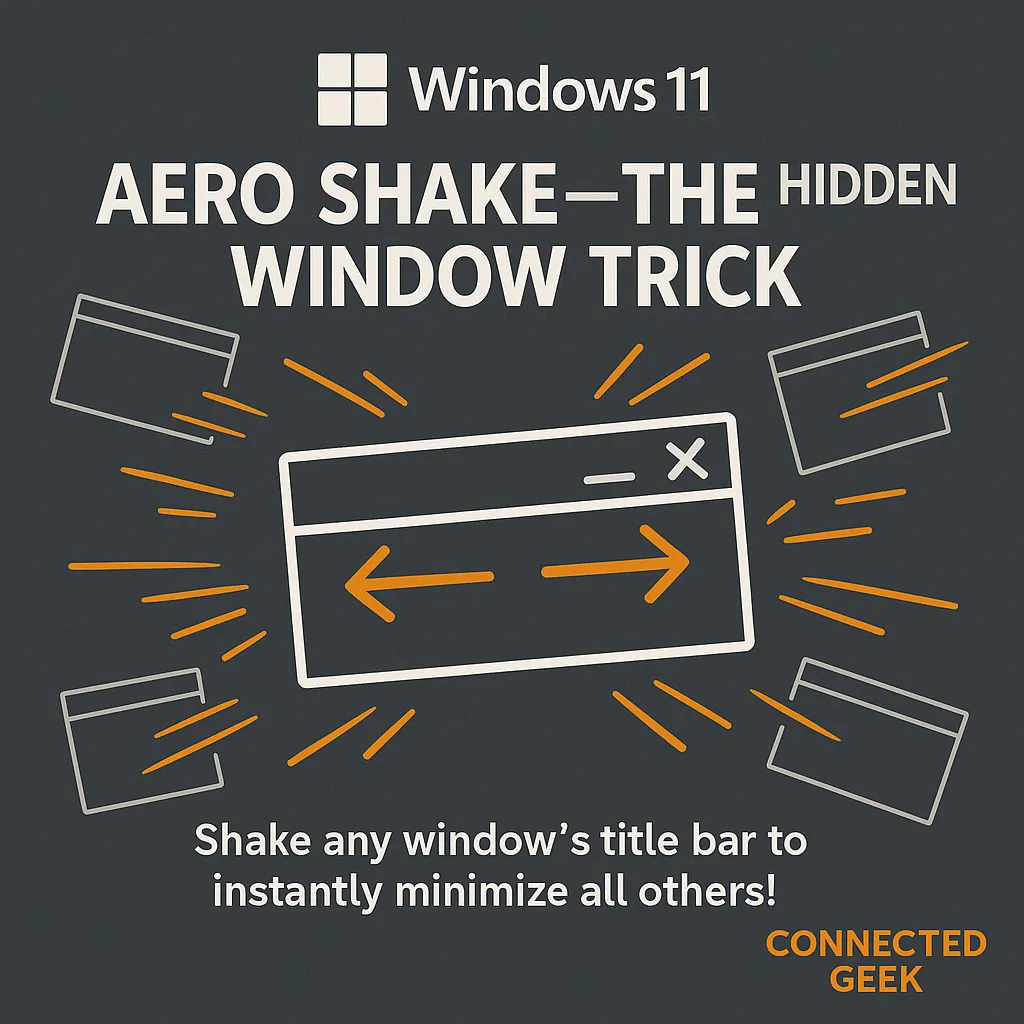
Aero Shake in Windows 11: Boost Productivity Effortlessly
Windows 11, Productivity Tips
Aero Shake in Windows 11: The Classic Window Trick That Still Works
If you often find yourself buried under a pile of open apps and browser tabs, Windows 11 has a simple, almost playful shortcut that can instantly clear the clutter: Aero Shake. It is a classic Windows trick that first appeared years ago, and the good news is that it still works beautifully in Windows 11. With a quick shake of your mouse, you can focus on just one window and hide everything else in the background.
What Aero Shake Does in Windows 11
Aero Shake is a small but surprisingly handy feature built into Windows 11. When you activate it, Windows minimizes all other open windows except the one you are currently using. The magic happens when you shake a window’s title bar. As soon as Windows detects that shake gesture, every other window gracefully minimizes to the taskbar, leaving just your chosen app front and center on the screen.
Think of it as a quick “clear the desk” move for your desktop. Instead of manually clicking the minimize button on each window, Aero Shake gives you a one-second shortcut that instantly reduces visual noise and helps you concentrate on the task at hand.
How to Use Aero Shake: Click, Hold, and Shake
Using Aero Shake in Windows 11 is refreshingly simple, and you do not need to change any settings to try it. Here is how to do it step by step:
- First, choose the window you want to keep visible, such as your main document, browser, or chat app.
- Move your mouse to the title bar at the very top of that window.
- Click and hold the left mouse button on the title bar.
- While holding the button, quickly shake the window left and right a few times with your mouse.
After a brief moment, you will see all the other open windows minimize to the taskbar, leaving only the window you shook visible. It feels a bit like flicking everything else off your screen with a wrist movement, which makes it both fun and practical to use.
How to Restore Your Minimized Windows
The best part is that Aero Shake is a toggle. When you are ready to bring everything back, you do not need to restore each window one by one. Instead, you simply repeat the same gesture on the active window: click and hold the title bar, then shake it left and right again. Windows 11 will restore all the previously minimized windows to their original positions, just like rewinding a quick animation.
This makes Aero Shake perfect for short bursts of focus. You can temporarily clear your view to answer a message, review a document, or check a single browser tab, then instantly bring your full workspace back with another shake when you are done.
Why Aero Shake Is Still Useful in Windows 11
Even though Windows 11 introduces modern tools like Snap layouts and virtual desktops, Aero Shake remains a surprisingly useful classic. It shines in those everyday moments when your screen is overflowing with chat windows, spreadsheets, and browsers, and you just want to focus on one thing without rearranging everything else.
Because it is based on a simple mouse gesture, Aero Shake feels natural once you have tried it a few times. There is no need to remember a keyboard shortcut or dig through menus. If you like keeping many apps open but still crave quick clarity, this tiny feature can make Windows 11 feel smoother and more under control. It is a small reminder that some of the best productivity tricks are the ones that have quietly stuck around from earlier versions of Windows.
