Windows Hello Sign-In Methods Compared: Face vs Fingerprint vs PIN vs Password
Windows 11, Security, Sign-in Options
Windows 11 Sign‑In Methods Compared: What’s Fastest and Safest for You?
Windows 11 gives you several ways to unlock your PC, but choosing the right mix can feel confusing. Face recognition, fingerprint, PIN, and the classic password all work differently in terms of speed, convenience, and security. This comparison walks through each option in practical terms, then recommends a simple, secure setup most people can adopt with confidence.
Face Recognition: Fastest Option, Ideal for Laptop Users
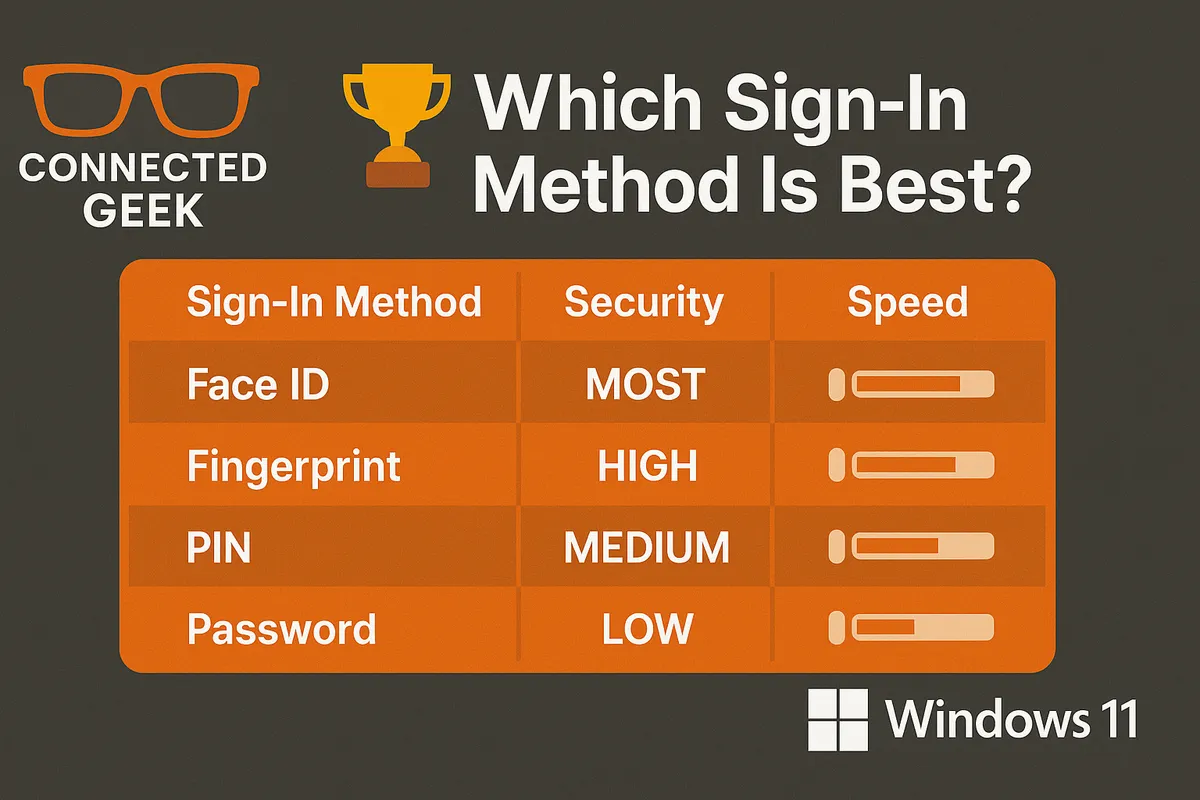
Windows Hello face recognition is the fastest way to sign in on Windows 11. In everyday use, it is effectively sub‑second: you open your laptop lid or wake the screen, glance at the camera, and you are already at your desktop. There is no typing and no touching a sensor, which makes it feel almost invisible as a step in your routine.
The key requirement is hardware. Face recognition needs an infrared (IR) camera, not just a basic webcam. Many modern laptops, especially business and premium models, now include this, but a lot of external monitors and budget devices do not. If your device does not list Windows Hello face support, you cannot add it purely with software; you would need a compatible external IR camera.
In terms of security, face recognition works locally on the device and uses depth and IR information, making it difficult to fool with a photo or video. Combined with its speed, this makes it especially good for laptop users who are constantly opening and closing the lid, moving between rooms, or working on the go. If your device supports it, face recognition is usually the best primary sign‑in method for everyday use.
Fingerprint: One‑Touch Convenience with Strong Security
Fingerprint sign‑in through Windows Hello is another very fast option. You simply place a finger on the sensor and Windows unlocks in a moment. It is not quite as instant as face recognition, but it is still dramatically quicker than typing anything, and it works even if you are wearing headphones, a mask, or sitting at an awkward angle to the screen.
Like face recognition, fingerprint sign‑in requires specific hardware: a fingerprint sensor built into the laptop, keyboard, or an external reader. Many modern business laptops include one, and some desktop keyboards now have integrated sensors. If your device has a sensor, setting it up in Windows 11 is simple and typically takes less than a minute per finger.
Security is strong because your fingerprint data is stored and matched locally by the device’s secure hardware, not uploaded to the cloud. For people using a desktop PC without an IR camera, fingerprint is often the most convenient primary sign‑in method, giving you quick, reliable access with a single touch.
PIN: Fast, Flexible, and Safer Than a Traditional Password
A Windows Hello PIN is often misunderstood as “just a shorter password,” but it behaves differently. A PIN is fast to type, works on any device that runs Windows 11, and is locked to that specific device. If someone somehow learns your PIN, they cannot use it to sign into your Microsoft account on another computer, which makes it inherently more secure than a traditional, account‑wide password.
Another plus is flexibility. You can create a PIN that is longer than four digits, include letters and symbols, and still keep it easier to type than a complex password. Because it is checked locally, sign‑in is quick even on slower connections, and it does not depend on biometric hardware. This makes a PIN an excellent backup sign‑in method when your camera or fingerprint sensor is unavailable or fails to recognize you, such as in low light or with a bandaged finger.
Password: Slowest and Least Secure, Best Kept for Emergencies
The classic account password is now the weakest link in the Windows 11 sign‑in lineup. It is usually the slowest method, because you have to type a long, complex string every time, and it is also the lowest security option in practice. Passwords can be reused, guessed, or stolen in data breaches, and they are phishable: attackers can trick you into entering them on fake websites or through convincing emails.
For these reasons, it is best to treat your password as a backup only for Windows sign‑in. You still need a strong one for your Microsoft account, but you should not rely on it for daily unlocking of your PC. Instead, think of it as the key you use rarely, mostly for account recovery or when setting up a new device, while faster and safer methods handle your everyday sign‑ins.
Recommended Combination for Most Windows 11 Users
Putting these options together, a balanced setup is straightforward. Use face recognition or fingerprint as your primary sign‑in method, depending on your hardware. On a laptop with an IR camera, face recognition gives you the fastest, most seamless experience. On a desktop or laptop with a fingerprint sensor but no IR camera, one‑touch fingerprint sign‑in is an excellent alternative that still feels nearly instant.
Next, configure a strong PIN as your backup. Make it longer than the bare minimum, ideally using more digits or even letters if you are comfortable, and use it whenever biometrics are unavailable. This keeps your account protected while avoiding the need to type your main password regularly. Reserve your password for account recovery only, such as when adding a new device, changing critical settings, or regaining access after losing your usual sign‑in methods.
Don’t Forget Passkeys for Websites and Apps
Finally, extend the same thinking to your online accounts. Many websites and apps now support Passkeys, which let you sign in using your device’s biometrics or PIN instead of a traditional password. On Windows 11, that often means using the same face recognition, fingerprint, or PIN you already rely on to unlock your PC. Because Passkeys cannot be phished or reused on other sites, they significantly reduce your risk of account compromise.
In short, let biometrics handle the quick, everyday unlocks, rely on a strong device‑bound PIN as your safety net, keep your password in reserve for recovery, and adopt Passkeys wherever possible for websites. This combination gives you a sign‑in experience on Windows 11 that is both smoother and more secure, without adding extra hassle to your daily routine.
